Running a report
What it is. Opening a saved report to see today's answer.
Why it helps. A report is never out of date. It reads the data at the moment you open it, so there is no old copy to worry about.
Running one
Where: Reports → a folder → the report's name
- Click Reports in the top menu.
- Click the folder the report is in, on the left.
- Click the report's name.
- It runs. Large reports take a few seconds.
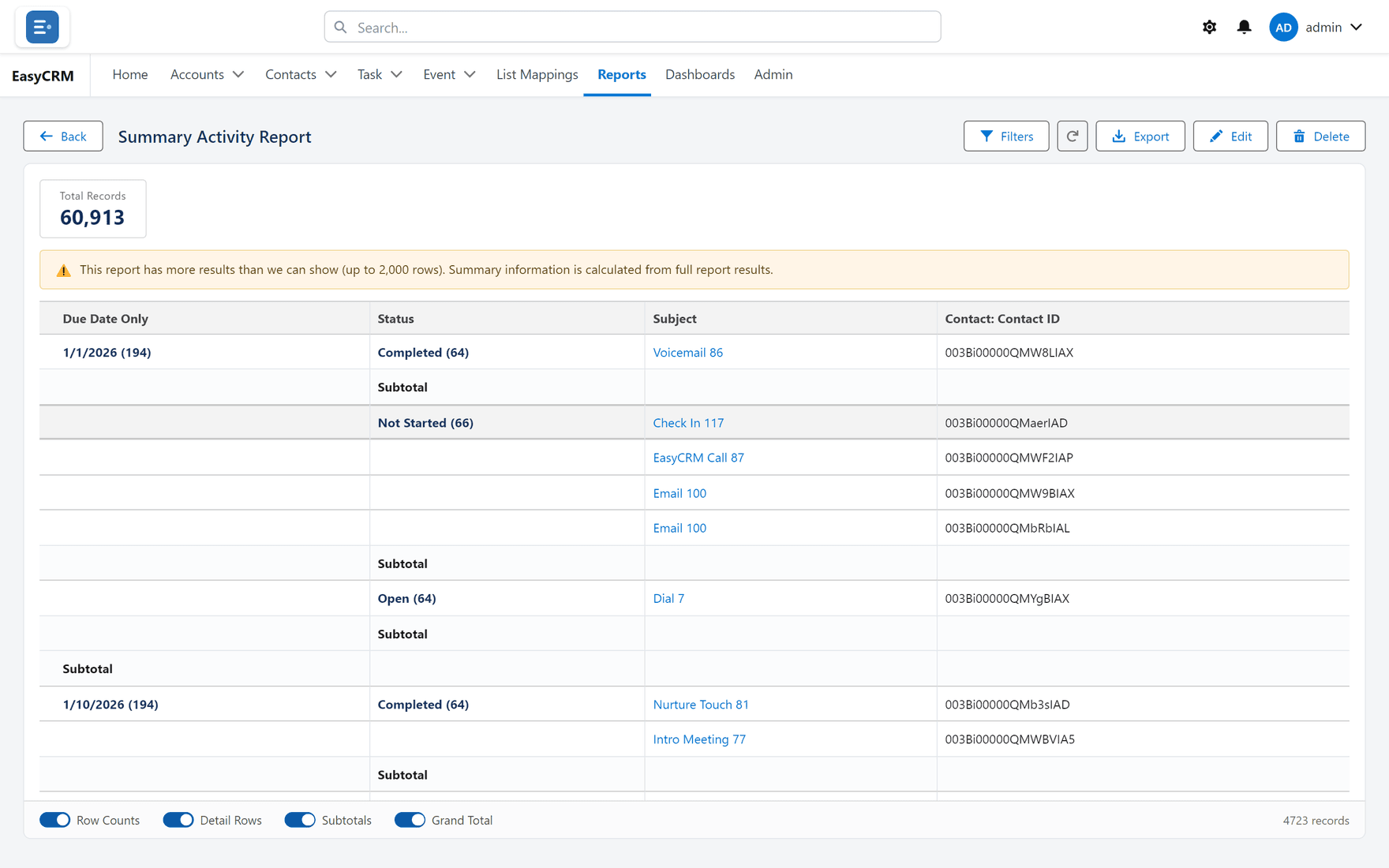
What you are looking at
- Total Records at the top — how many rows the report found.
- The table itself. If the report is grouped, each group has a heading and a subtotal.
- A chart above the table, if the report has one.
- Blue text is clickable. Click a record's name to open it.
Changing what it shows, just for now
Where: an open report → Filters
-
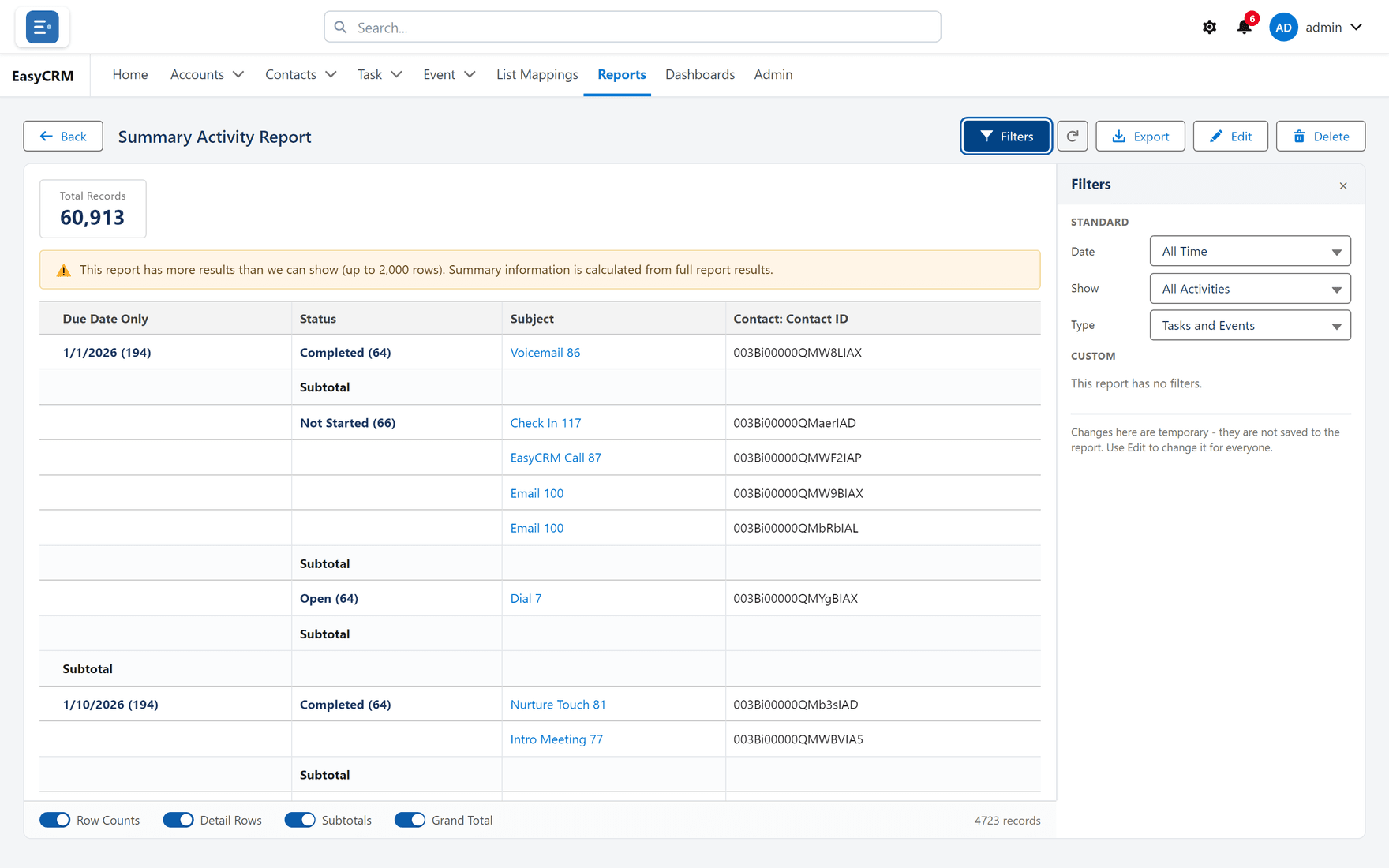
With the report open, click Filters.
-
The panel opens showing the report's filters.
-
Change a value.
-
The report re-runs with your change.
This does not change the saved report. It only changes what you are looking at, and only until you leave the page. Everybody else still sees the report as it was saved.
Some filters are locked by whoever built the report, and you cannot change or remove those. That is how a report meant for one company stays limited to it.
To change the report permanently, click Edit — see The report builder.
Getting the very latest numbers
Click Refresh. Reports remember their last result briefly so they open quickly, so use Refresh when something has just changed and you need to see it.
Taking it away with you
Click Export to download it as a spreadsheet — see Exporting a report.