Starting a new report
What it is. The first question a new report asks: what is this report about?
What it does. The report type decides which records the report can include and which fields you can use.
Why it matters. The report type is fixed once the report exists. Choosing the wrong one means starting again, so it is worth a moment's thought.
Starting one
Where: Reports → New Report
-
Click Reports in the top menu.
-
Click New Report at the top right.
-
The report type chooser opens.
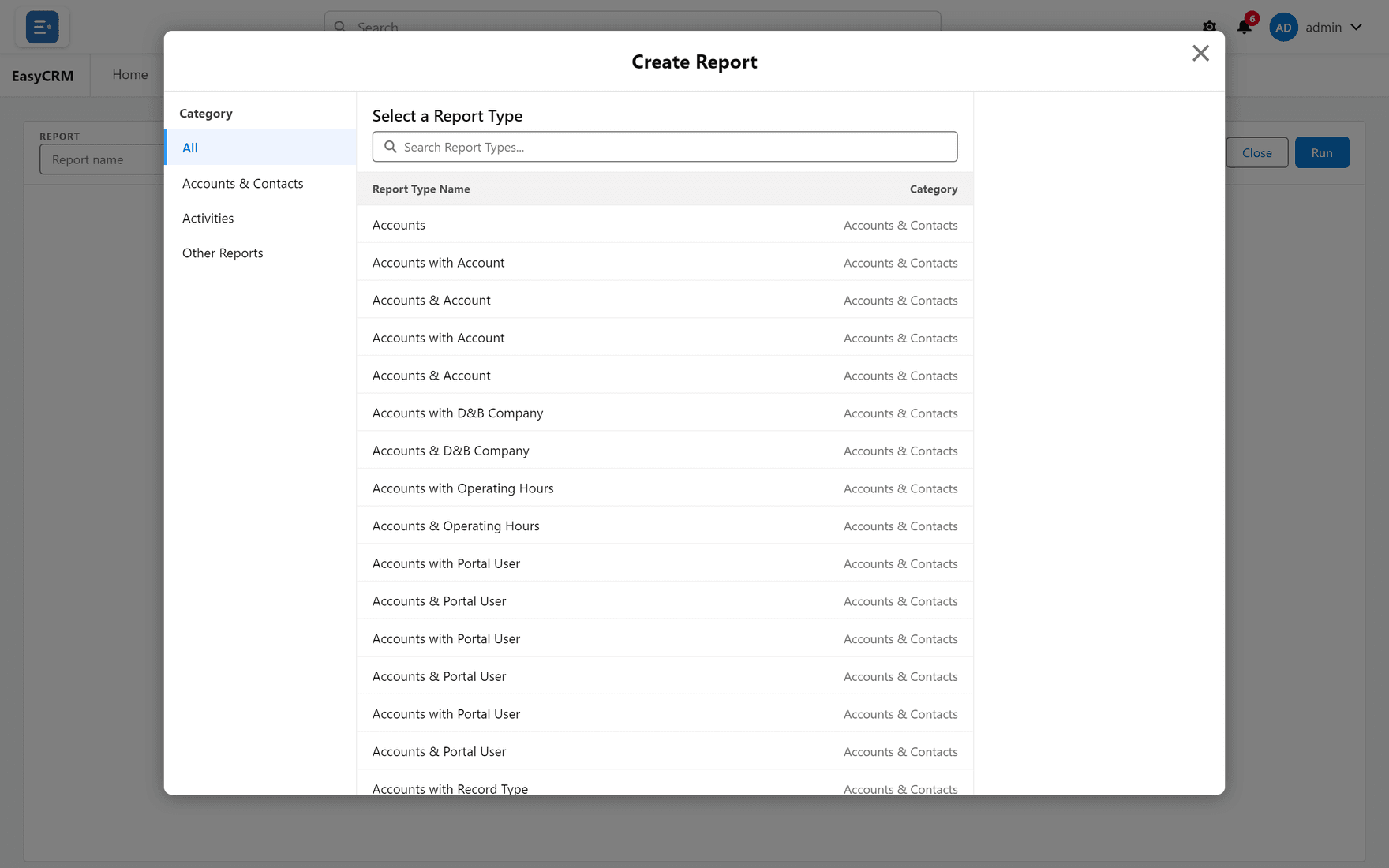
-
Type into Search Report Types... to narrow the list.
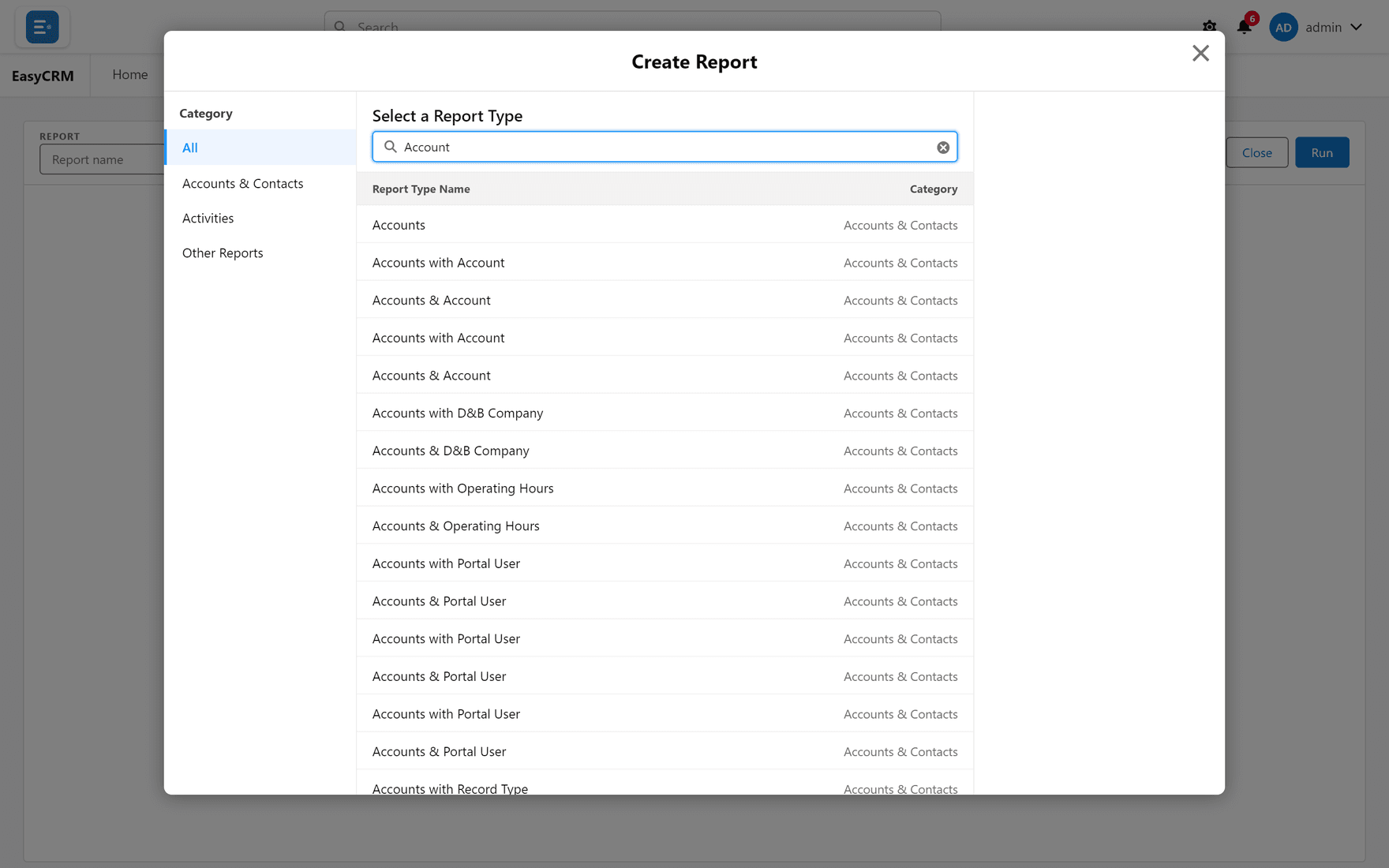
-
Click the type you want.
-
The builder opens, empty and ready.
See The report builder for what to do next.
Choosing the right type
The type is named after the records it covers.
| Type | Gives you |
|---|---|
| Accounts | Accounts, and account fields only. |
| Contacts | Contacts, and contact fields only. |
| Accounts with Contacts | Both, one row per contact. |
If you need fields from two kinds of record in the same report, you must pick a type that pairs them. You cannot add the second one later.
"with" versus "with or without"
Some types come in two versions, and the difference matters.
| Type | What it includes |
|---|---|
| Accounts with Contacts | Only accounts that have at least one contact. |
| Accounts with or without Contacts | Every account, whether or not it has contacts. |
Pick with or without when you want to find the gaps — accounts nobody has a contact for, for example. Pick with when a record is only interesting if it has the other thing.
Choosing with by accident is the usual reason a report shows fewer records than expected.
Changing the type afterwards
Open the report in the builder and look for Change Report Type.
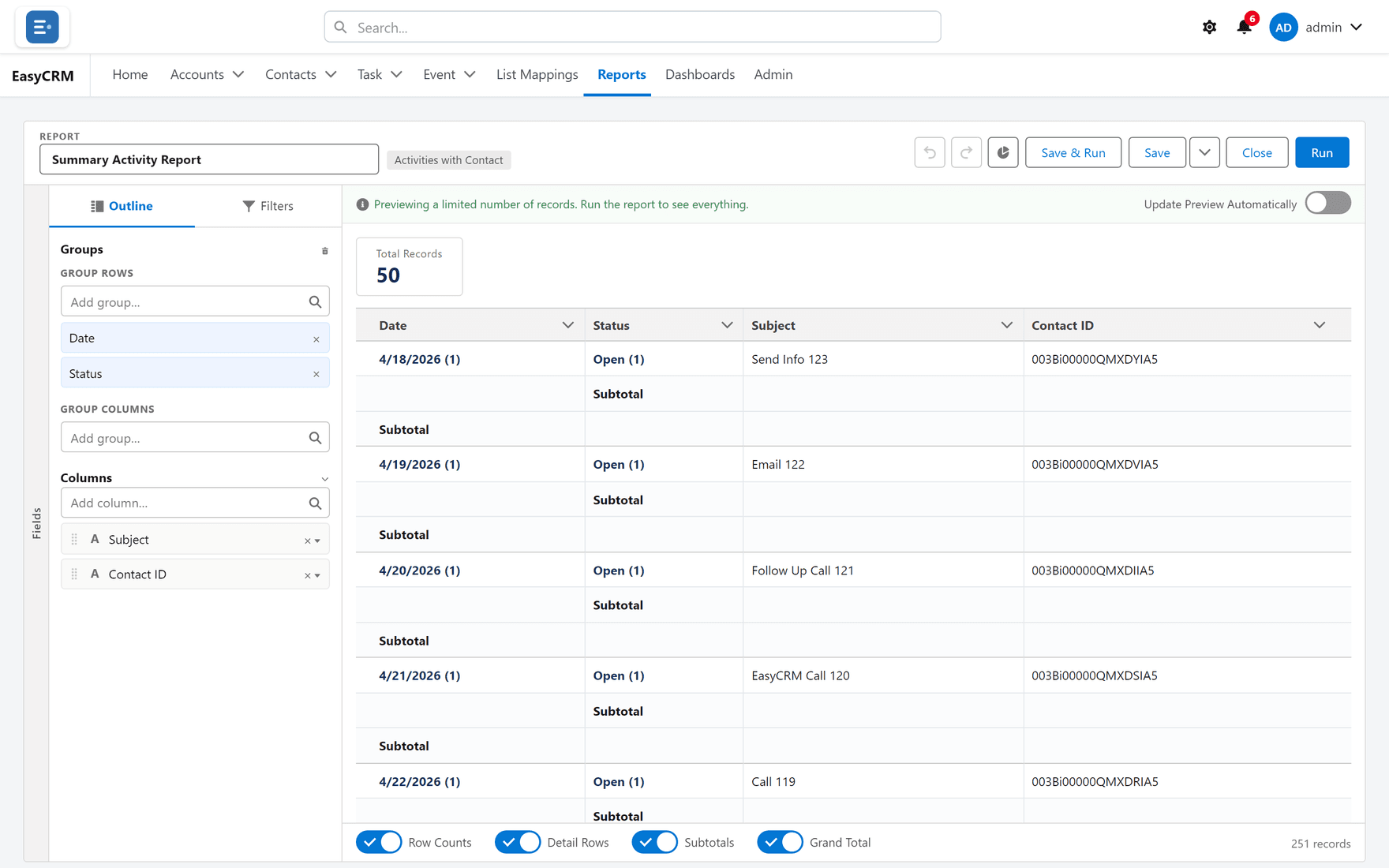
Changing it can drop columns and filters that the new type does not have, so the builder warns you first.