Exporting a report
What it is. Downloading a report as a spreadsheet file.
What it does. It writes the report to a file you can open in Excel or Google Sheets.
Why it helps. For sending to somebody without a portal login, or for working on the numbers somewhere else.
Exporting
Where: Reports → a folder → the report's name → Export
-
Click Reports in the top menu.
-
Click the folder, then the report's name. It runs.
-
Click Export at the top.
-
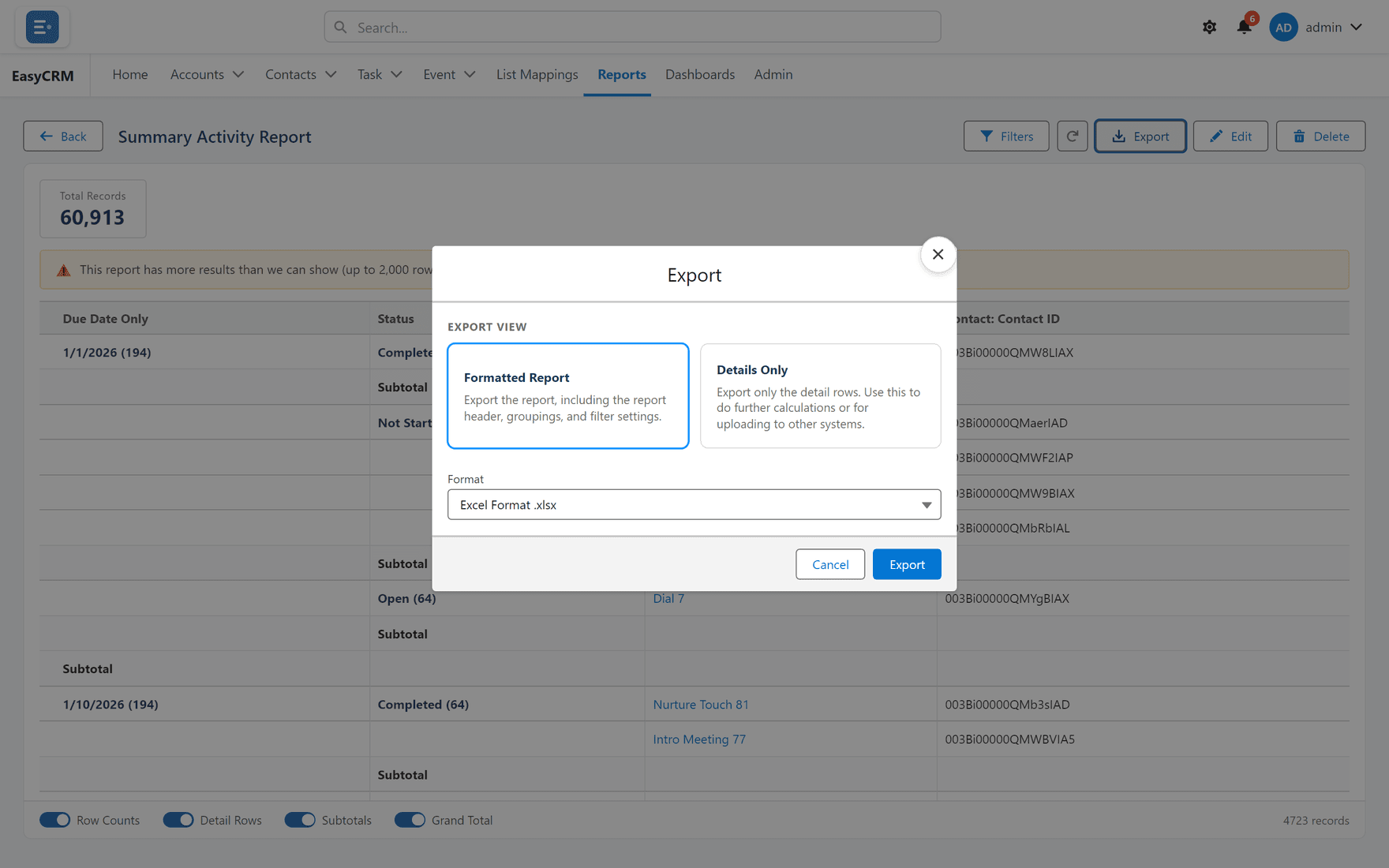
Choose which kind of export you want.
-
Click Export.
The file downloads through your browser, like any other download.
The two kinds
| Kind | What you get | Use it when |
|---|---|---|
| Formatted Report | What you see — groups, subtotals and headings kept. | It is the finished thing. |
| Details Only | Just rows and columns, no grouping. | It is a starting point for more work. |
Details Only is nearly always the right choice if the spreadsheet is going to be sorted, filtered or pivoted. Group headings get in the way of all three.
What gets exported
Whatever the report currently shows, including any filters you changed while reading it.
If you narrowed the report before exporting, the file is narrowed too. That is usually what people want, but it surprises them if they have forgotten.
A word about what leaves the portal
An exported file is an ordinary spreadsheet. Nothing in it is protected any more — no sharing rules, no permissions. Anybody who gets the file sees everything in it.
Think about that before exporting anything with personal data, and prefer sharing the report itself where you can — see Sharing a report.