Charts on a report
What it is. A picture of the report, shown above the table.
What it does. It draws whatever the report has grouped, measured by whatever the report totals.
Why it helps. A trend or an outlier is obvious in a chart and invisible in four hundred rows.
A report must be grouped first
A chart plots groups. If the report has none, there is nothing to draw and the chart options do nothing.
Add a row group first — see Grouping and totals.
Adding a chart
Where: Reports → a folder → the report's name → Edit → Chart properties
-
Click Reports in the top menu.
-
Click the folder, then the report's name, then Edit.
-
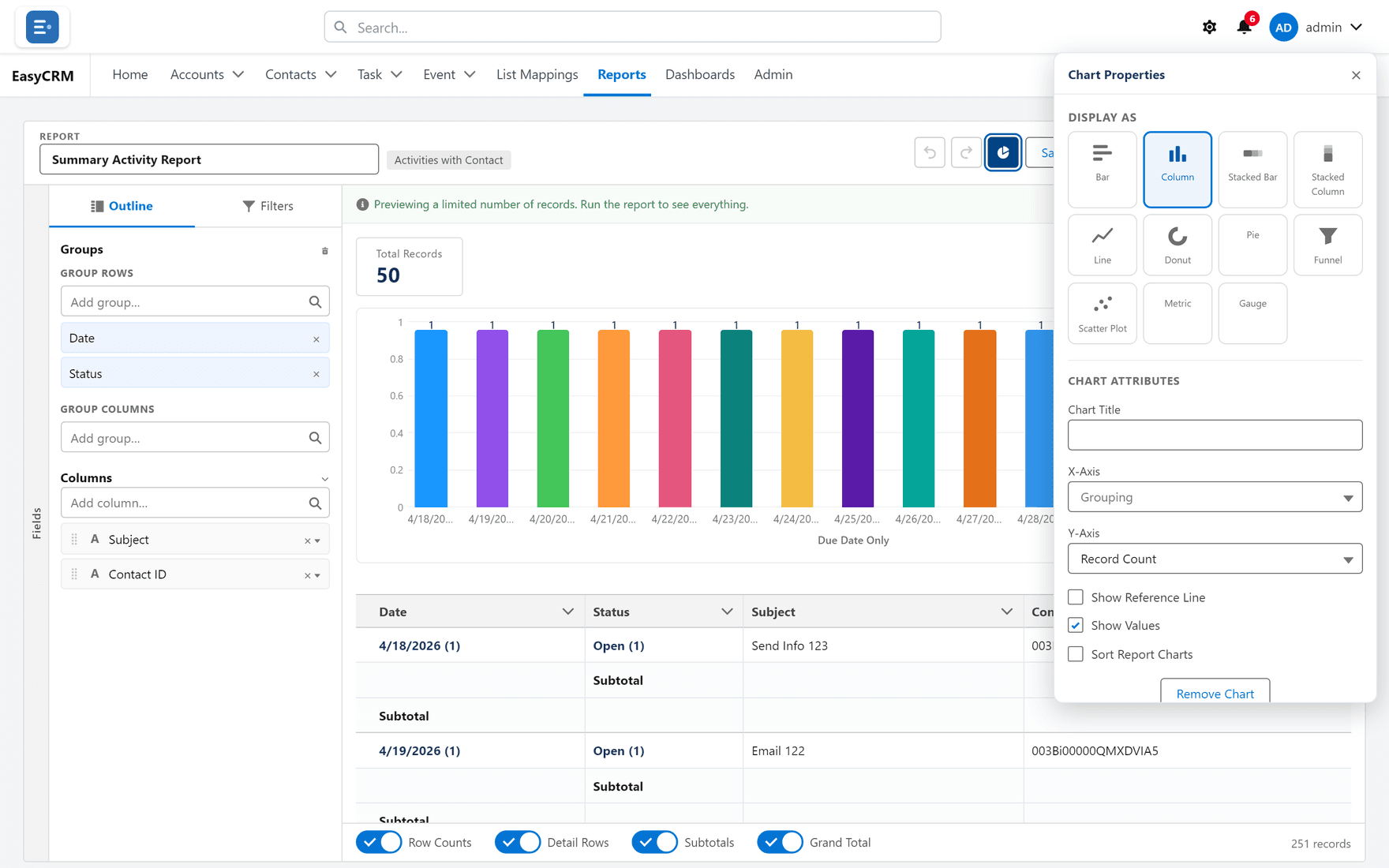
Click Chart properties at the top.
-
Choose the chart type.
-
Choose what it measures — which total to plot.
-
Click Apply.
-
Click Save.
Choosing a type
| Type | Best for | Avoid when |
|---|---|---|
| Bar / Column | Comparing groups | — |
| Line | A value changing over time | The groups are not in time order |
| Pie / Donut | Parts of one whole | There are more than about six slices |
| Gauge | Progress towards a target | There is no target |
A pie chart with twenty slices tells nobody anything. Use a bar chart.
Sliced by
If a report has more than one grouping, you can choose which one the chart draws.
That means the same report answers two questions: by owner, or by month, without being rebuilt.
Charts on dashboards
A dashboard tile draws its own chart from the report's data, and does not have to match the chart on the report. See The dashboard builder.