The report builder
What it is. The screen where you decide what a report shows.
What it does. You choose which records to include, which columns to show, how to group them and what to total. A preview updates as you go, so you see the answer before you save.
Why it helps. Nobody has to export to a spreadsheet and rebuild the same summary every week.
Opening the builder
There are two ways in.
For a new report — Reports → New Report → pick a type. See Starting a new report.
For an existing report — Reports → a folder → the report's name → Edit.
- Click Reports in the top menu.
- Click the folder, then the report's name. It runs.
- Click Edit at the top.
The builder opens.
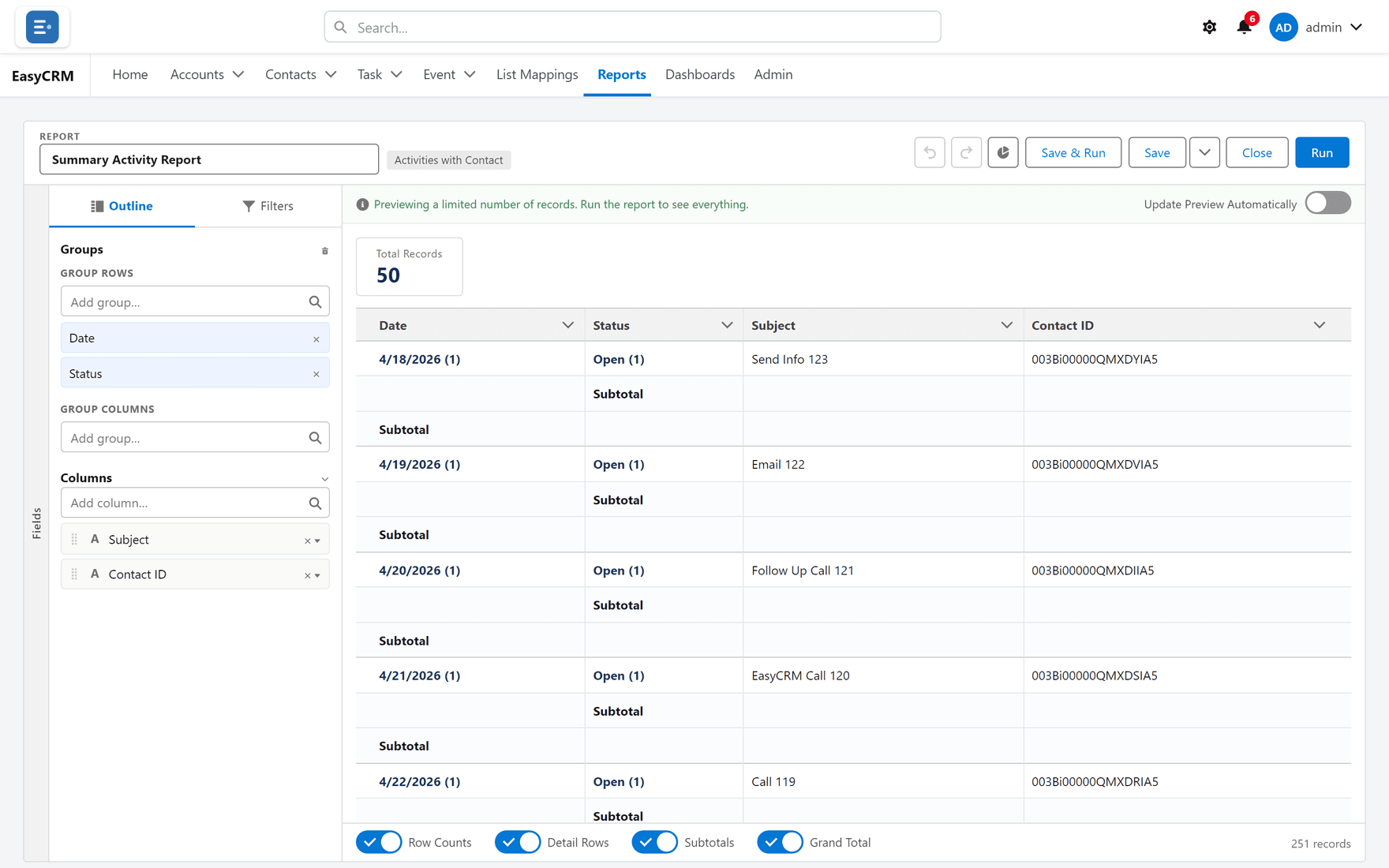
What you are looking at
| Part | Where | What it is for |
|---|---|---|
| Outline | Tab, top left | Your columns and groups. This is where you shape the report. |
| Filters | Tab, top left | Which records are included. |
| The preview | The large area on the right | What the report will look like. |
| Report name | Top | What it will be called. |
| Undo / Redo | Top | Step back or forward. |
| Run | Top right | See the full result rather than a preview. |
| Save | Top right | Keep it. |
| Close | Top right | Leave. You are warned if you have unsaved changes. |
Nothing is saved until you click Save, so you can experiment freely.
Adding a column
Where: the builder → Outline → Add column…
-
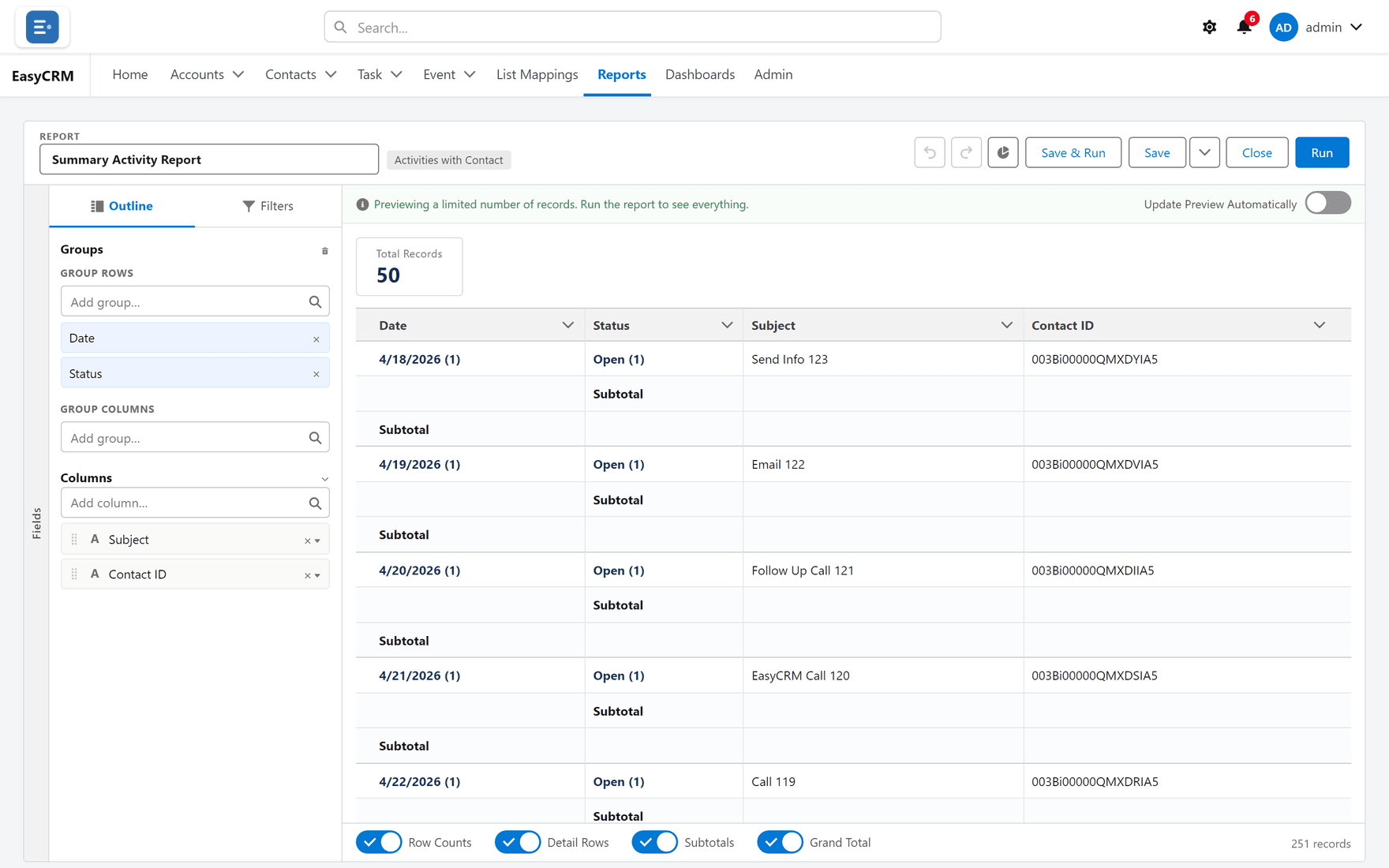
Click the Outline tab if you are not already on it.
-
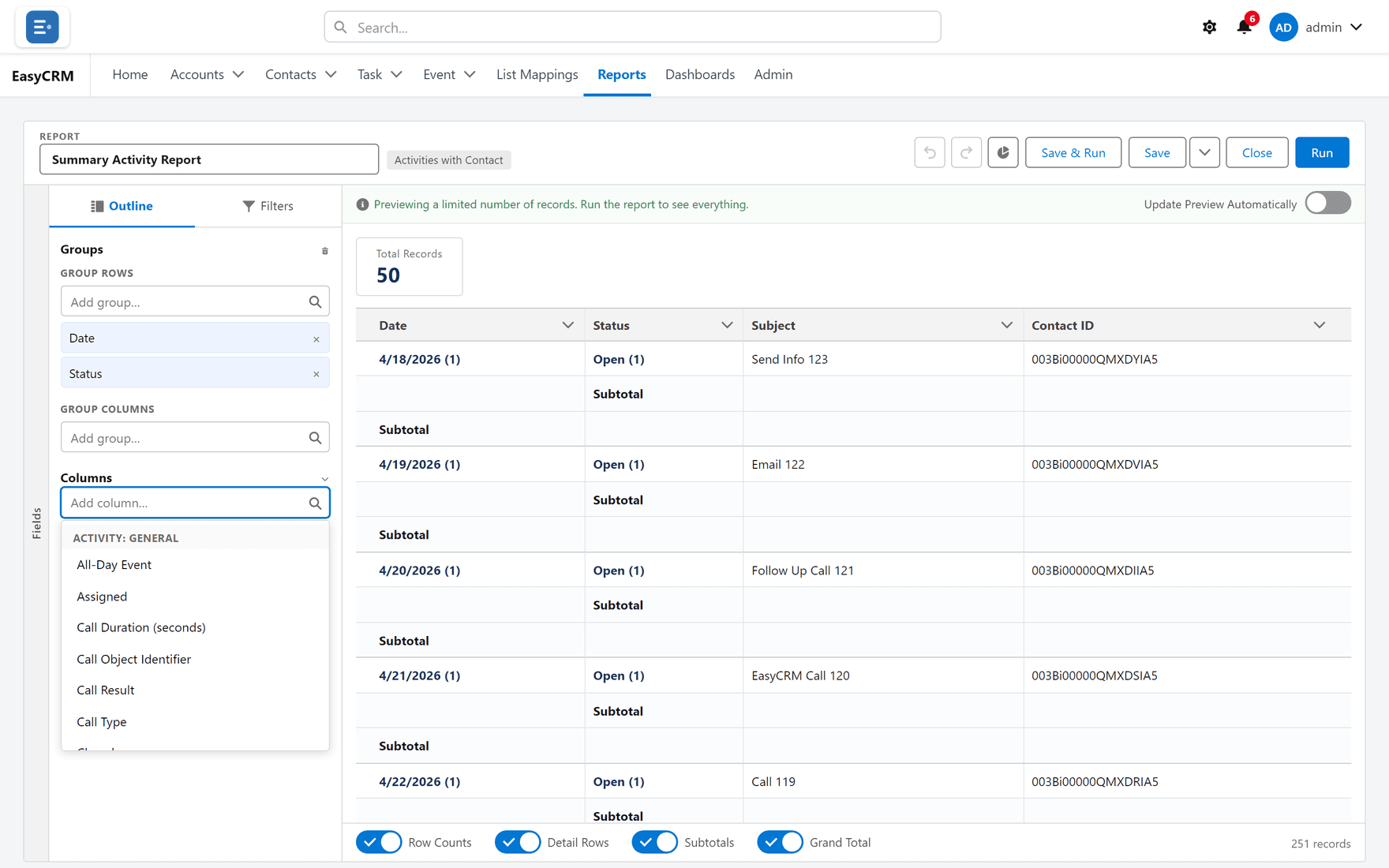
Click the Add column… box.
-
A list of available fields appears. Type to narrow it.
-
Click the field you want.
It appears in the preview straight away.
Reordering and removing columns
- To reorder: drag a column in the Outline list into a new position.
- To remove one: click Column actions on its heading, then Remove column.
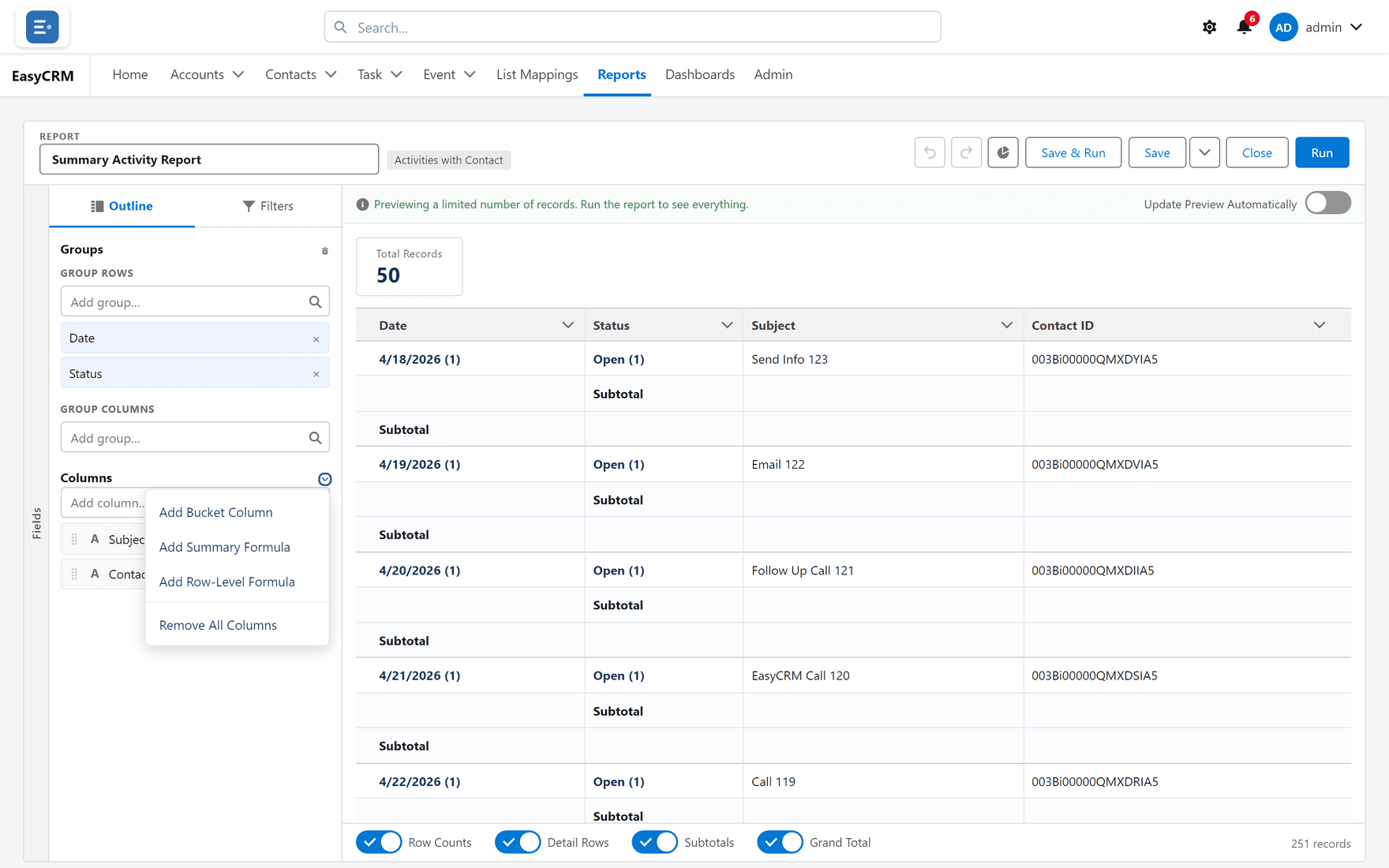
Column actions is also where you total a column — see Grouping and totals.
Saving your work
| Button | What it does |
|---|---|
| Save | Keeps your changes to this report. |
| Save & Run | Saves, then shows the full result. |
| Save options → Save As | Makes a copy under a new name and leaves the original alone. |
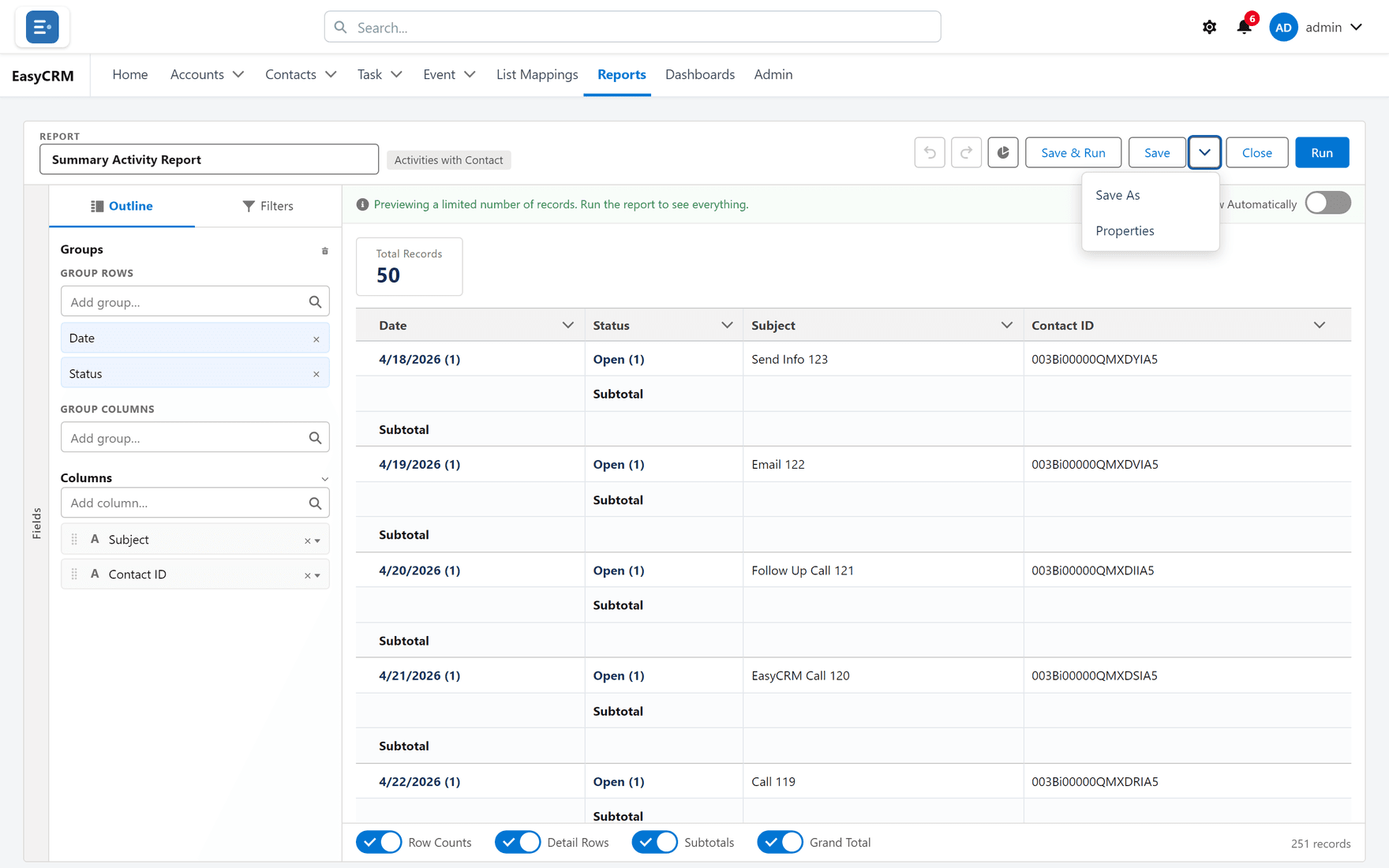
The first time you save, you are asked for a name and a folder.
Save As is the safe way to experiment with somebody else's report: take a copy, change the copy, leave theirs alone.
Leaving without saving
Click Close. If you have unsaved changes you are warned first, so you cannot lose work by accident.