Looking at a list
What it is. A table showing many records of one kind — all your accounts, for example.
What it does. It shows them in rows, and lets you narrow, sort and search them.
Why it helps. It is the fastest way to find a record, and the starting point for most work in the portal.
Opening a list
Where: the tab for the records you want — for example Accounts
- Look at the row of tabs across the top of the screen.
- Click the tab for the kind of record you want: Accounts, Contacts, Task or Event.
- The list opens.
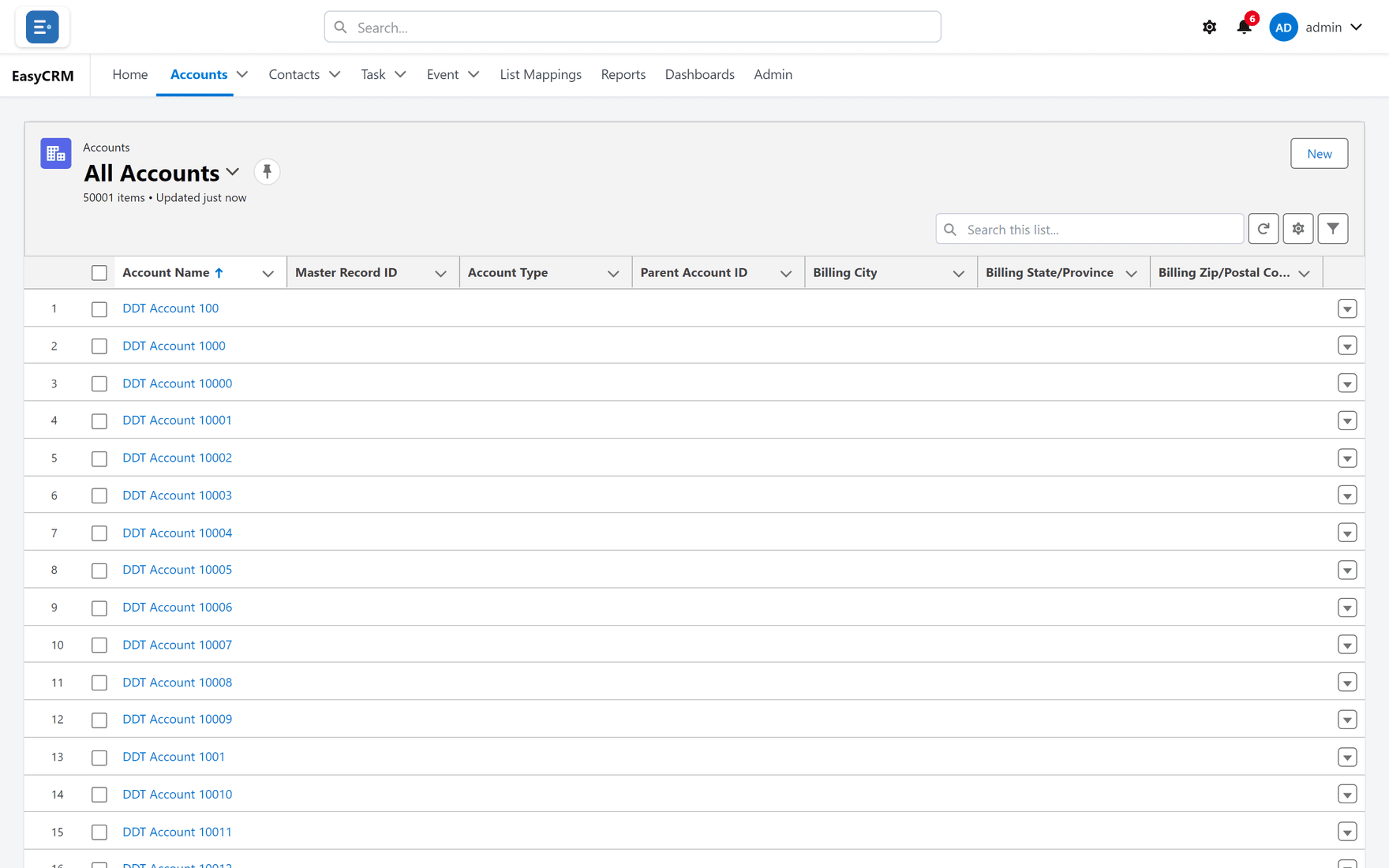
What you are looking at
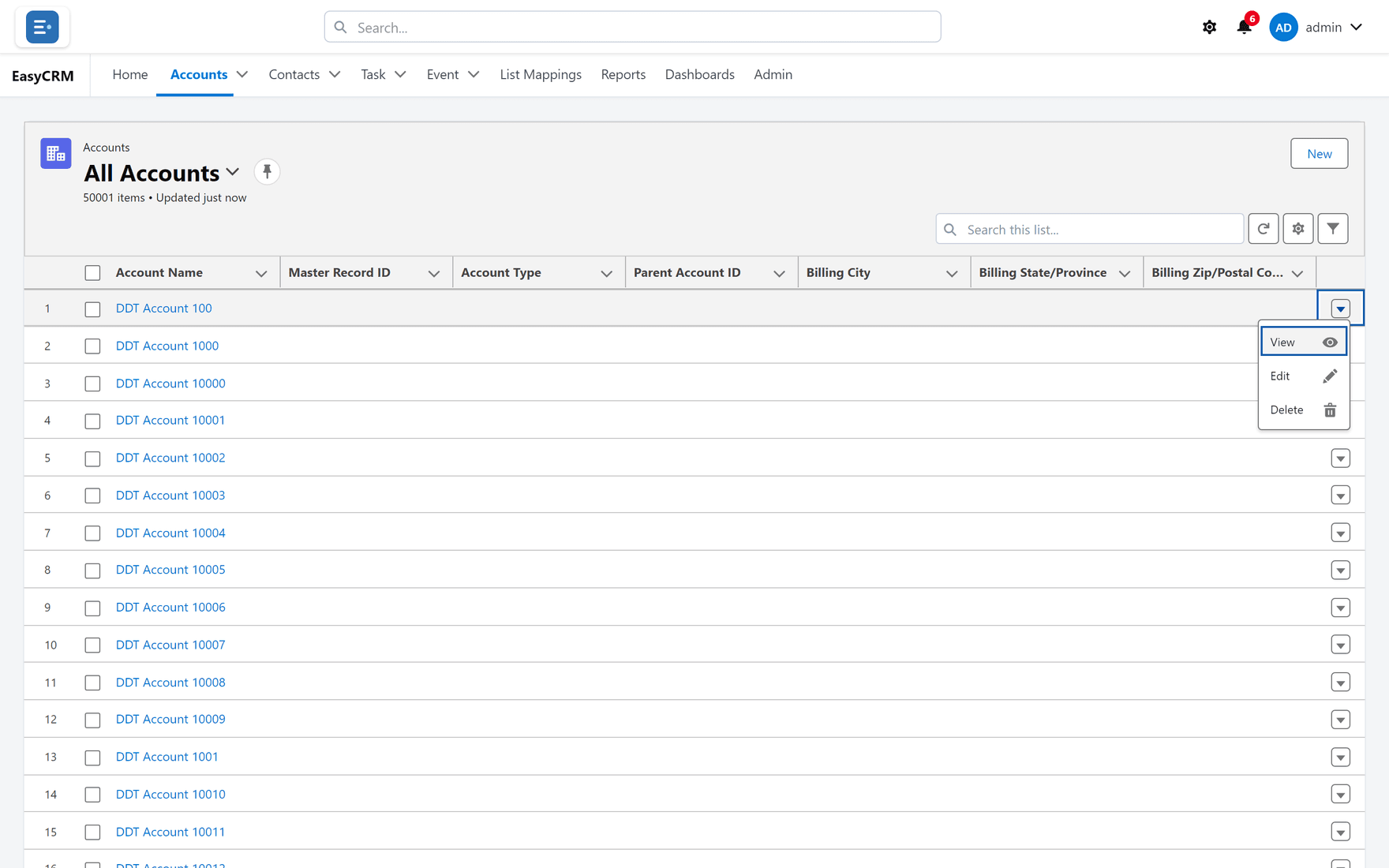
Reading the screen from the top:
- The kind of record in small grey text, for example "Accounts".
- The name of the list in large text, for example "All Accounts". This is which set of records you are looking at — see below.
- How many records are in it, and when it was last updated.
- New on the right, to add a record.
- Search this list..., and three small buttons for refresh, columns and filters.
- The table itself. The first column is the record's name, in blue. Blue means clickable.
Switching to a different list
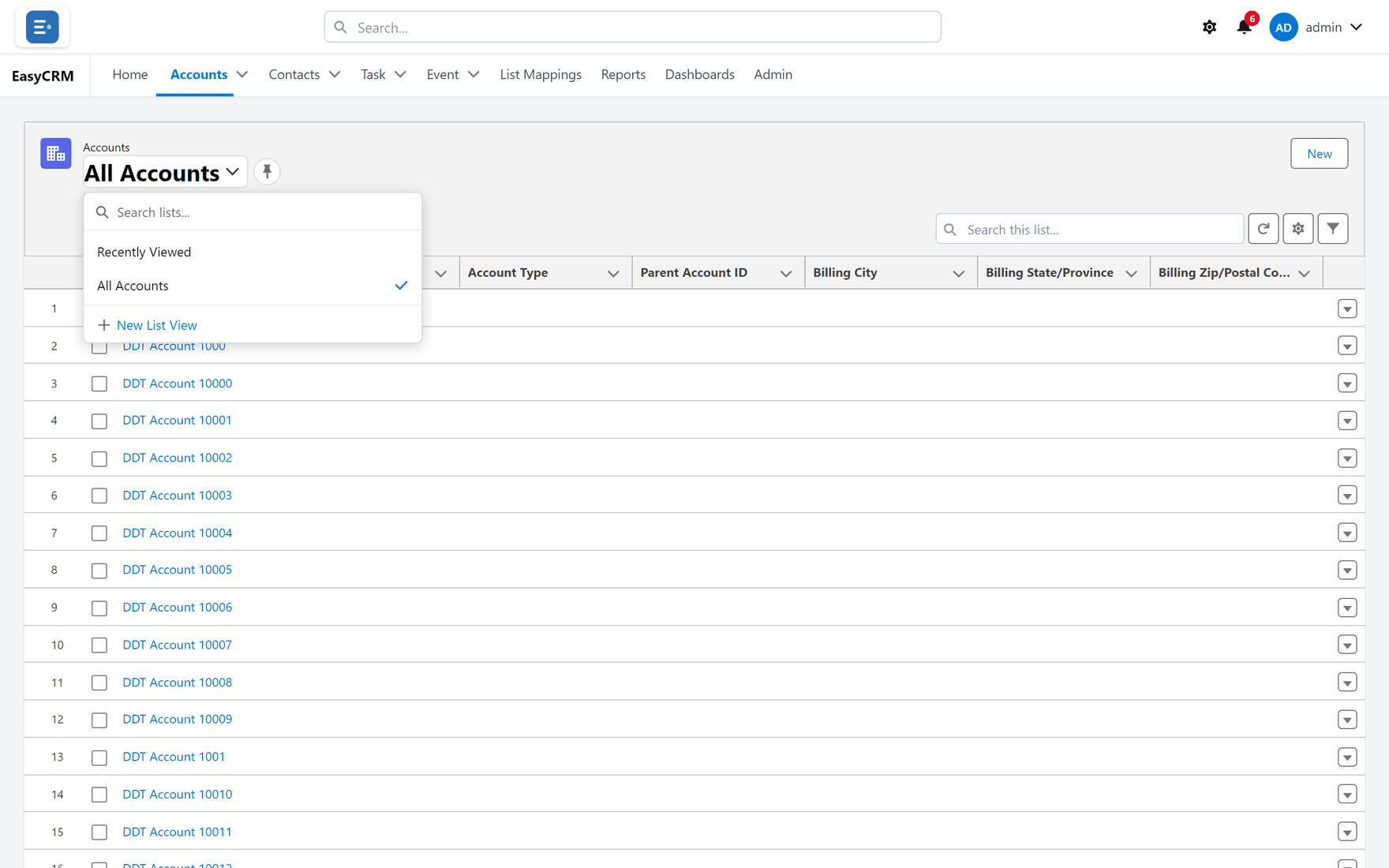
A tab can hold several lists. Recently Viewed is only what you opened lately, so on a new account it is often empty — that is normal, not a fault.
Where: a tab → the list name at the top → choose a list
-
Click the list name at the top (for example Recently Viewed).
-
A menu opens showing every list you can use.
-
Click the one you want. All Accounts shows every account you are allowed to see.
To make a list open by default, click the pin symbol next to its name. Next time you open this tab, it starts there.
Searching inside a list
Where: a tab → Search this list...
- Click the Search this list... box above the table on the right.
- Type part of a name.
- The table narrows as you type.
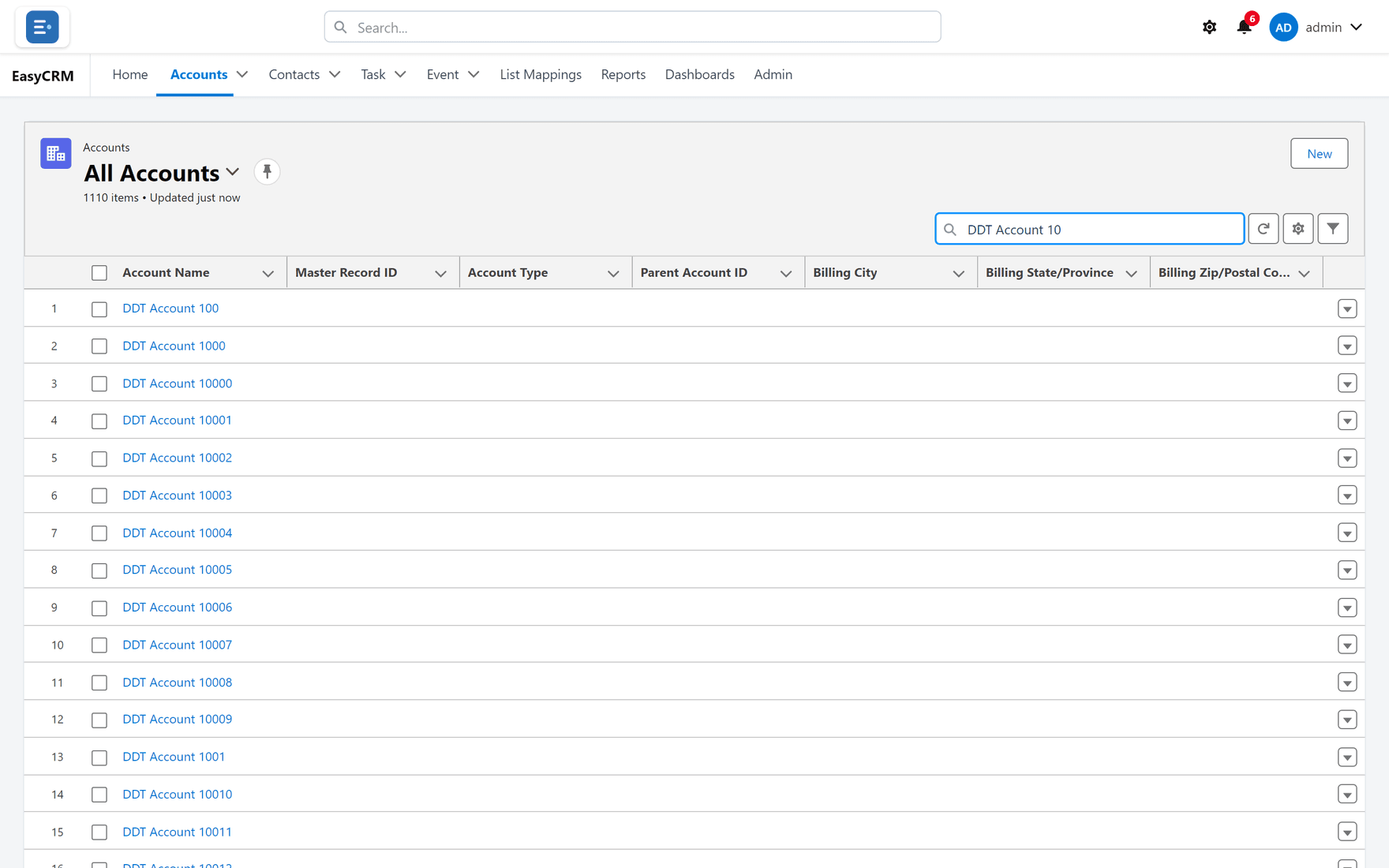
This searches only the list you are on. To search everything, use Search... in the top bar instead.
Sorting
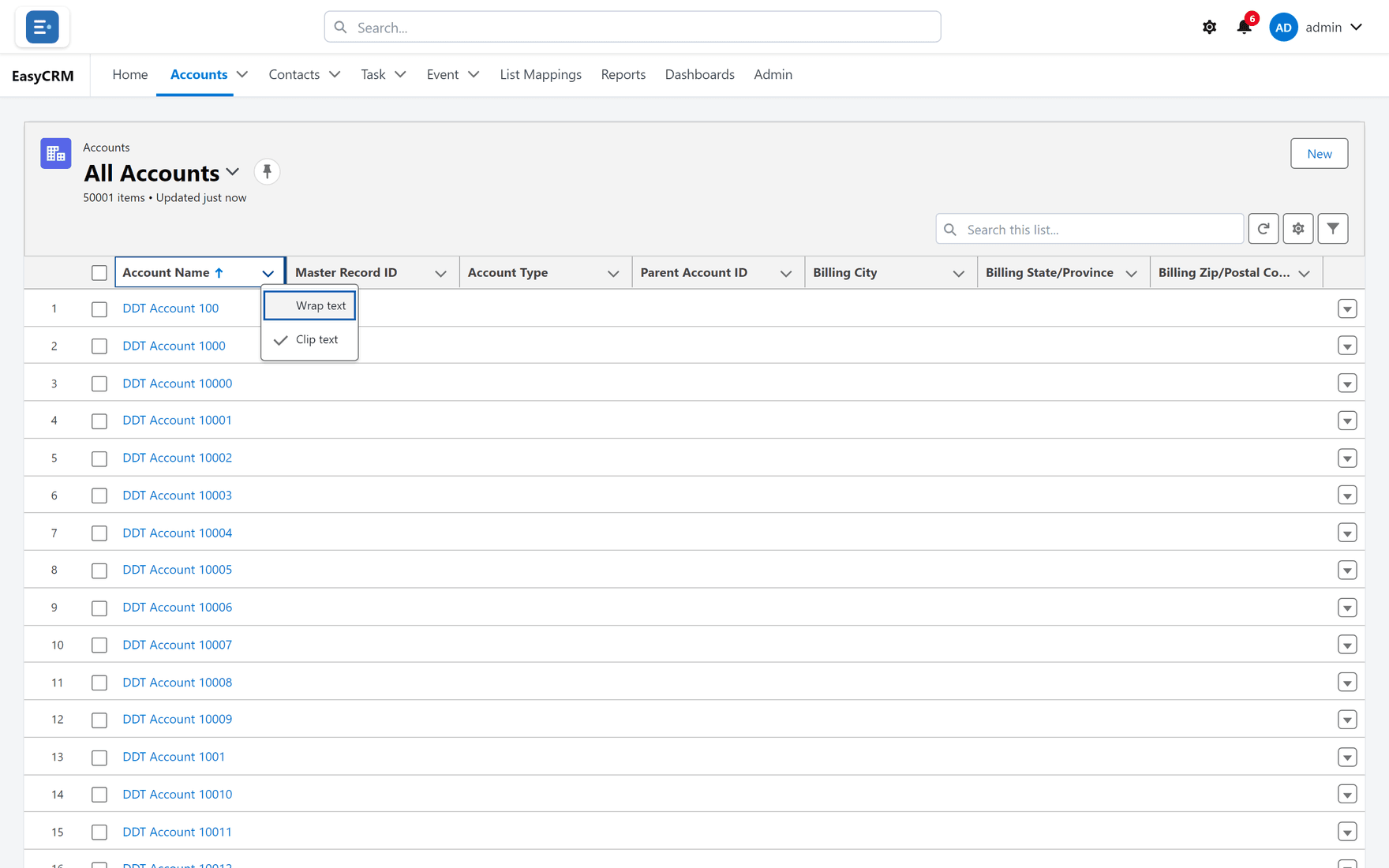
- Click a column heading — for example Account Name.
- The list sorts by that column. A small arrow appears showing the direction.
- Click the same heading again to reverse it.
Each column heading also has a small arrow on its right, which opens a menu with the same sorting options.
Doing something to one row
Where: a tab → the arrow at the end of a row
- Find the row you want.
- Click the small arrow at the far right of that row.
- A short menu opens with the things you can do to just that record.
Opening a record from the list
Click the record's name — the blue text in the first column. See Opening a record.