Filtering a list
What it is. Rules that hide the records you are not interested in.
What it does. Only records matching your rules stay on screen. Nothing is deleted — the rest are just hidden from this view.
Why it helps. A list of fifty thousand records answers nothing. A filtered list of twelve answers a question.
Adding a filter
Where: Accounts → the filter button (top right of the list) → Add Filter
-
Click the tab for the records you want — Accounts, for example.
-
Look at the three small buttons above the table on the right. The last one, shaped like a funnel, is the filter button. Click it.
-
A panel opens on the right.
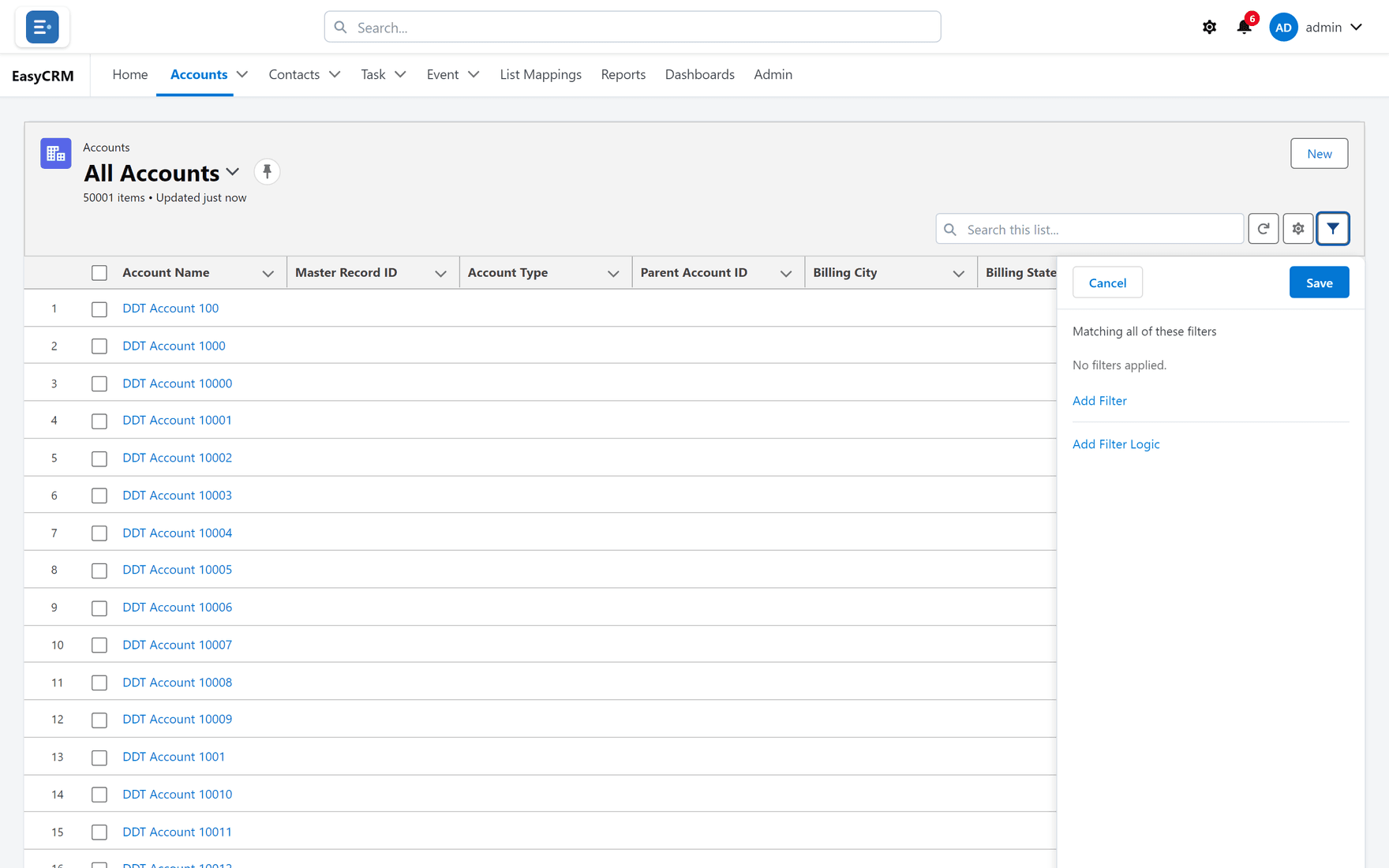
-
Click Add Filter.
-
Choose three things:
- Field — what to look at, such as Billing City.
- Operator — how to compare it, such as "equals" or "contains".
- Value — what to compare it to, such as London.
-
Click Save.
The list now shows only matching records, and the count at the top changes.
Using more than one filter
Add as many as you need, the same way.
By default a record must match every filter. Two filters means both must be true.
Changing that with filter logic
Where: the filters panel → Add Filter Logic
Each filter has a number — 1, 2, 3 — in the order you added them. Filter logic lets you combine them differently.
- Click Add Filter Logic at the bottom of the panel.
- Type a rule using the numbers:
| Rule | Means |
|---|---|
| 1 AND 2 | Both must be true. This is the default. |
| 1 OR 2 | Either will do. |
| 1 AND (2 OR 3) | Filter 1, plus either 2 or 3. |
| 1 AND NOT 2 | Filter 1, but not filter 2. |
- Click Save.
Brackets work the way you would expect from arithmetic.
Removing a filter
- Open the filters panel.
- Click the small cross beside the filter.
- Click Save.
To clear everything at once, remove each filter, or switch to a different list.