Changing a record
What it is. Changing the information stored on a record.
What it does. Your change is saved straight away, and everybody who can see the record sees the new value.
Why it matters. There is no draft and no approval step. When you click Save, it is live for everybody.
Changing a record
Where: Accounts → the record's name → Edit
-
Click the tab for the kind of record — Accounts, for example.
-
Click the record's name to open it.
-
Click the blue Edit button at the top right.
-
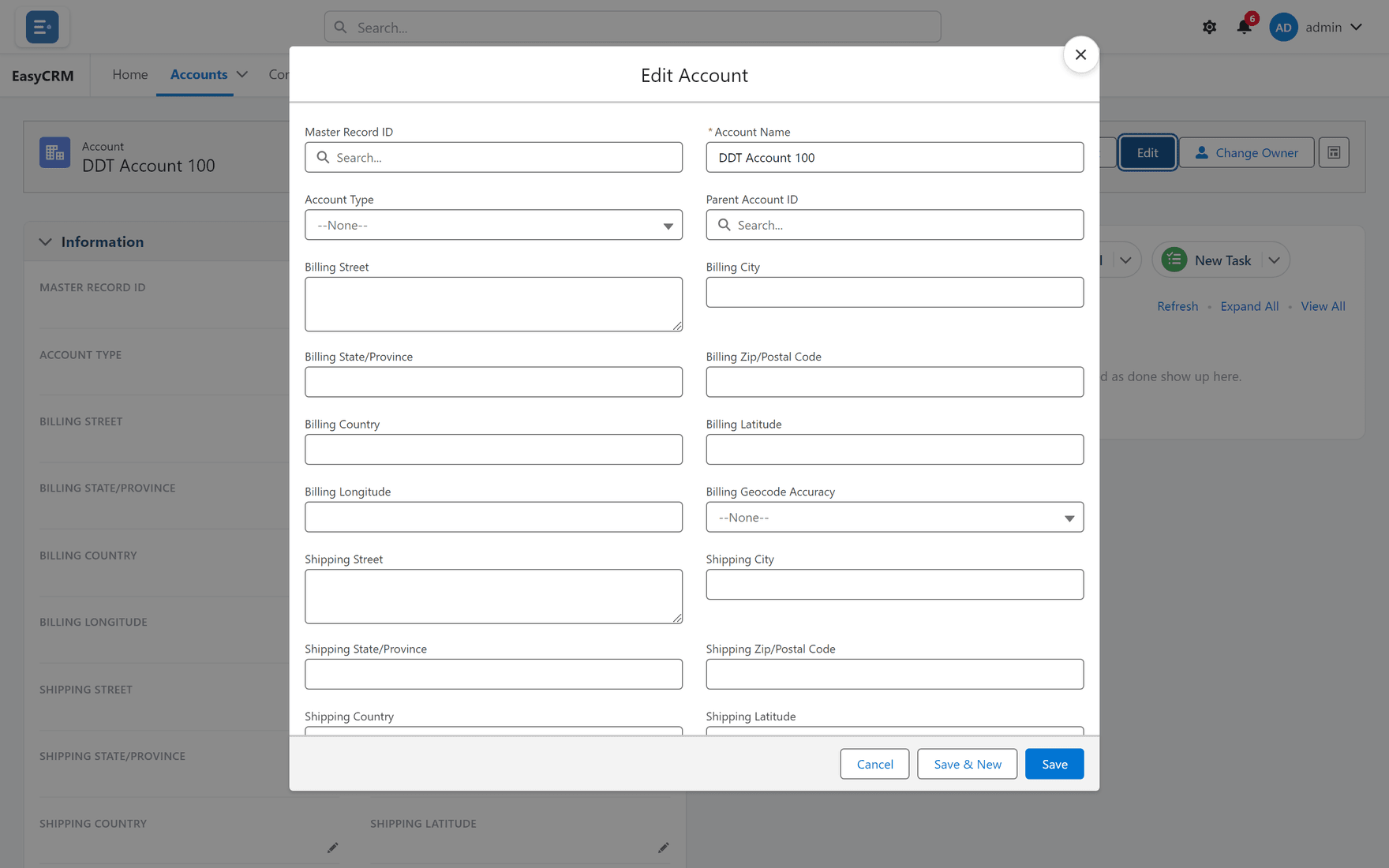
The fields become boxes you can type in.
-
Click into any field and change it.
-
Click Save at the bottom.
To abandon your changes, click Cancel. Nothing is saved.
Changing one field quickly
You do not always need Edit.
- Open the record.
- Hover over the field you want to change. A small pencil appears on its right.
- Click the pencil.
- Change the value.
- Click Save.
This is quicker when you only need to fix one thing.
If a field will not change
Some fields cannot be edited. There are three reasons:
| Reason | What it looks like | What to do |
|---|---|---|
| The system works it out | No pencil appears | Nothing — it updates itself. |
| You do not have permission | No pencil appears | Ask your administrator. |
| The record is read-only to you | Edit is missing | Ask your administrator. |
Which one it is comes down to permissions and sharing.
If Save shows an error
A message appears naming the field that is wrong. The usual causes:
- A required field is empty. Required fields have a red line on their left.
- A date, number or email address is in the wrong format.
- A value is not one of the allowed options.
Fix the field the message names, then click Save again. Your other changes are still there — nothing is lost.