Adding a record
What it is. Creating a record that did not exist before.
When to use it. For one or two records. To add many at once, use a spreadsheet instead — see CSV Import.
Adding one
Where: Accounts (or any tab) → New
-
Click the tab for the kind of record you want to add — Accounts, for example.
-
The list opens.
-
Click the New button at the top right of the list.
-
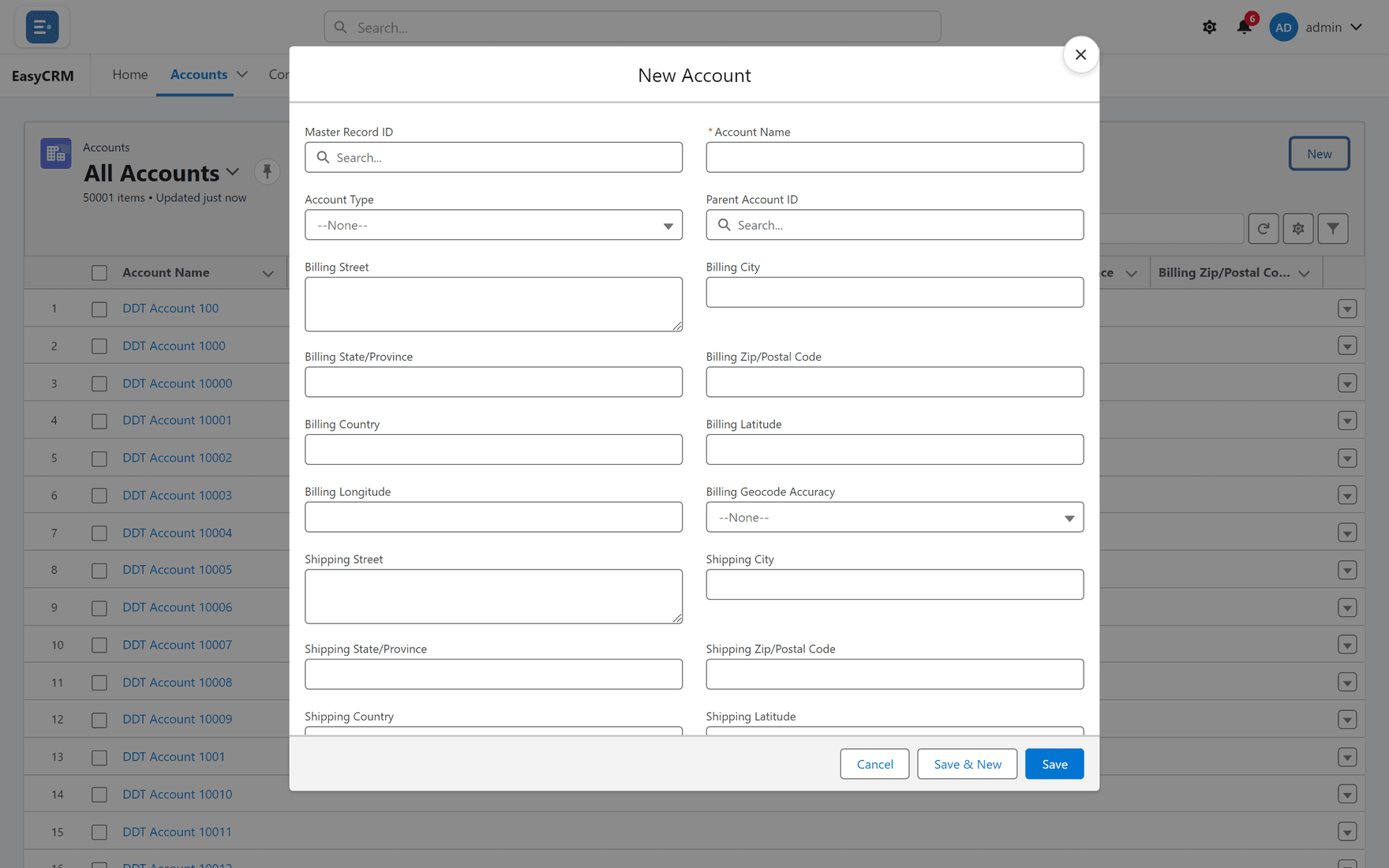
A window opens with empty fields.
-
Fill in the fields.
Fields with a red line on the left are required. You cannot save without them.
-
Click Save.
The new record opens so you can check it.
If you are asked to pick a kind first
Some records come in more than one kind, and you are asked which before the form appears. Choose, then carry on. See Kinds of record.
If the New button is missing
You do not have permission to create that kind of record. Ask your administrator — it is set under Permissions.
Adding many at once
For more than a handful, a spreadsheet is far faster. An administrator can load hundreds of records in one go — see CSV Import.