Choosing columns
What it is. Control over which fields the list shows as columns, and in what order.
What it does. You move fields into and out of the table, and arrange them left to right.
Why it helps. Each person sees the fields that matter to their job, instead of scrolling sideways past twenty they never use. Your choice is remembered for next time.
Changing the columns
Where: Accounts → the gear button (top right of the list)
-
Click the tab for the records you want — Accounts, for example.
-
Above the table on the right there are three small buttons. The middle one is a gear. Click it.
-
A window opens with two lists side by side.
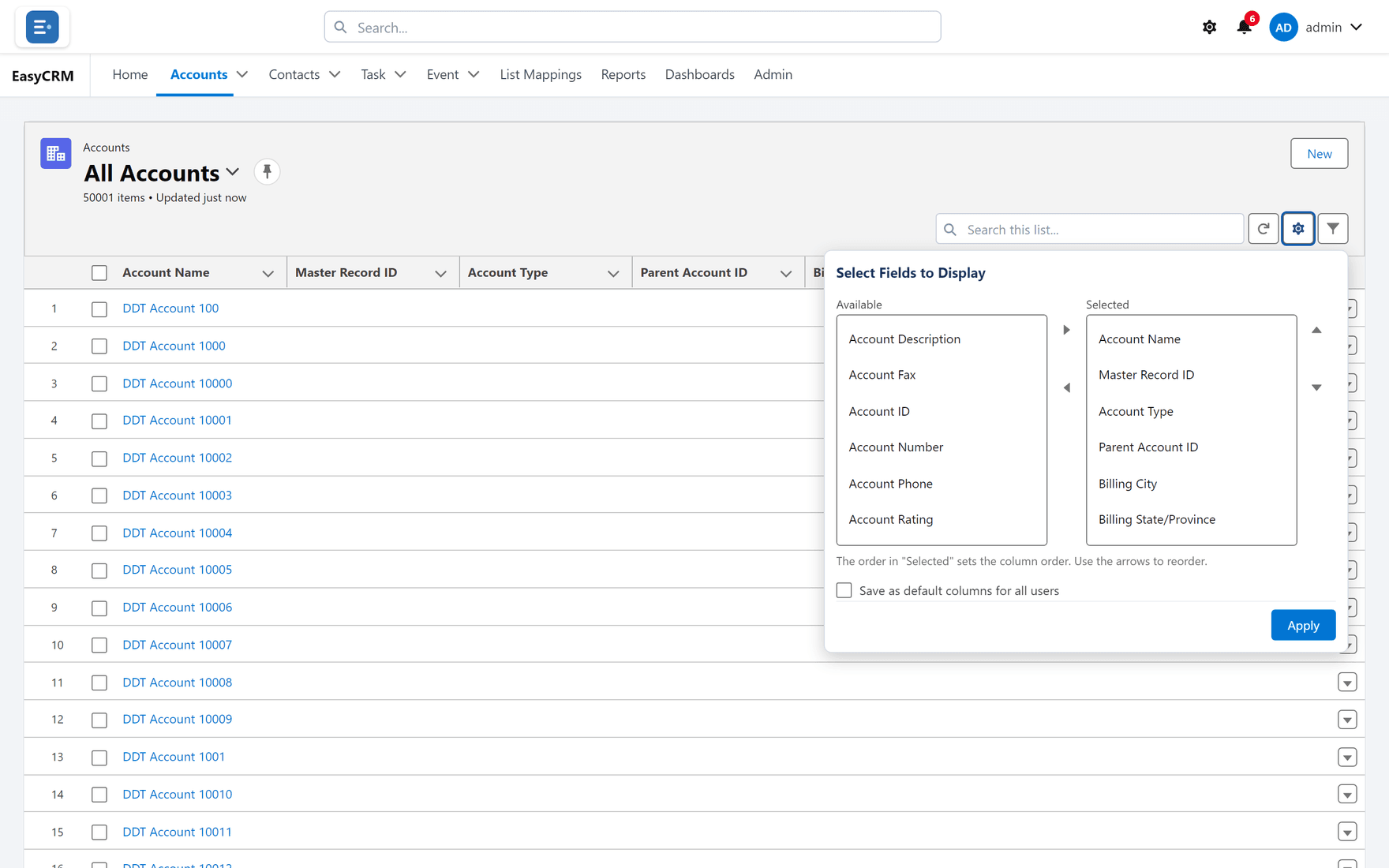
- Available on the left — fields not currently shown.
- Selected on the right — the columns in your list now, top to bottom matching left to right in the table.
-
To add a column: click a field on the left, then click the right-pointing arrow between the lists.
-
To remove one: click a field on the right, then click the left-pointing arrow.
-
To reorder: click a field on the right, then use the up and down arrows.
-
Click Save.
The table redraws with your columns.
Finding a field quickly
There can be a great many fields. Type into the search box above either list to narrow it down.
Searching never loses a field you have already chosen — the ones on the right stay where they are.
Who this affects
Only you. Other people keep their own columns.
To change what everybody sees on the record page itself, an administrator uses Page layouts instead.