Changing who owns a record
What it is. Moving a record from one person to another.
What it does. It changes who the record belongs to.
Why it matters. The owner usually decides who can see the record. Changing the owner can change who has access, so this is not just a label.
Changing the owner
Where: Accounts → the record's name → Change Owner
-
Click Accounts (or any tab) in the top menu.
-
Click the record's name to open it.
-
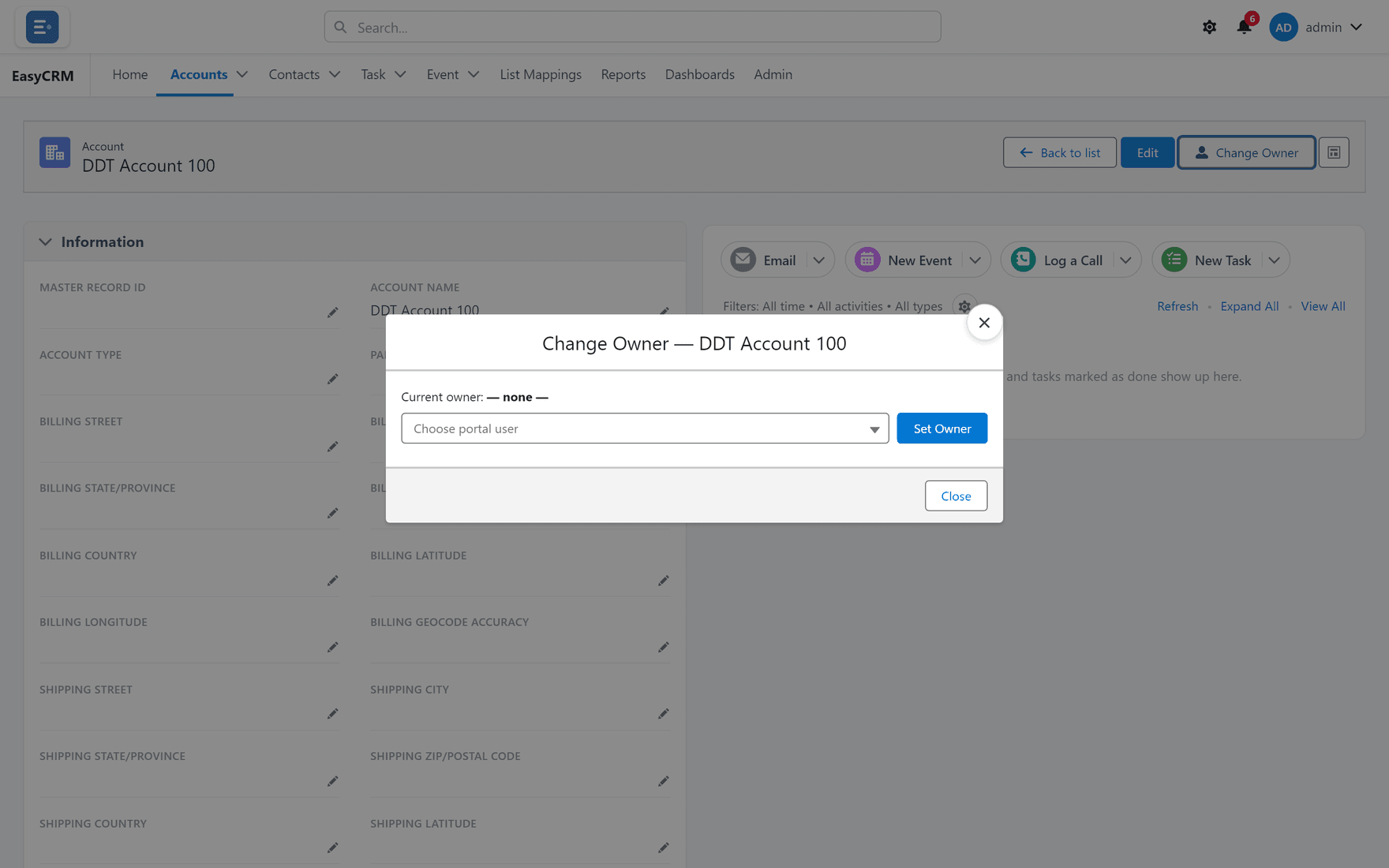
Click Change Owner at the top right of the record.
-
A window opens.
-
Start typing the new owner's name and pick them from the list.
-
Click Save.
The record now shows the new owner.
When you would do this
- Somebody leaves and their accounts need a new home.
- A deal moves to a different rep.
- A record was created by the wrong person.
What else changes
This is the part people miss.
Under Private sharing, the new owner can now see the record — and the previous owner may no longer be able to. If access came from a sharing rule or from a manager relationship, that follows the new owner too.
So if a colleague says a record has "disappeared", a change of owner is the first thing to check. An administrator can see exactly who has access and why, under Checking who can see a record.
If the button is missing
You do not have permission to change the owner of that record. Ask your administrator.