Uploading a file
Two places a file can go
This is the decision that matters, and it is made at upload time.
| Upload from | The file is | Who sees it |
|---|---|---|
| The Files tab | Standalone | Governed by its own sharing |
| A record | Attached to that record | Anybody who can see the record |
Attaching to a record is usually right. The contract sits with the customer it belongs to, and access follows the record automatically — no separate decision to get wrong.
Uploading to a record
Where: Accounts → the record's name → the Files section
- Open the record.
- Scroll to the Files section.
- Upload there.
Anybody who can see the record can now see the file. Anybody who cannot, cannot.
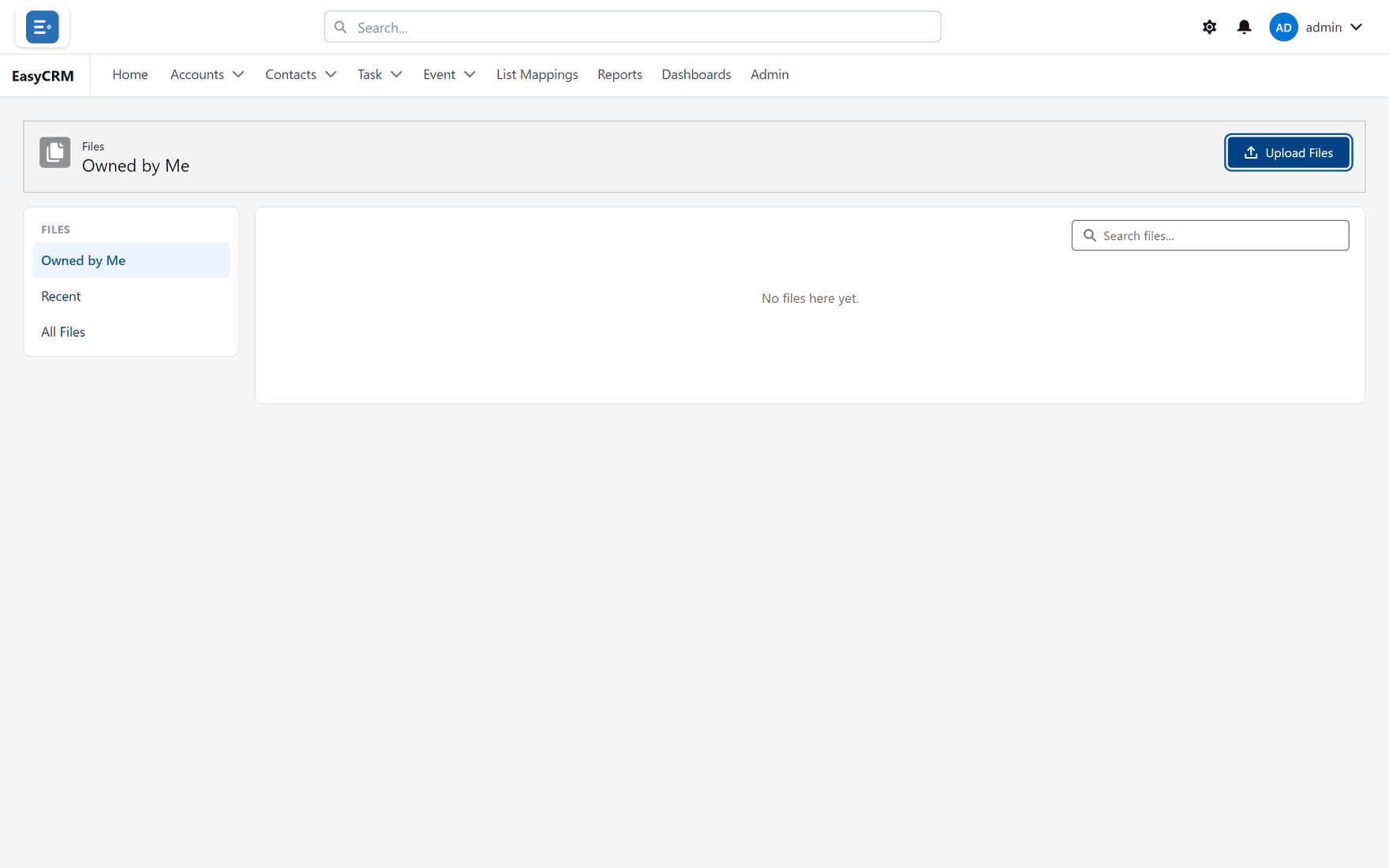
Uploading to the Files tab
Where: Files → Upload Files
-
Click Files in the top menu.
-
Click Upload Files.
-
Choose a file from your computer.
-
Wait for it to finish. Large files take a moment.
Use this for things that do not belong to one record — a price list, a template, a policy.
Naming files
The file name is all anybody has to go on in a list of hundreds.
| Good | Poor |
|---|---|
| Acme — signed MSA — 2026-03.pdf | scan001.pdf |
| Price list v4 (2026).xlsx | final final.xlsx |
Put the date in the name if the file will have successors. "Latest" stops being true.
What goes wrong
| Symptom | Cause |
|---|---|
| Upload fails | File too large, or a blocked type. |
| A colleague cannot open it | Standalone file, or they cannot see the record it is on. |
| Two versions exist | Uploading again adds a file; it does not replace one. |
| The file is on the wrong record | Delete and re-upload in the right place. |
Where this fits
Files attached to a record appear in the record's Files section — see Opening a record. Which sections appear is set by an administrator in Page layouts.