Files
What it is. Documents stored in the portal.
What it does. You upload a file once, and anybody allowed to see it can open it.
Why it helps. Contracts and signed paperwork sit with the customer they belong to, instead of in somebody's inbox.
Opening the files area
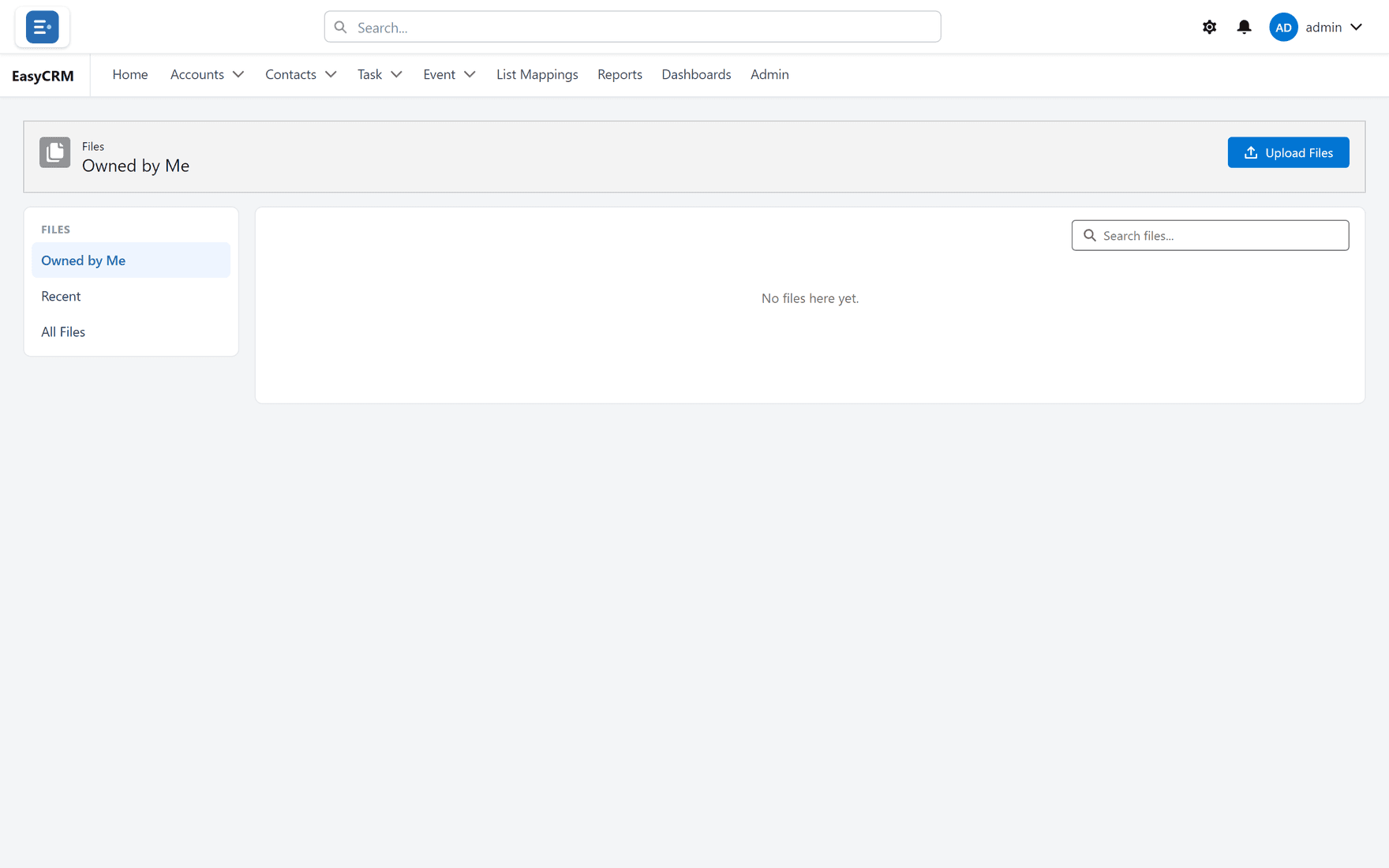
Where: Files in the top menu
- Click Files in the row of tabs across the top.
The three views
Choose along the top:
| View | Shows |
|---|---|
| Recent | What you opened lately. |
| Owned by Me | Files you uploaded. |
| All Files | Everything you are allowed to see. |
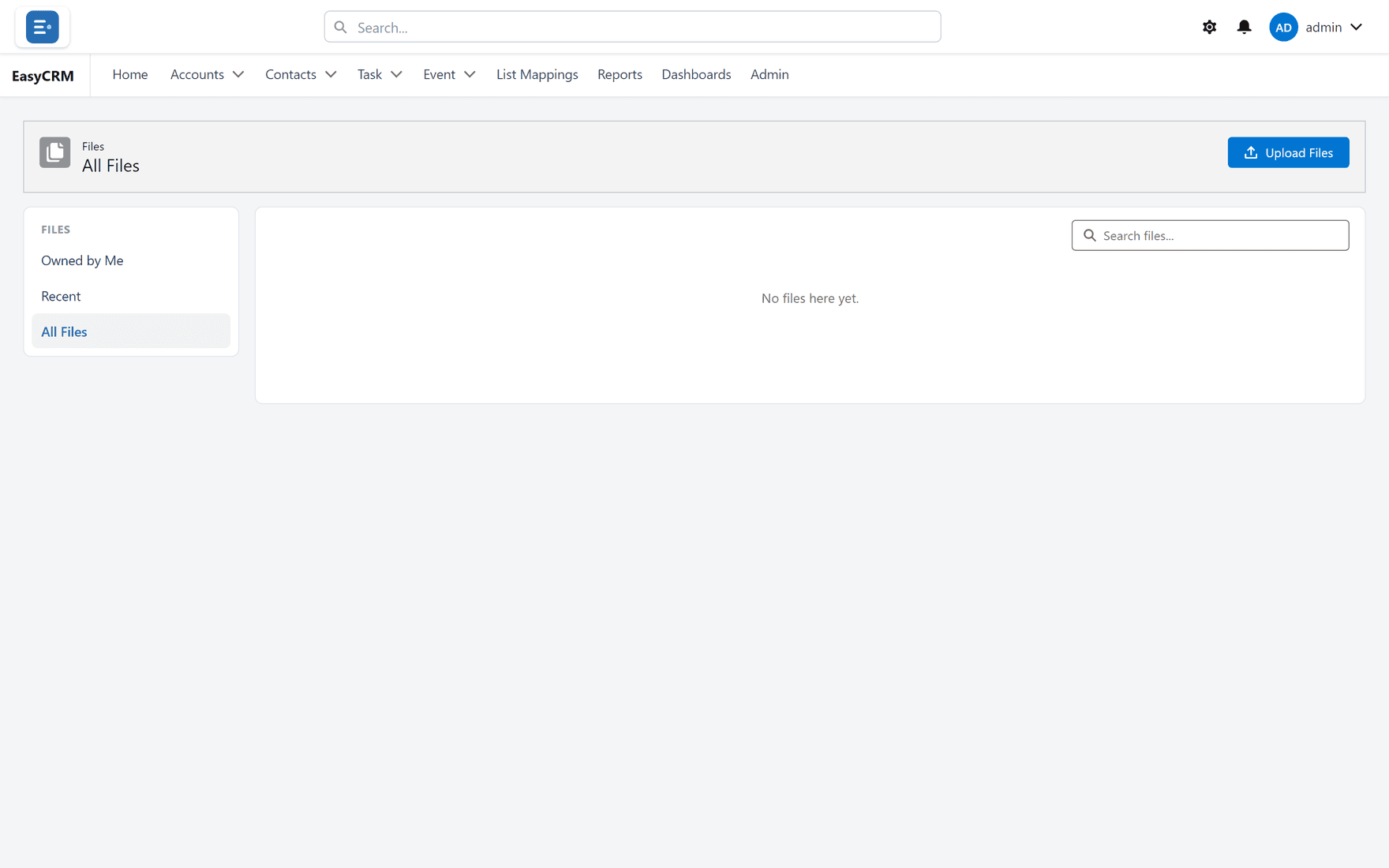
Owned by Me is the quickest way back to something you added yourself.
Uploading a file
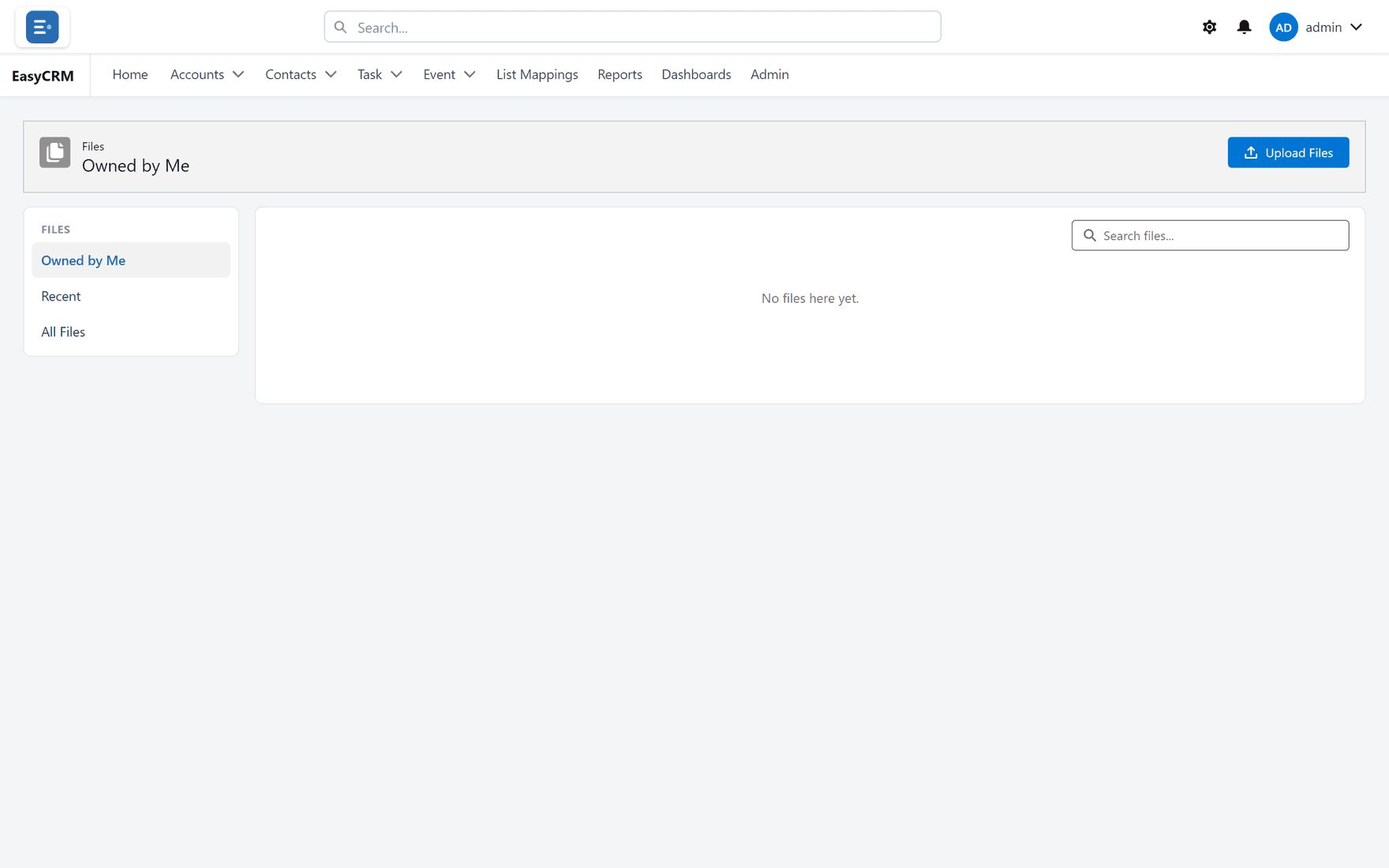
Where: Files → Upload Files
-
Click Files in the top menu.
-
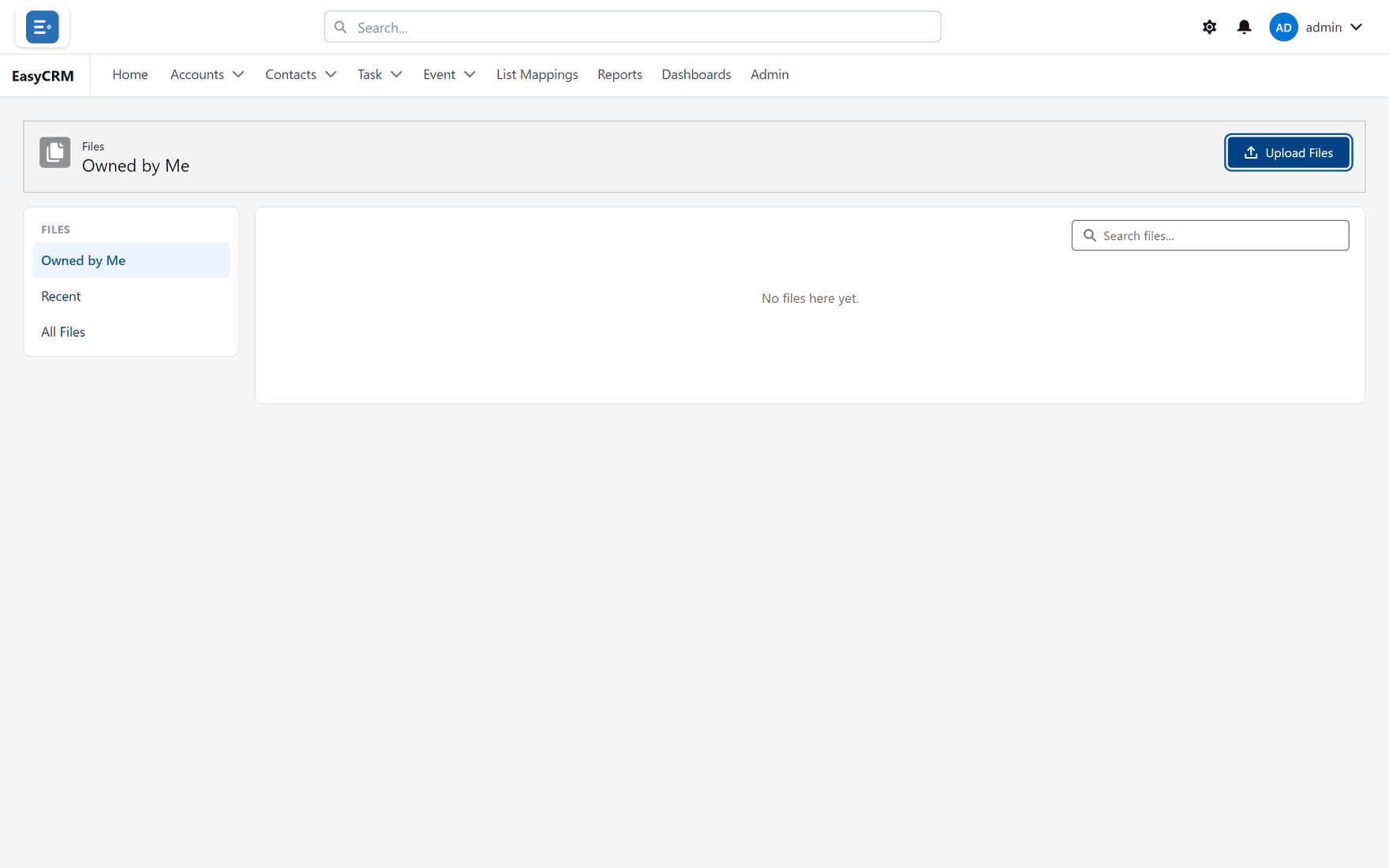
Click Upload Files.
-
Choose a file from your computer.
-
Wait for it to finish. Large files take a moment.
Attaching a file to a record
This is usually better, because the file then sits with the customer it concerns.
Where: Accounts → the record's name → the Files section
- Open the record.
- Find the Files section.
- Upload there.
Anybody who can see the record can see the file. Anybody who cannot, cannot — file access follows the record.
Opening and downloading
- Click a file's name to preview it.
- Use the menu beside it to download or delete it.
Deleting
Deleting removes the file for everybody, not just you. If it is attached to a record, it disappears from that record too.
Check whether anybody else is using it first — there is no undo.