Dashboards
What a dashboard is. One screen holding several charts and numbers.
What it does. Each tile reads from a report and draws its result.
Why it helps. The questions people ask every morning get answered at a glance, instead of five reports opened one after another.
Opening a dashboard
Where: Dashboards in the top menu → a folder → the dashboard's name
-
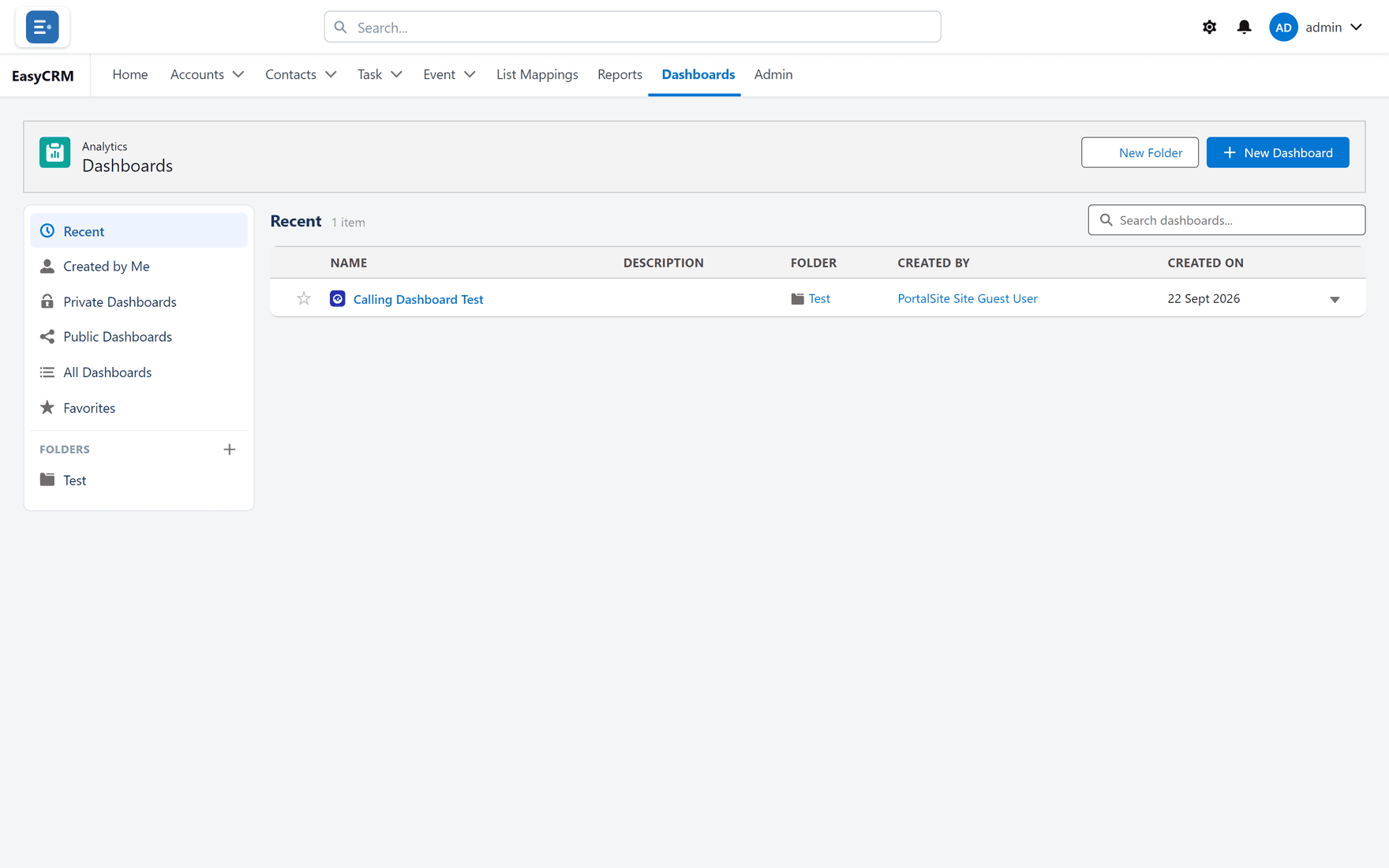
Click Dashboards in the row of tabs across the top.
-
The list opens, laid out the same way as Reports — folders on the left, dashboards on the right.
-
Click a folder, then the dashboard's name.
-
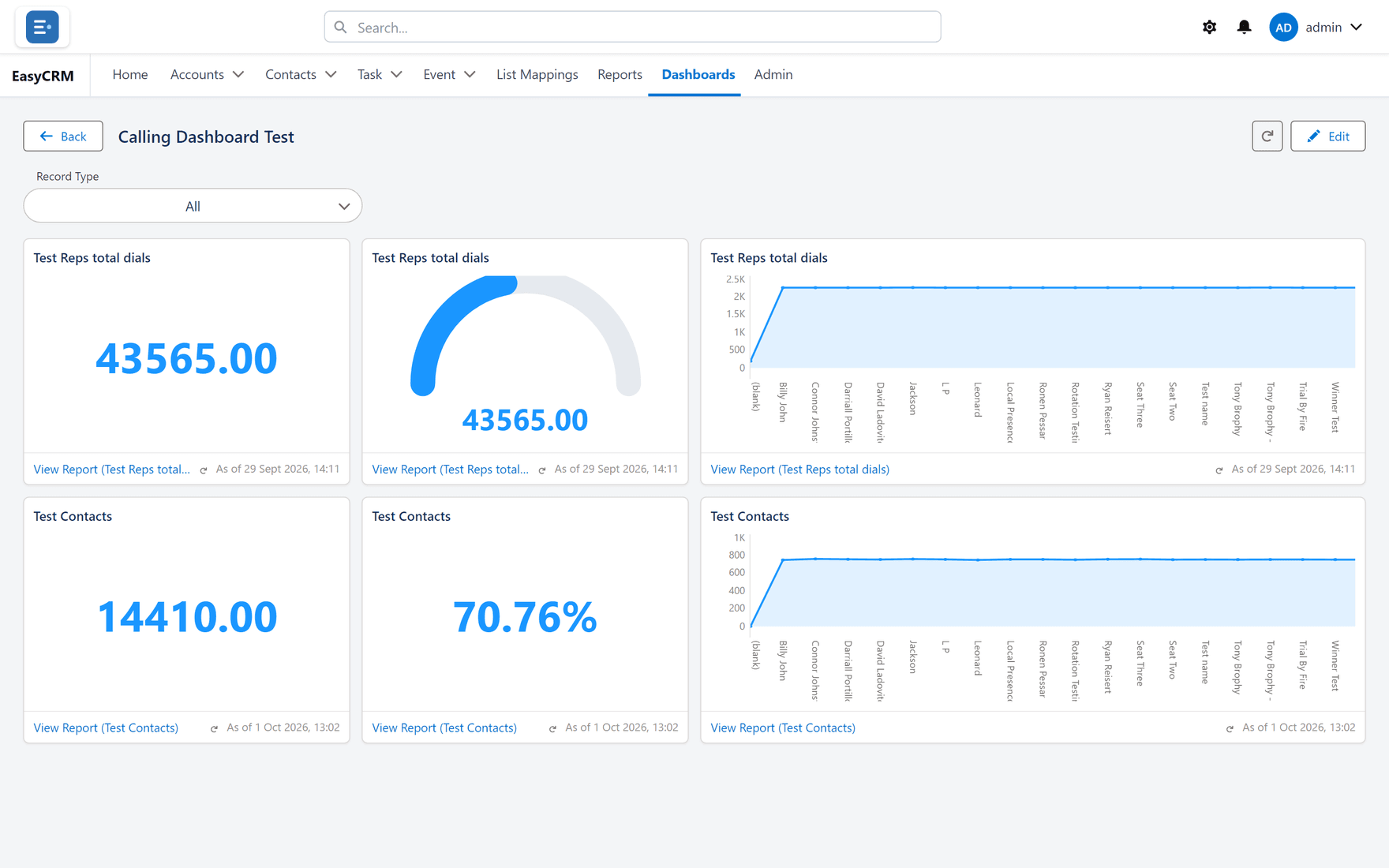
It opens and the tiles load.
What you are looking at
Each tile is one chart or number, and each reads from one report.
If a figure looks wrong, open the report behind the tile — that is where the number comes from, and the dashboard is only drawing it.
Narrowing the whole dashboard at once
If the dashboard has filters, they sit in a bar across the top.
- Choose a value from a filter.
- Every tile updates together.
- Click Clear all to go back to the full picture.
See Dashboard filters.
Getting the latest numbers
Click Refresh at the top.
Dashboards remember their last result so they open quickly, which matters when a dashboard has twenty tiles. Refresh forces every tile to fetch fresh data.
Changing a dashboard
Click Edit at the top to open the builder — see The dashboard builder.
If Edit is missing, you have read-only access. Use Save As in the builder, or ask the owner.