Dashboard settings
What it is. The settings that apply to the whole dashboard rather than to one tile.
What it does. Name, layout, colours, and — most importantly — whose data the dashboard counts.
Why it matters. That last one is the setting people most often get wrong, and it is not obvious from looking at the dashboard that anything is amiss.
Opening the settings
Where: Dashboards → the dashboard's name → Edit → Properties
- Click Dashboards in the top menu.
- Open the dashboard, then click Edit.
- Click Properties at the top.
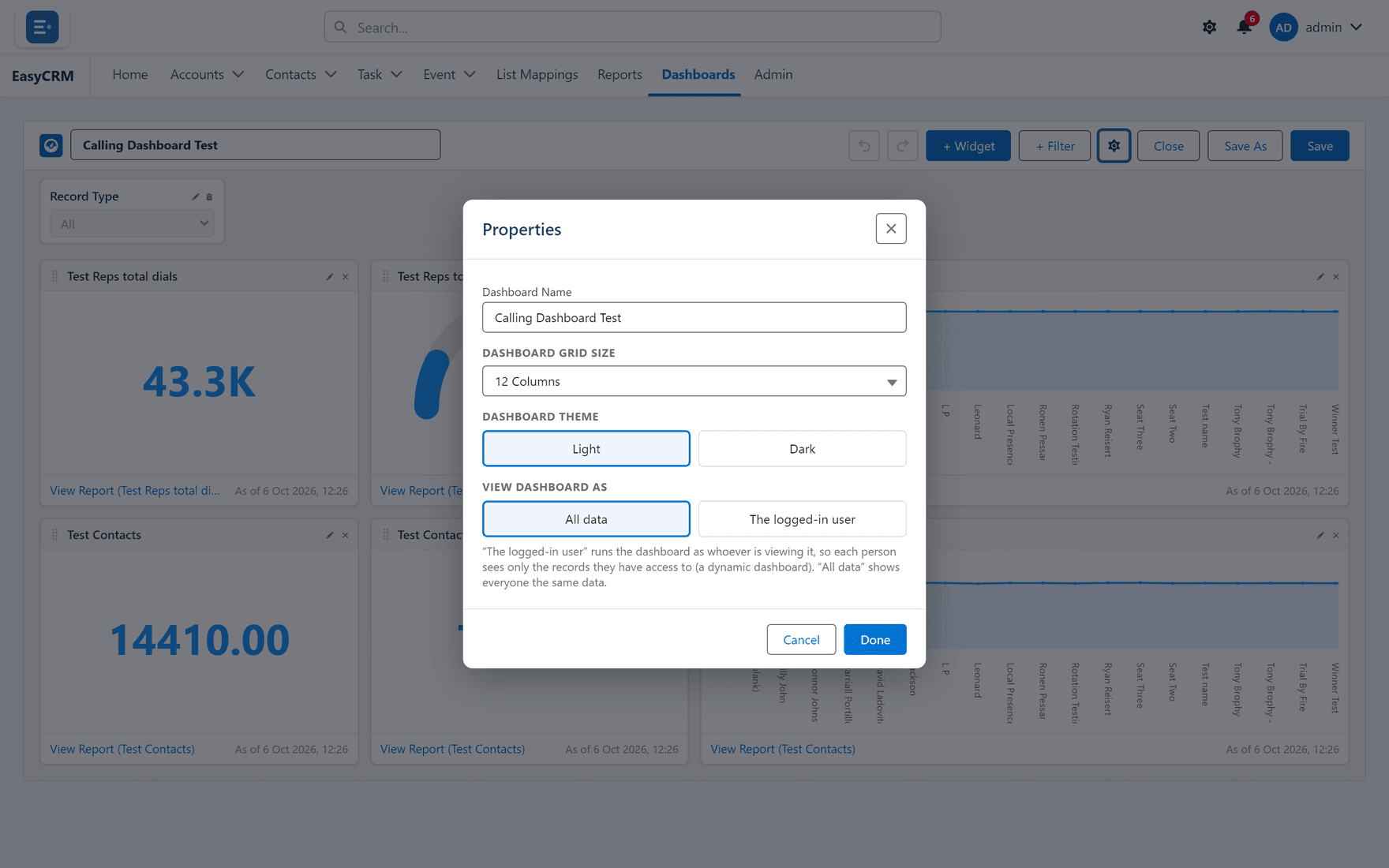
View Dashboard As
This decides whose records the dashboard counts.
| Setting | What people see |
|---|---|
| The logged-in user | Each person sees their own numbers. |
| All data | Everybody sees the same totals, across every record. |
Use the logged-in user for a dashboard each person uses for their own work — "my pipeline", "my tasks".
Use all data for a company-wide view that should look the same to everybody.
Getting this wrong is quiet. A rep set to "all data" sees the whole company's figures and has no reason to doubt them. A manager set to "the logged-in user" sees only their own and assumes the team is idle. Neither shows an error.
Grid size
How many columns the dashboard is divided into.
More columns means finer control over tile sizes, but also more fiddling. Start with the default and increase it only if tiles will not sit where you want.
Themes
| Setting | Changes |
|---|---|
| Dashboard Theme | The page — Light or Dark. |
| Widget Theme | The tiles. |
They are separate so you can put light tiles on a dark page, which is a common look for a dashboard shown on a wall screen.
Name and description
The name is what people see in the dashboards list. A short description helps whoever finds it in six months work out whether it is the one they want.