Dashboard filters
What it is. A control at the top of a dashboard that changes every tile at once.
What it does. You pick one value — an owner, a region, a month — and all the tiles narrow to it together.
Why it helps. One dashboard serves everybody. Without filters you would need a separate copy per team.
Adding a filter
Where: Dashboards → the dashboard's name → Edit → + Filter
-
Click Dashboards in the top menu.
-
Open the dashboard, then click Edit.
-
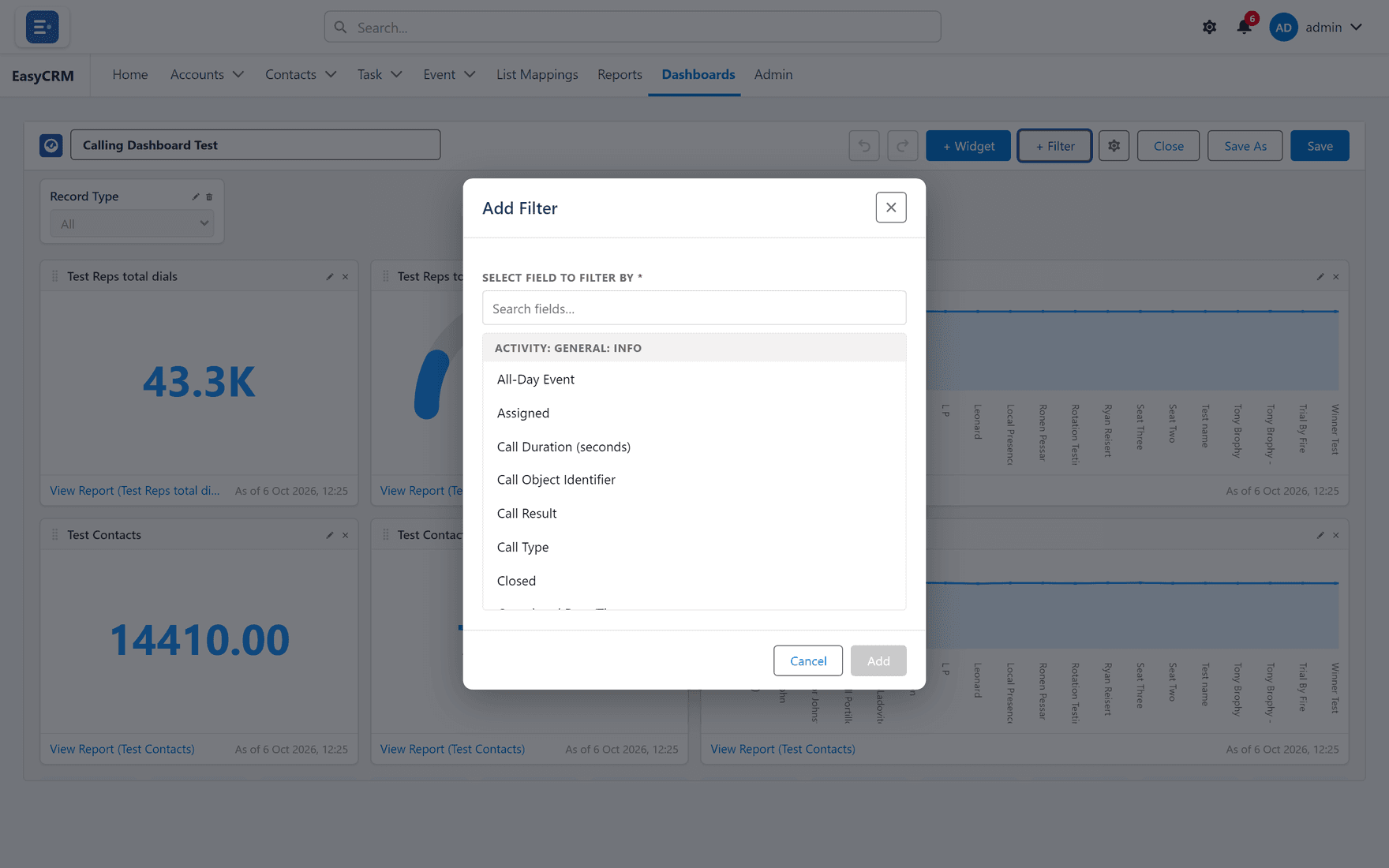
Click + Filter at the top.
-
Choose the field to filter by.
-
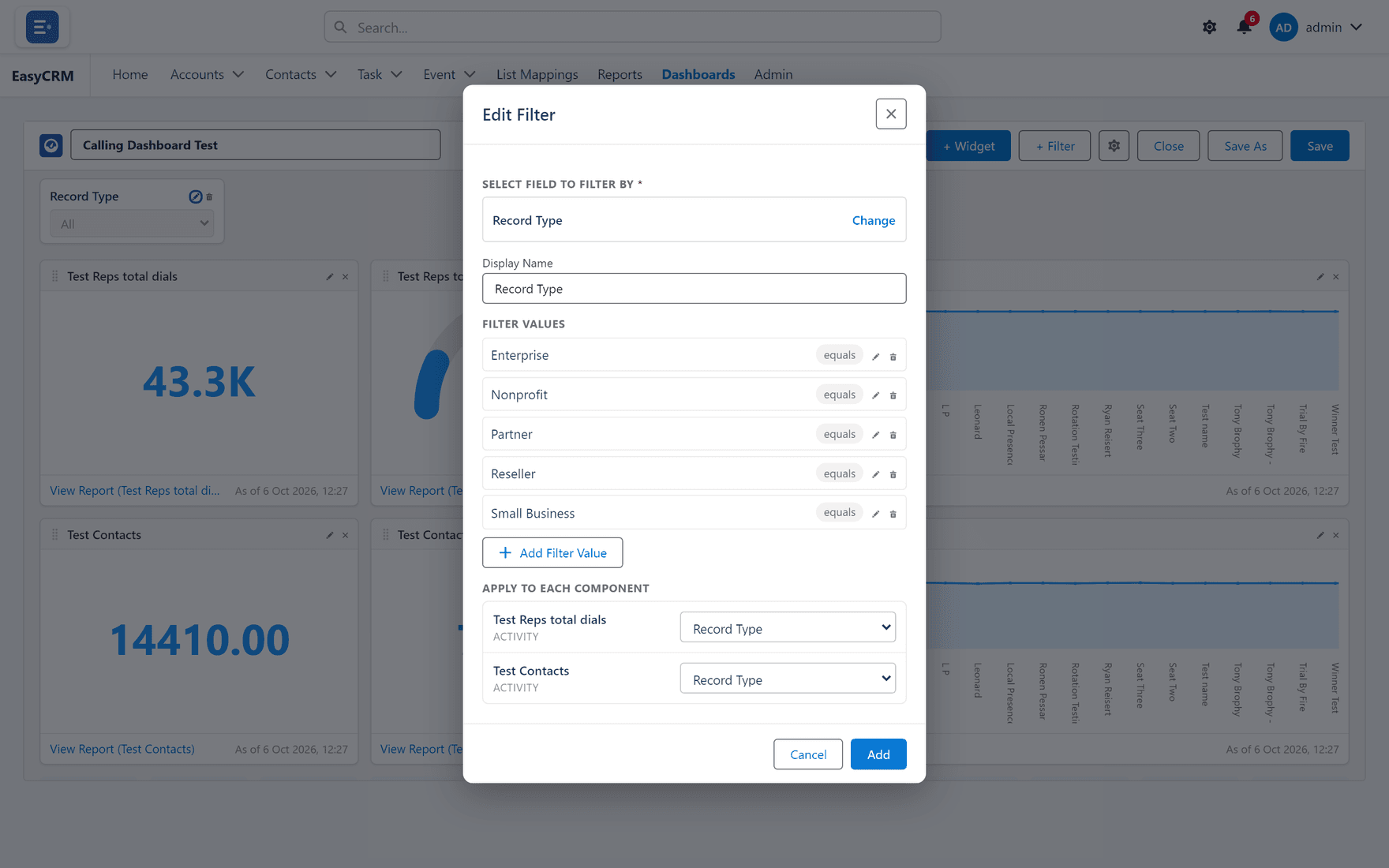
Add the values people will be able to choose from.
-
Set up Apply to Each Component — see below.
-
Click Save.
Apply to Each Component
This is the part that is easy to miss, and the reason a filter sometimes seems not to work.
Each tile reads from a different report, and those reports do not always name the same thing the same way. One might call it Owner, another Assigned To.
Apply to Each Component is where you tell the dashboard which field on each report the filter matches.
- Fields with the same name are matched for you.
- You only have to set the ones that differ.
- A tile you leave unmapped ignores the filter and keeps showing everything.
That last point is what makes a dashboard look broken: nine tiles narrow and one does not. If that happens, this is where to look.
Editing a filter
-
Open the dashboard in the builder.
-
Click Edit filter on the filter you want to change.
-
Change it and click Save.
Remove filter deletes it. The tiles go back to showing everything.
Using one
On the dashboard itself, choose a value from the filter bar at the top. Every mapped tile updates together.
Click Clear all to return to the full picture.
Choosing a filter value changes only your own view, and only while you are on the page. Nobody else is affected.