Tasks
What a task is
Something still to do, with a due date and somebody responsible.
When to use it
Any commitment that would otherwise live only in your memory or your inbox. A task on the record is visible to whoever picks the account up next; a note to yourself is not.
When not to: for something that already happened — that is logging a call. And not for a meeting with a start and end time, which is an event.
Creating one
Where: Accounts → the record's name → New Task
-
Open the record.
-
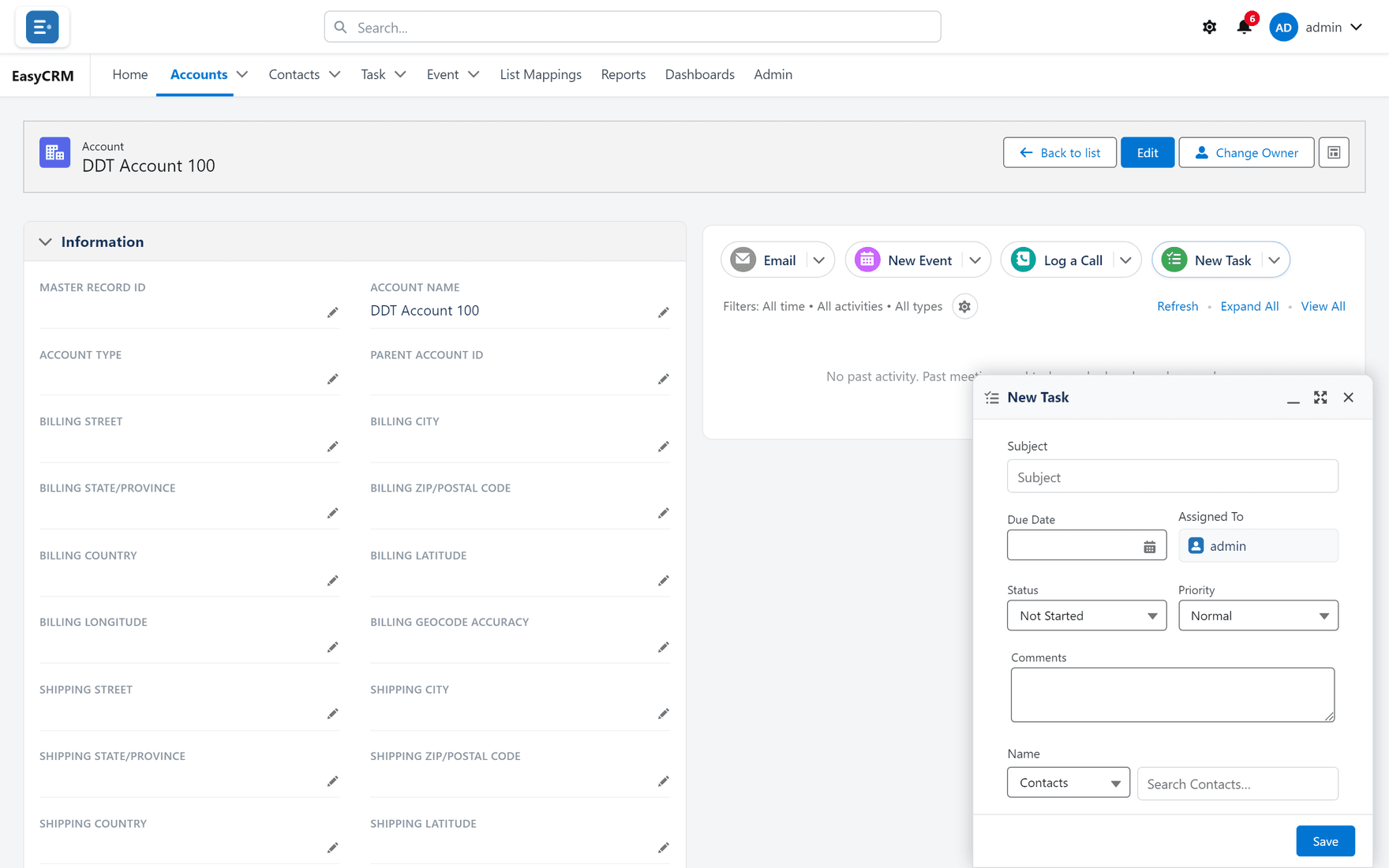
Click New Task in the panel on the right.
-
Fill in:
| Field | Notes |
|---|---|
| Subject | What needs doing. Specific enough to act on. |
| Due Date | When. Tasks without one never surface as overdue. |
| Assigned To | Who. Defaults to you. |
| Comments | Anything the person needs to know. |
- Click Save.
The task now appears under My Tasks on that person's home page.
Always set a due date
A task with no due date cannot be overdue, so it never appears in the one place people actually look. It exists, and it is invisible.
If you genuinely do not know when, pick a date to review it rather than leaving it blank.
Assigning to somebody else
Change Assigned To. It moves to their My Tasks immediately.
They are not notified by the portal, so tell them. A task appearing silently in somebody's list is not a handover.
Completing one
- Open the task — from My Tasks, the Task tab, or the record's timeline.
- Click Edit.
- Set the status to Completed.
- Click Save.
It leaves My Tasks and stays in the record's history, which is the point: the record keeps the fact that it was done.
Finding yours
| Where | Shows |
|---|---|
| My Tasks on the home page | Your open tasks, overdue flagged in red |
| The Task tab | Every task you can see — see Lists |
| A record's timeline | Tasks on that record only |
What goes wrong
| Symptom | Cause |
|---|---|
| Not in My Tasks | Assigned to somebody else, already completed, or no due date. |
| Overdue but not red | Red marks past the due date. Check the date is set. |
| Cannot change the assignee | Permissions. Ask your administrator. |
Where this fits
Tasks and events both appear on the home page — tasks under My Tasks, events under Upcoming Events.