Calls, tasks and meetings
What it is. The panel on the right-hand side of every record, showing everything that has happened with it.
What it does. It keeps calls, tasks, meetings and emails attached to the record they concern, in date order.
Why it helps. Anybody who opens the record can see the history straight away.
Finding the panel
Where: Accounts → the record's name → the panel on the right
- Click Accounts (or any tab) in the top menu.
- Click the record's name to open it.
- Look at the right-hand side of the page. The four coloured buttons at the top of that panel are how you add something.
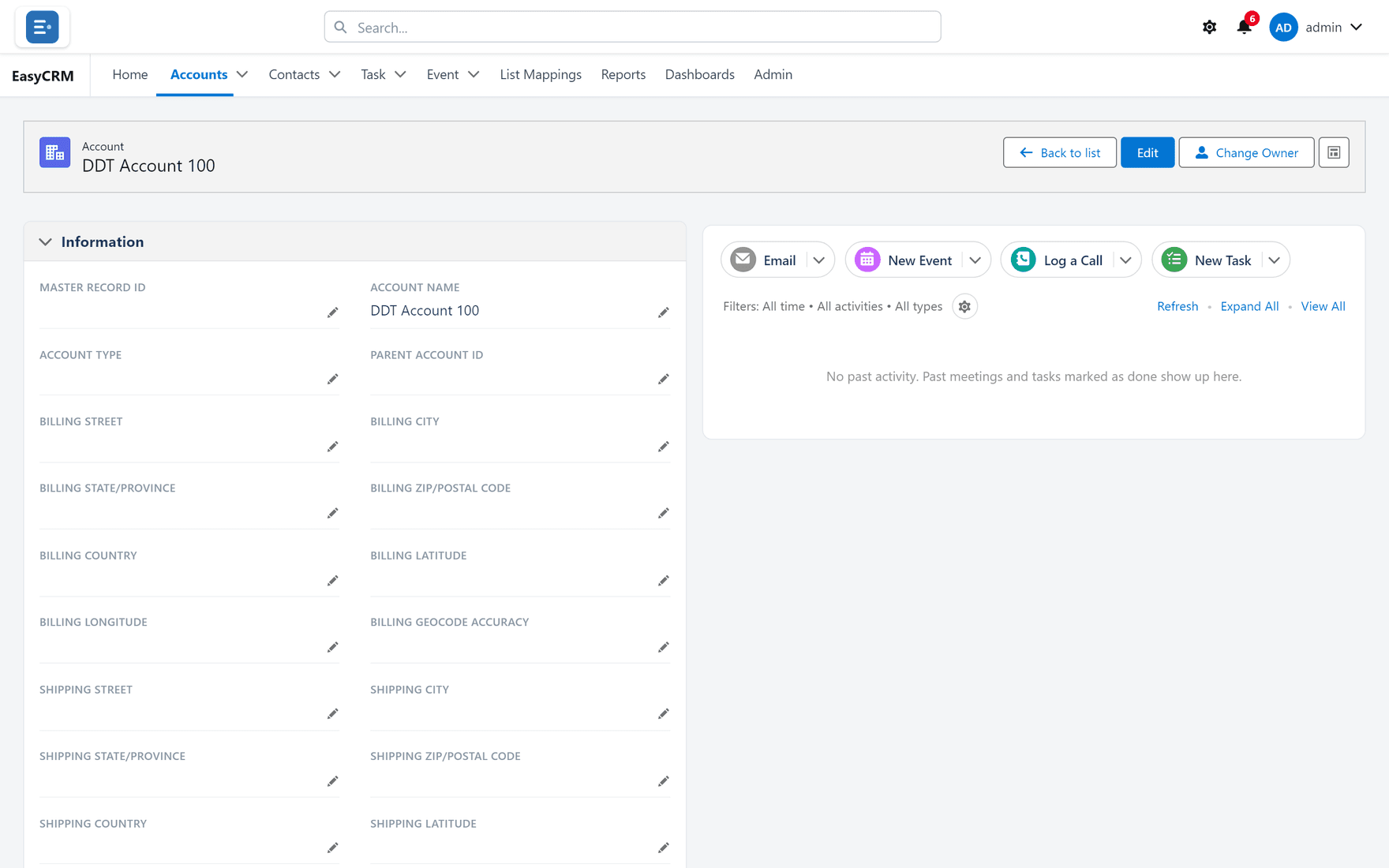
The four buttons
| Button | Use it for |
|---|---|
| A message about this record. | |
| New Event | A meeting, with a start and end time. |
| Log a Call | A call that has already happened. |
| New Task | Something still to do. |
The difference between Log a Call and New Task is time: one is a record of the past, the other a reminder for the future.
Logging a call
Where: a record → Log a Call
-
Open the record.
-
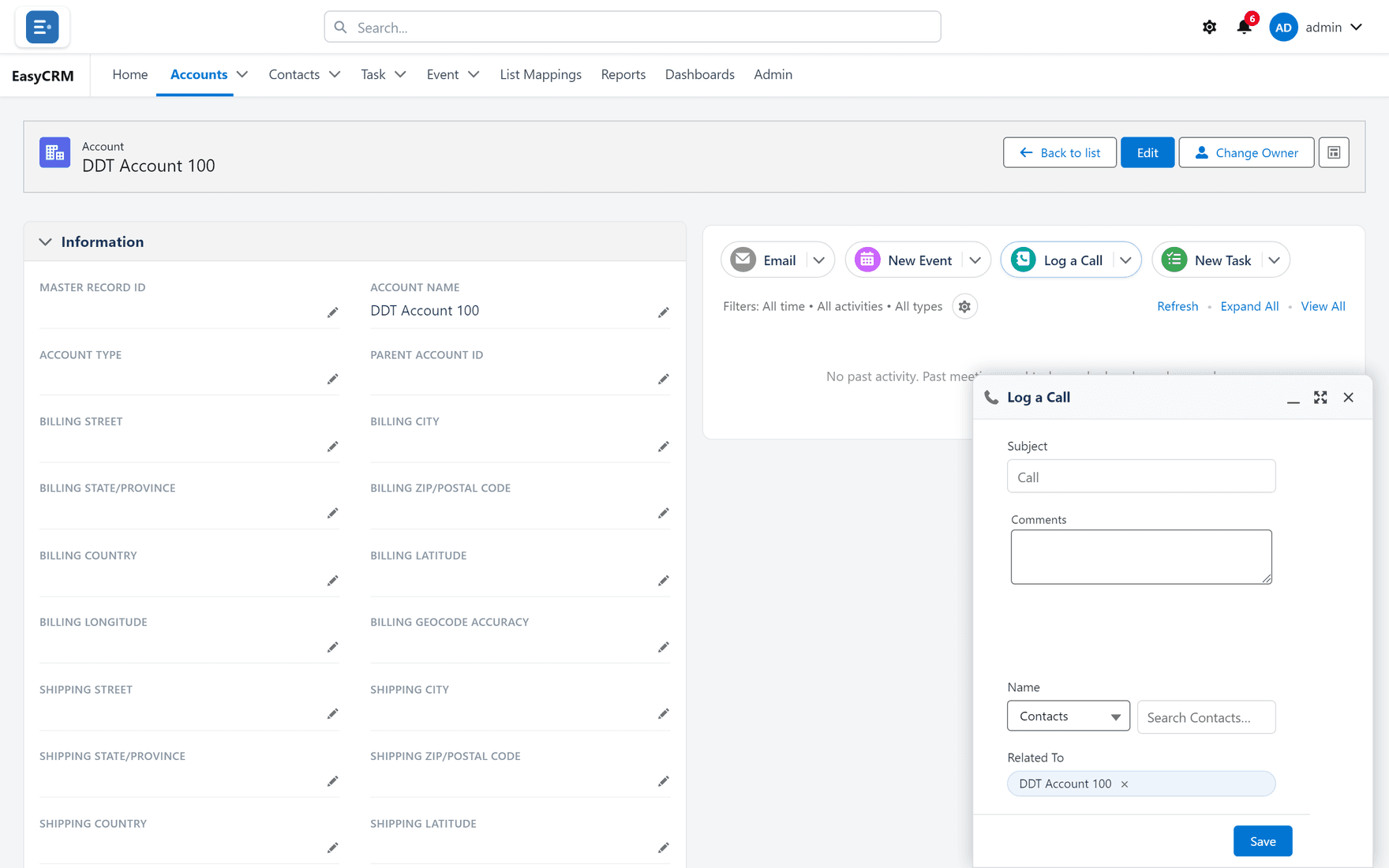
Click Log a Call in the right-hand panel.
-
A small form opens.
-
Type what the call was about in Subject.
-
Add any detail in the comments box.
-
Click Save.
The call appears in the timeline below, dated today.
Setting a task
Where: a record → New Task
-
Open the record.
-
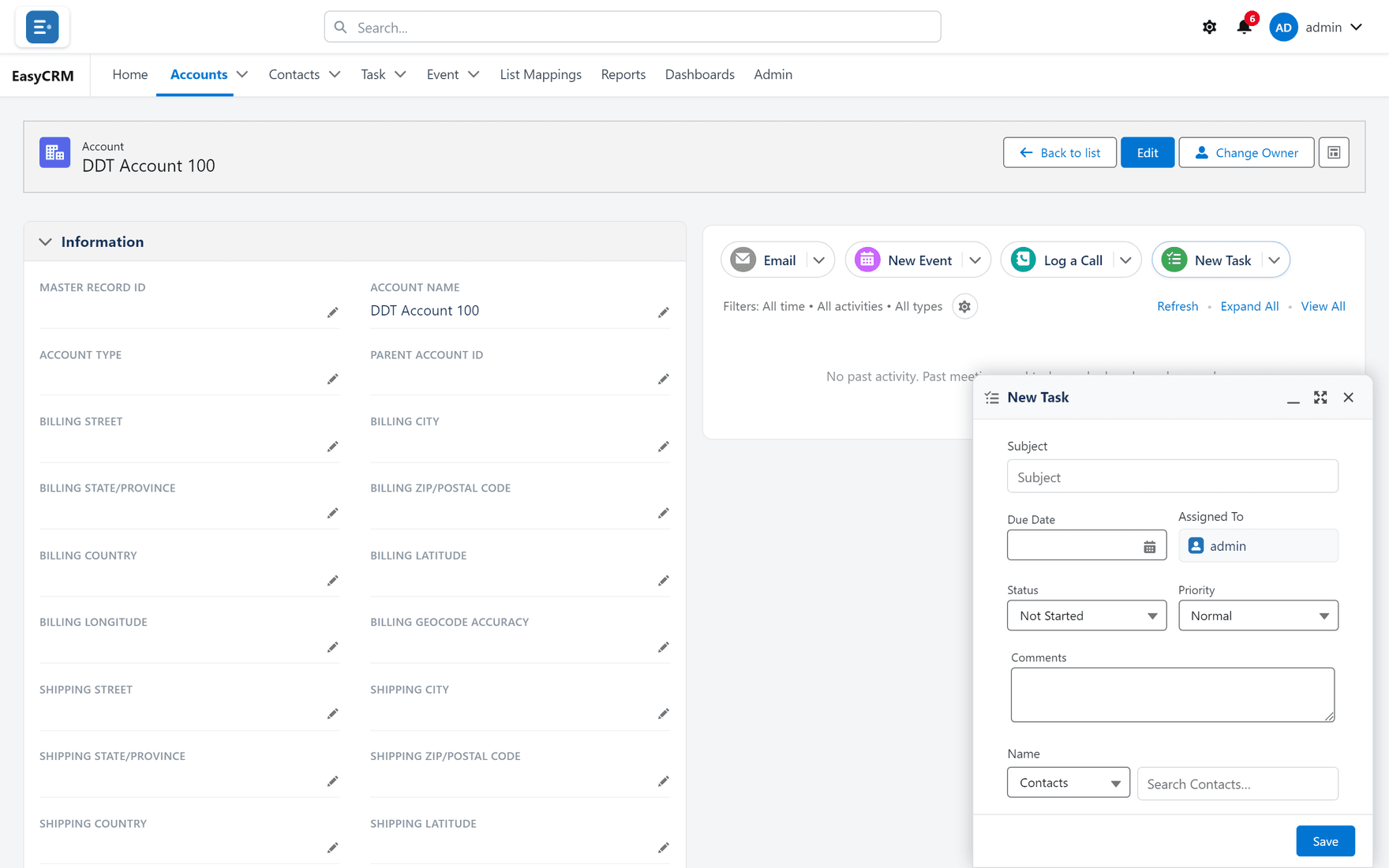
Click New Task.
-
Type a Subject — what needs doing.
-
Set a Due Date.
-
Choose who it is Assigned To. It defaults to you.
-
Click Save.
The task now appears under My Tasks on that person's home page.
Scheduling a meeting
Where: a record → New Event
-
Open the record.
-
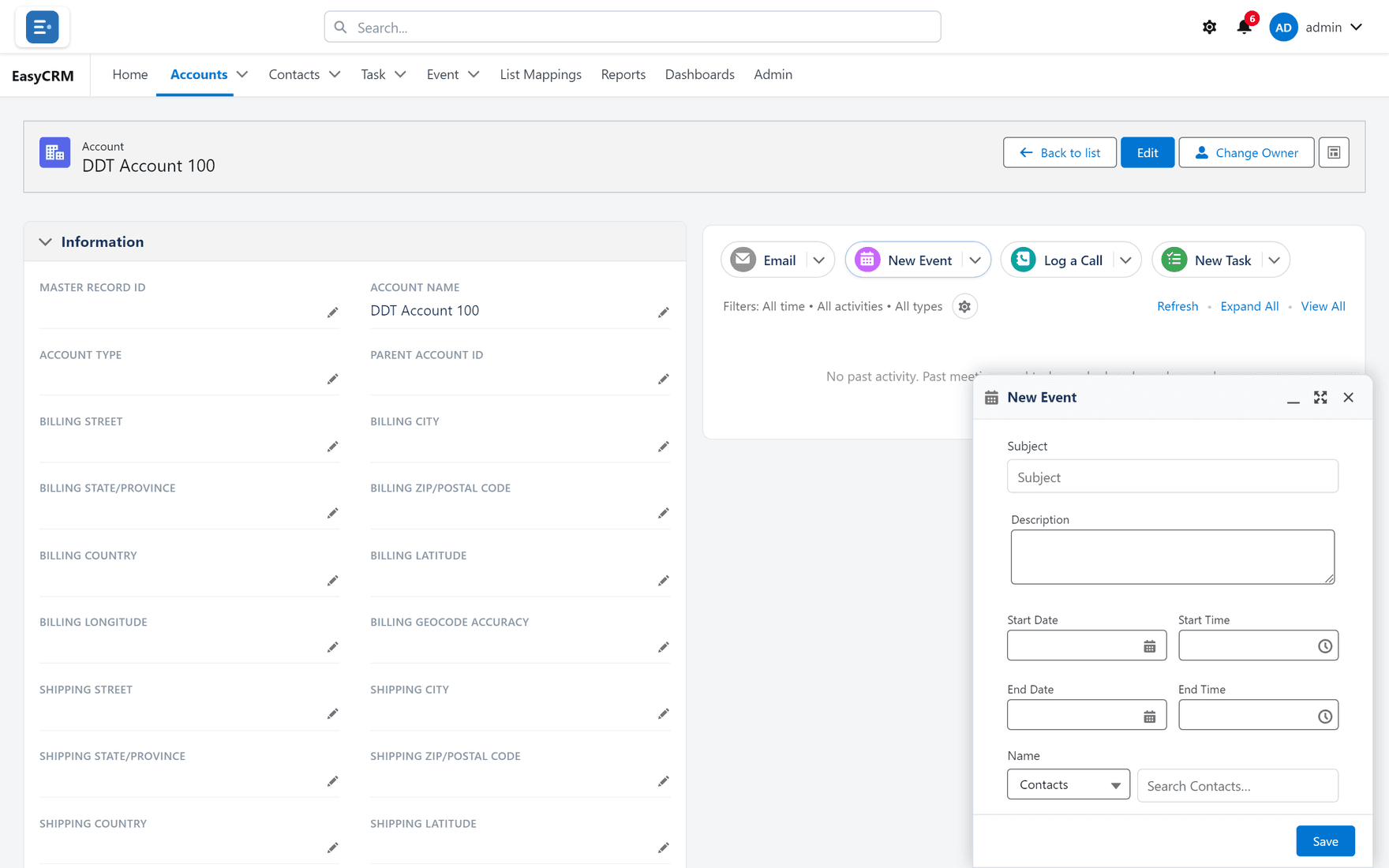
Click New Event.
-
Type a Subject.
-
Set the Start and End times.
-
Click Save.
It appears under Upcoming Events on the home page of everybody it concerns.
Narrowing what the timeline shows
Under the four buttons is a line reading something like Filters: All time • All activities • All types.
- Click the small gear beside it.
- Choose a date range, whether to show done or outstanding items, and which types.
- The timeline redraws.
Seeing the whole history
- Click View All on the right of the activity panel.
- The full history opens on its own page.
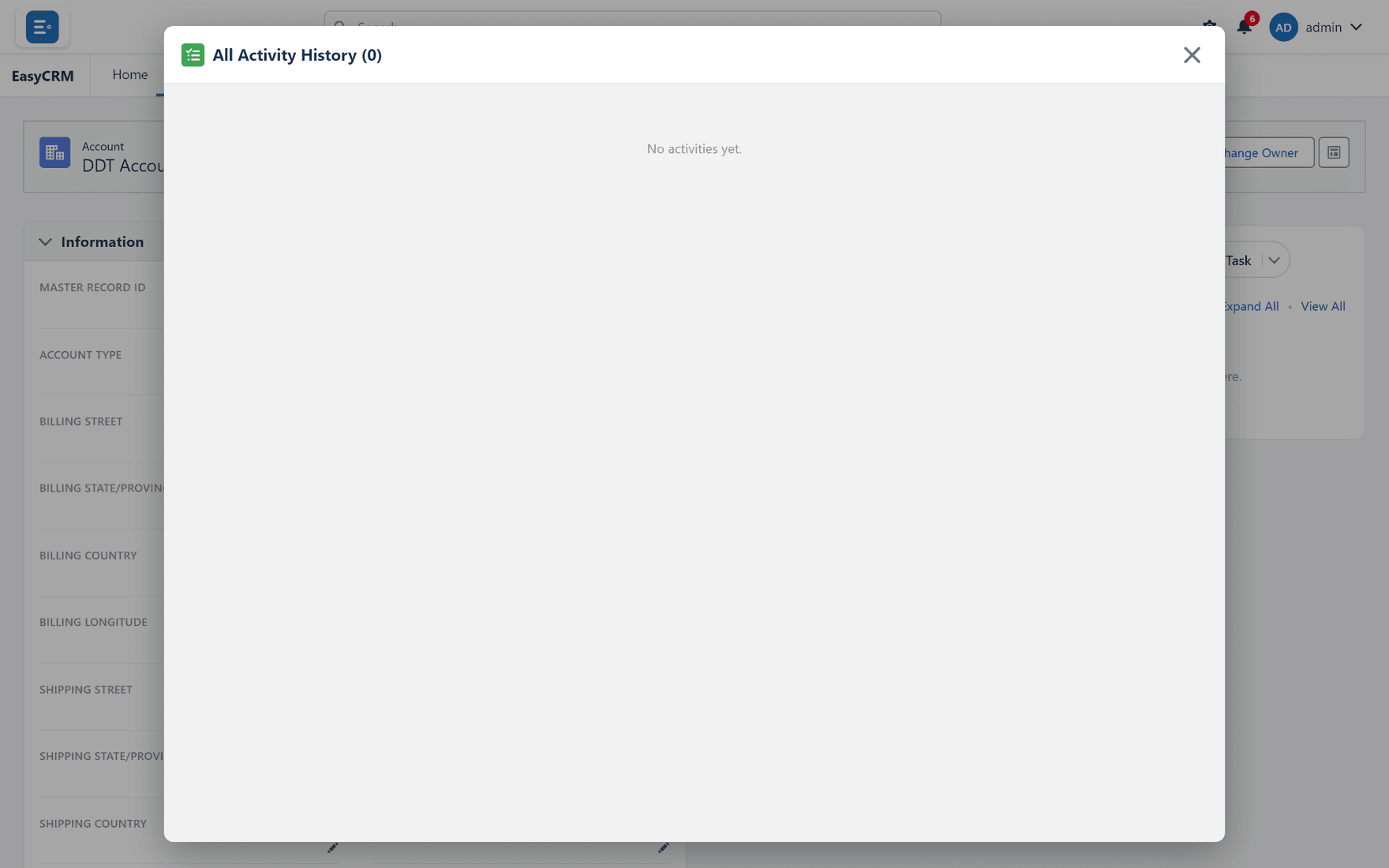
Expand All opens every entry so you can read the detail without clicking each one.
Changing or deleting an entry
- Find the entry in the timeline.
- Use Edit or Delete beside it.
You can only change entries you are allowed to change. If the buttons are missing, ask your administrator.