How the portal looks
What you can change
Three things, all of which affect only you:
| Setting | Options | Where |
|---|---|---|
| Menu position | Top bar or left sidebar | The gear, top right |
| Colour theme | Several presets | The gear, top right |
| Row spacing | Comfy or Compact | Your name, top right |
Nobody else is affected and no data changes.
Changing the menu and theme
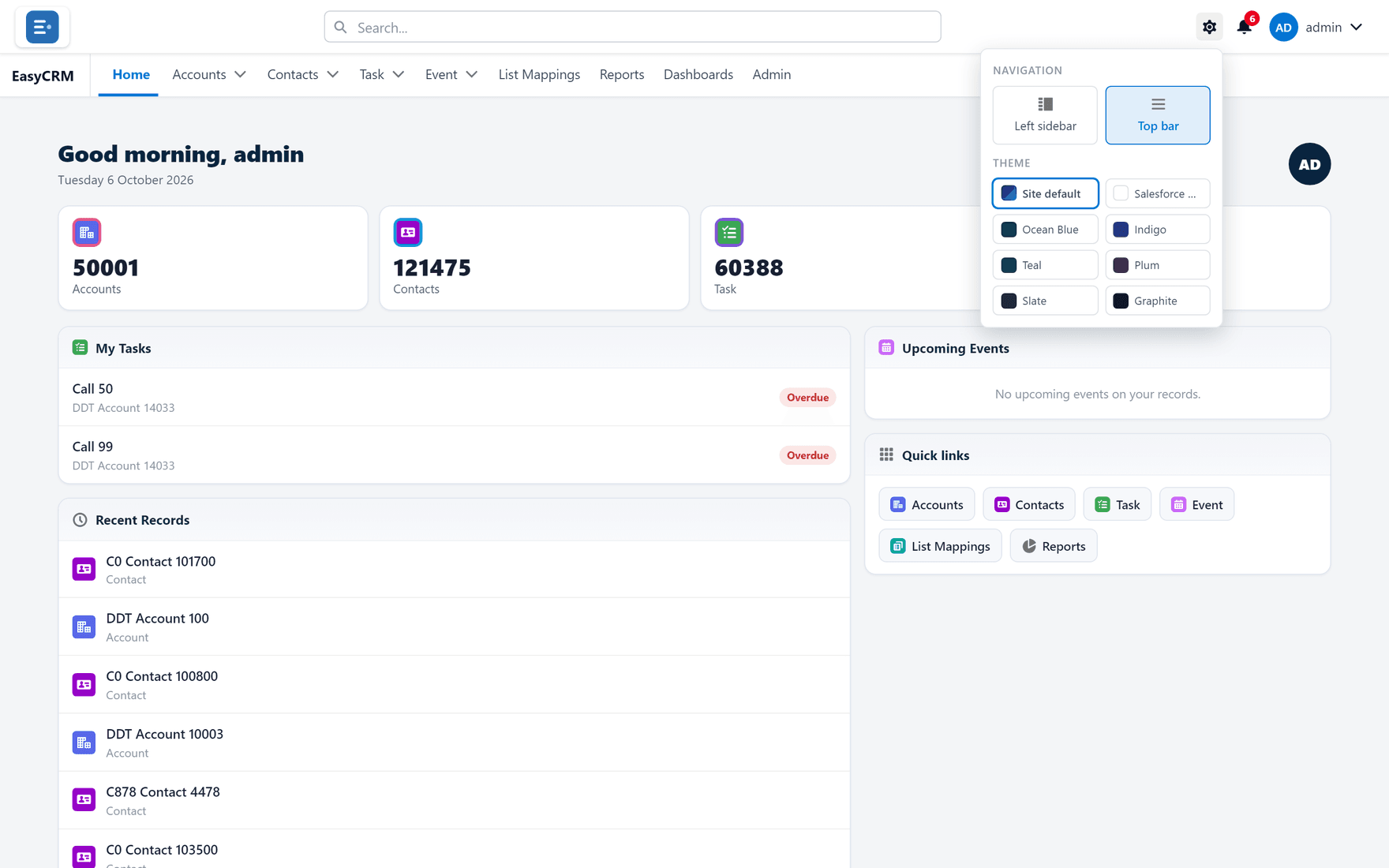
Where: the gear (top right)
-
Click the gear symbol in the top right of any page.
-
Under Navigation, choose:
- Top bar — tabs across the top. More width for tables.
- Left sidebar — tabs down the left. Easier when there are many tabs.
-
Under Theme, click a colour.
-
Click Save.
Changing row spacing
Where: your name (top right)
- Click your name in the top right.
- Choose Comfy or Compact.
Compact fits noticeably more rows on screen. If you work through long lists, it is worth the smaller text.
Which to choose
| Situation | Suggestion |
|---|---|
| Wide tables, few tabs | Top bar |
| Many tabs | Left sidebar |
| Long lists, big screen | Compact |
| Occasional use | Comfy |
Your administrator sets the default
The starting layout and theme come from Branding. What you choose here overrides it for you — and your choice sticks until you change it.
What goes wrong
| Symptom | Cause |
|---|---|
| The setting reverted | It did not save. Reopen and click Save. |
| A colleague's portal looks different | They chose different settings, or a different app. |
| The theme looks wrong | Your administrator changed the branding theme. |