List Mappings
What it is
The portal end of Report to List: which Salesforce report fills which FrontSpin calling list, for a given company.
Before it does anything
It only drives the sync when the switch is set to the Custom Setting. With the switch off — which is the default — this tab edits a store the scheduled job does not read.
Check Setup, or the portal before using it. A mapping added here while the switch is off looks perfectly correct and does nothing.
Opening it
Where: Admin → List Mappings → choose a company
- Click Admin in the top menu.
- Click List Mappings in the row of tabs.
- Nothing is shown yet — mappings belong to a company, so one has to be chosen first.
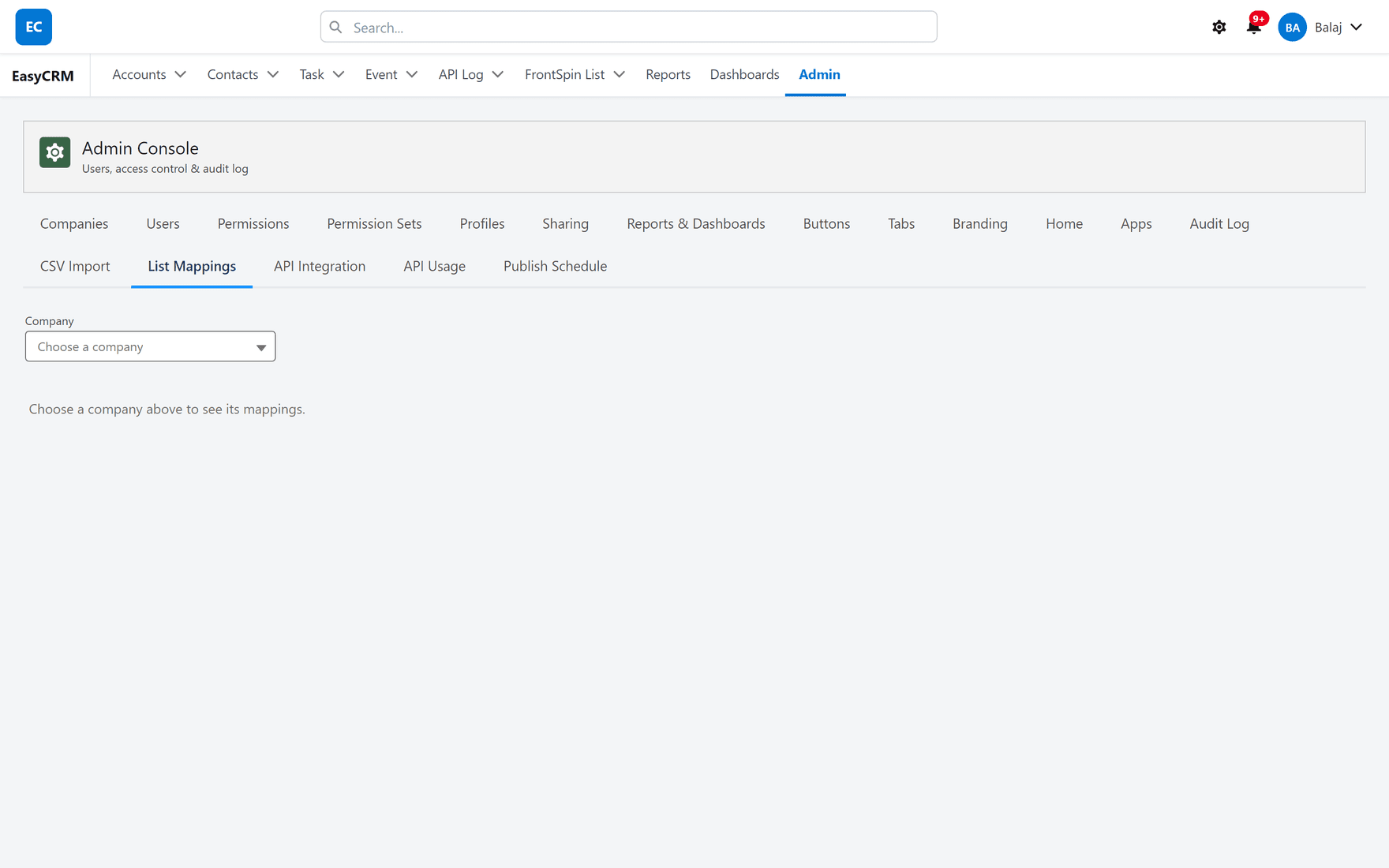
- Click Choose a company and pick one.
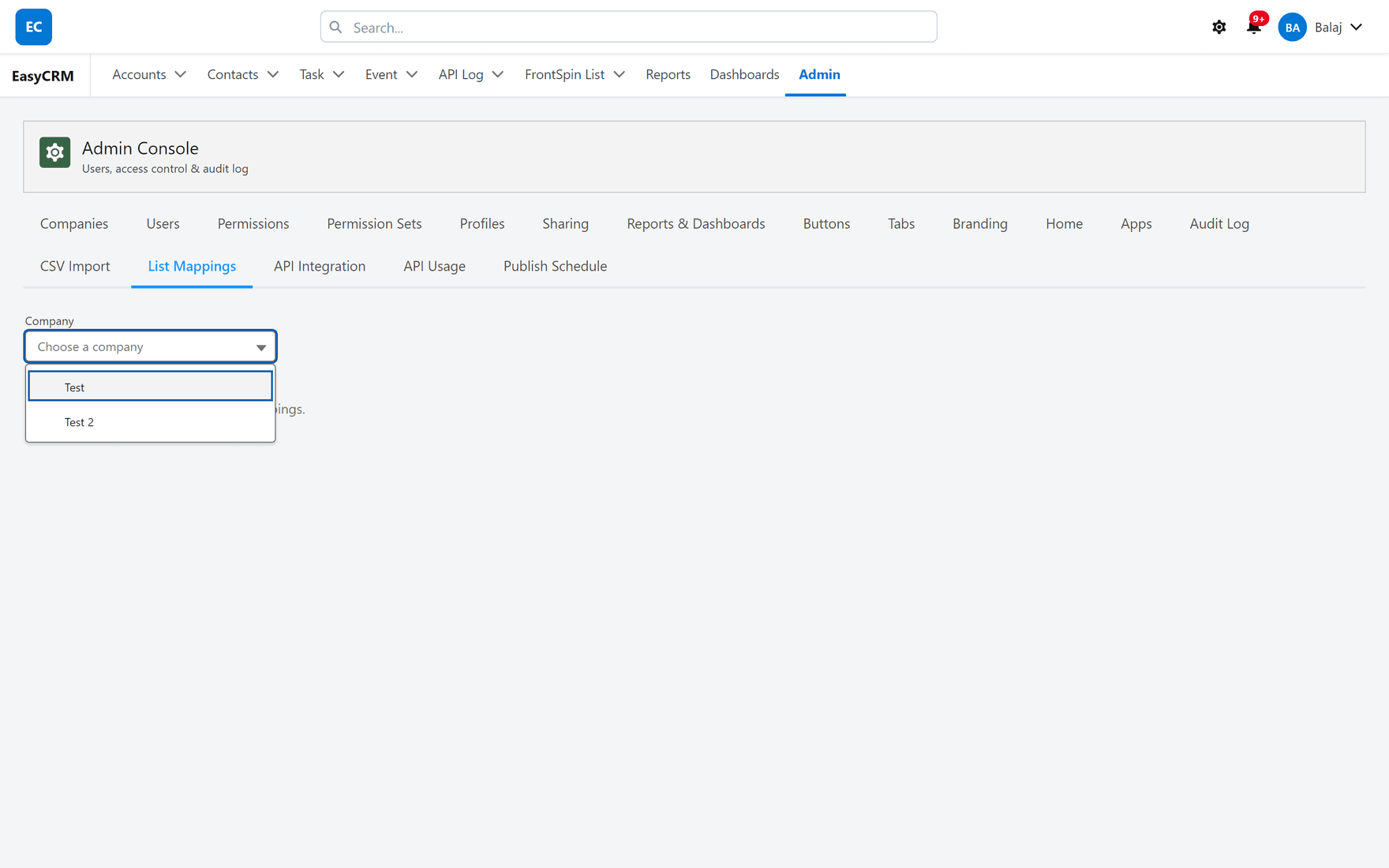
What you get
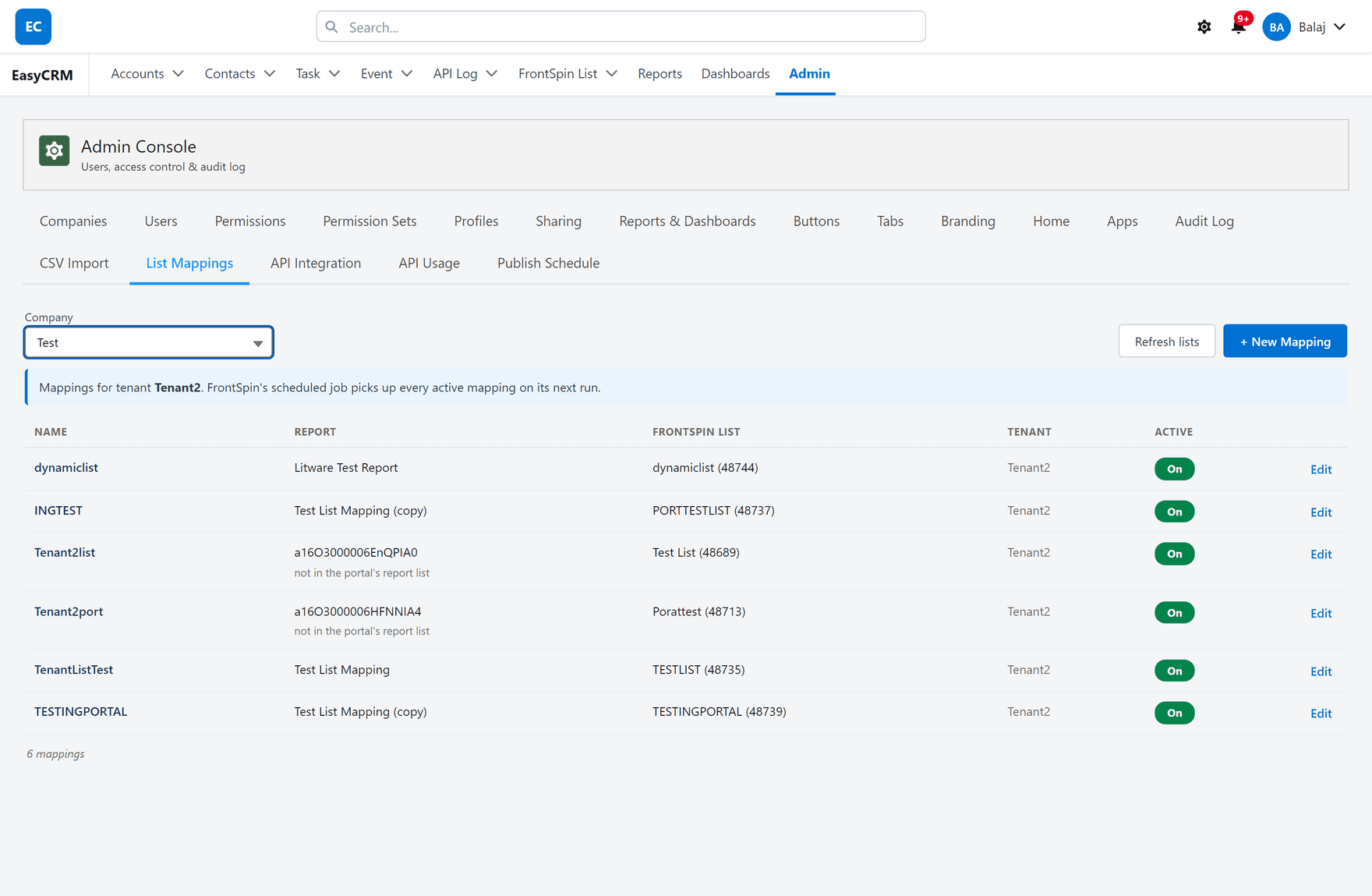
The blue line names the tenant you are editing and confirms that FrontSpin's scheduled job picks up every active mapping on its next run — within the hour.
| Column | Shows |
|---|---|
| Name | What the mapping is called |
| Report | The Salesforce report that fills the list |
| FrontSpin List | The list, with its FrontSpin number in brackets |
| Tenant | Which FrontSpin account |
| Active | An On / Off switch |
The count sits under the table.
"not in the portal's report list"
A row can show a raw report id with not in the portal's report list under it.
That means the mapping points at a report the portal cannot see — usually one that lives only in Salesforce. The mapping still runs; the portal just cannot show you its name. It is a note, not an error.
Adding a mapping
- Choose the company.
- Click + New Mapping.
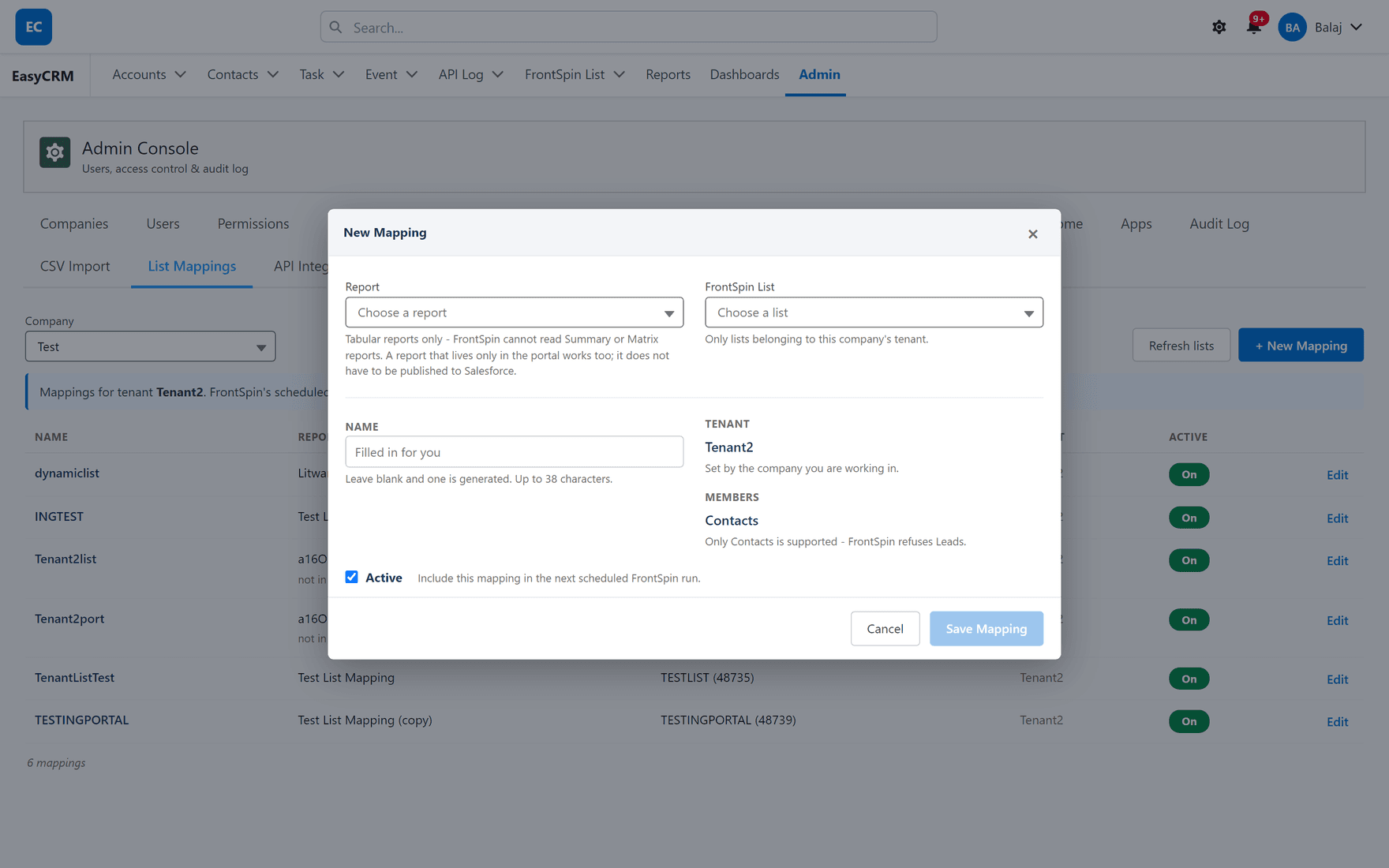
- Fill it in:
| Field | Notes |
|---|---|
| Report | Tabular reports only. See below. |
| FrontSpin List | Only lists belonging to this company's tenant are offered |
| Name | Leave blank and one is generated. Up to 38 characters. |
| Tenant | Not editable — set by the company you are working in |
| Members | Contacts. Not editable. |
| Active | Include this mapping in the next scheduled run |
- Click Save Mapping.
Tabular reports only
FrontSpin cannot read Summary or Matrix reports. Only a tabular report can fill a list, so a grouped report will not be offered.
If the report you want is grouped, make a tabular copy of it for this purpose.
A portal-only report works
The report does not have to be published to Salesforce. A report that exists only in the portal can fill a FrontSpin list perfectly well.
That is worth knowing because it removes a step people often assume is required.
Contacts only
Members is fixed at Contacts, because FrontSpin refuses Leads. There is nothing to choose.
The list picker
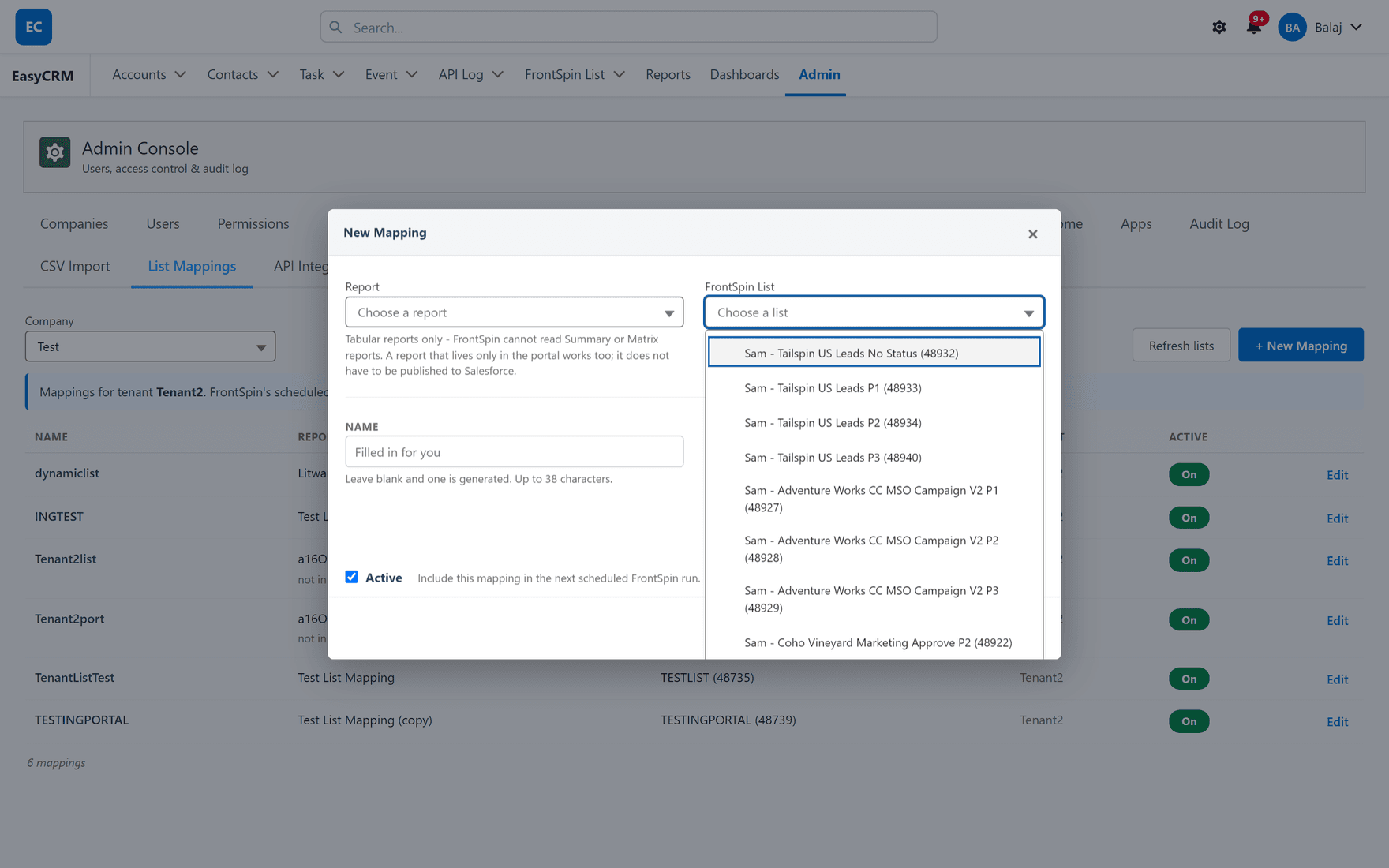
Each entry shows the list name and its FrontSpin number. Only this company's tenant's lists are offered, so you cannot accidentally point one customer's report at another customer's calling list.
Refresh lists
The picker can only offer lists Salesforce already knows about. Refresh lists asks FrontSpin for the current set.
It can add lists that are new. It cannot update ones already recorded.
The portal runs as the site's guest user, and a Guest User Licence forbids editing records — no permission set can change that. So refreshing a list already in Salesforce fails with a duplicate error on the list's key, which is expected rather than a fault.
Keeping existing entries current is the hourly List Catalog job's work. It runs as a real user and has no such limit.
In practice: use Refresh lists when a brand-new list has just been created in FrontSpin and you do not want to wait an hour. For everything else, the hourly job handles it.
Turning one off
Use the Active switch on the row. Off means the scheduled job skips it; the mapping is kept.
Prefer this to deleting. Nothing can remove people a mapping has already added to a list, so switching it off is the only way to stop it growing.
What goes wrong
| Symptom | Cause |
|---|---|
| "FrontSpin is not set up in this org" | The integration is not installed. See the boundary. |
| A new mapping does nothing | The switch is off, so Setup is the live source. |
| Your report is not in the picker | It is a Summary or Matrix report. Only tabular reports can be used. |
| A list is missing from the picker | The catalogue has not caught up. Click Refresh lists, or wait for the hourly job. |
| "duplicate value found" on refresh | The guest cannot update an existing list. Expected — see above. |
| A row shows a raw id | The report lives outside the portal. Harmless. |
| Contacts added but the list looks short | FrontSpin applies additions asynchronously. Give it a few minutes. |
Where this fits
What a mapping actually does is Report to List. Where mappings are stored is Setup, or the portal.