Adding a user
Before you start
Create the person's company first. Company drives most access rules, and a user created without one is the most common setup mistake in the product.
Adding somebody
Where: Admin → Users → + New User
-
Click Admin in the top menu.
-
Click Users in the row of tabs.
-
Click the blue + New User button on the right.
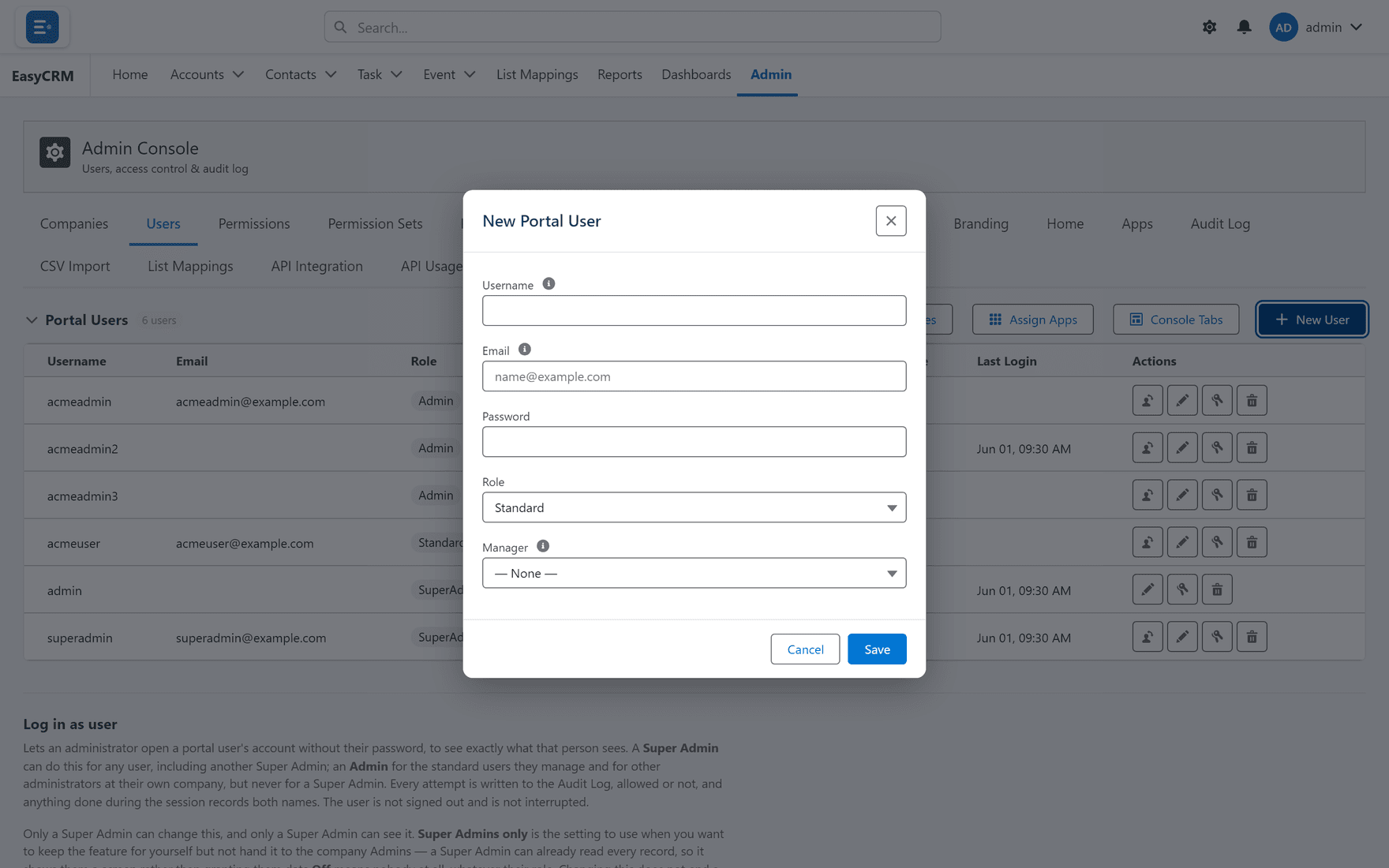
-
Fill in each field:
| Field | Notes |
|---|---|
| Username | What they type to sign in. Must be unique across the portal. |
| Where their password is sent. Must be real and reachable. | |
| Role | See below. |
| Company | Always set this. |
- Click Save.
The password is generated and emailed automatically. You never see it, and neither does anybody else.
Choosing the role
| Role | Can | Give it to |
|---|---|---|
| Standard | See and work on their own records | Most people |
| Admin | The above, plus manage people at their own company | One or two per company |
| Super Admin | Everything, for every company | Whoever runs the portal |
Be sparing with Super Admin. It crosses company boundaries, which is precisely what the rest of the model exists to prevent.
Why the company field matters so much
A blank company matches no company rule. The symptoms are confusing and rarely point at the cause:
- Their Admin cannot see or manage them.
- Report folders shared with their company do not appear.
- Apps assigned to their company do not appear.
All three are the same missing field.
After creating them
A new user has a role and a company but no specific access yet. Decide:
| Next | Page |
|---|---|
| What they may do | Permissions |
| Which records they may do it to | Sharing |
| Whether they are tied to one account | Account scoping |
What goes wrong
| Symptom | Cause |
|---|---|
| "Username already exists" | Usernames are unique portal-wide, including inactive users. |
| No welcome email | Check spam; then check email deliverability in Setup Assistant. |
| They sign in but see nothing | Permissions without sharing. |
| Save is refused | You may have hit a licence limit. |