Users
What it is. Everybody who can sign in to the portal.
What you do here. Add people, set what kind of user they are, reset passwords, and switch off anybody who has left.
Why it matters. This is the front door. Somebody switched off here cannot get in at all, whatever any other setting says.
In this section
| Page | Covers |
|---|---|
| Adding a user | Creating somebody, choosing their role |
| When somebody leaves | Deactivating, and what to do with their records |
| Seeing the portal as somebody else | Reproducing a reported problem |
Opening it
Where: Admin → Users
- Click Admin in the top menu.
- Click Users in the row of tabs under the heading.
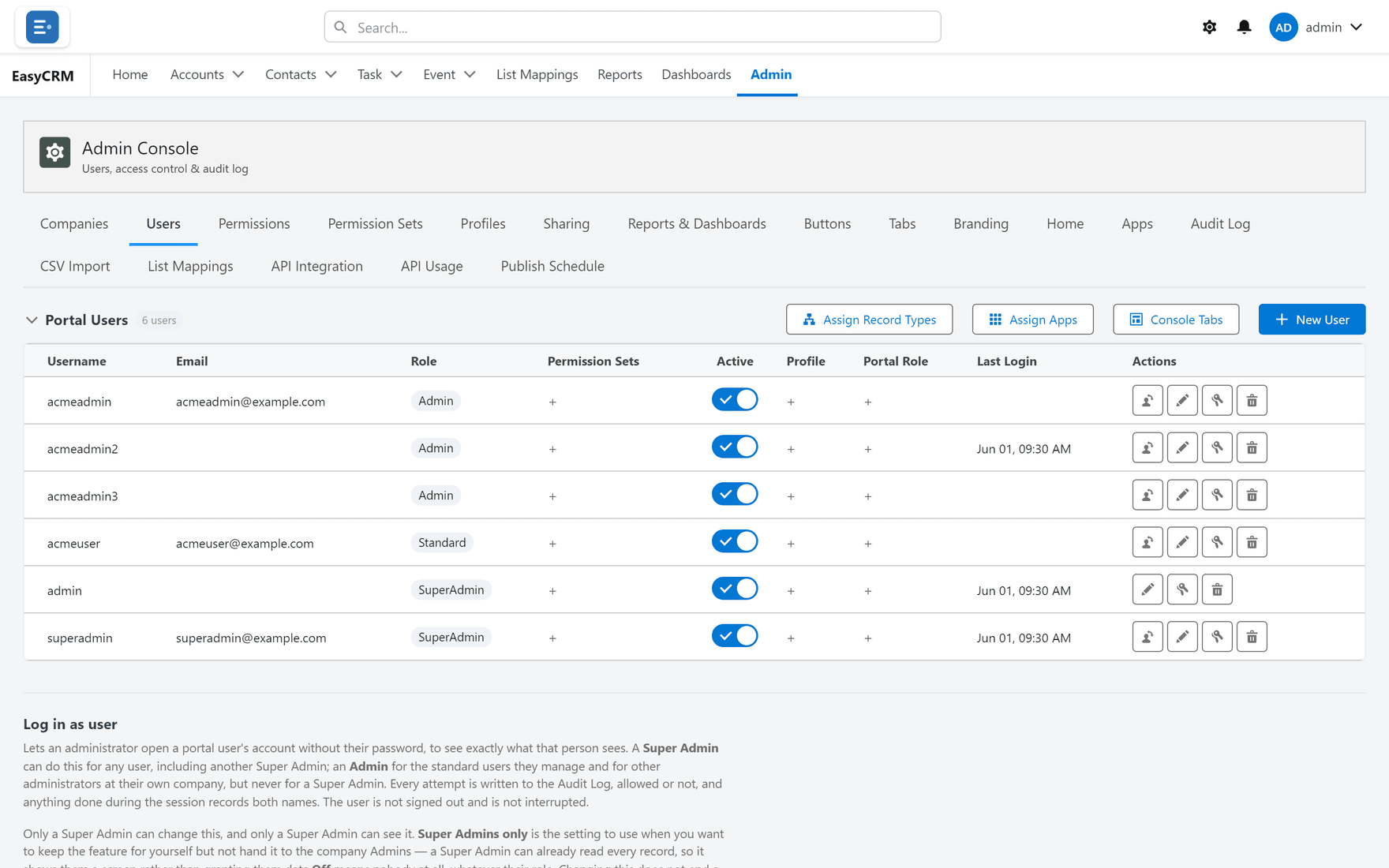
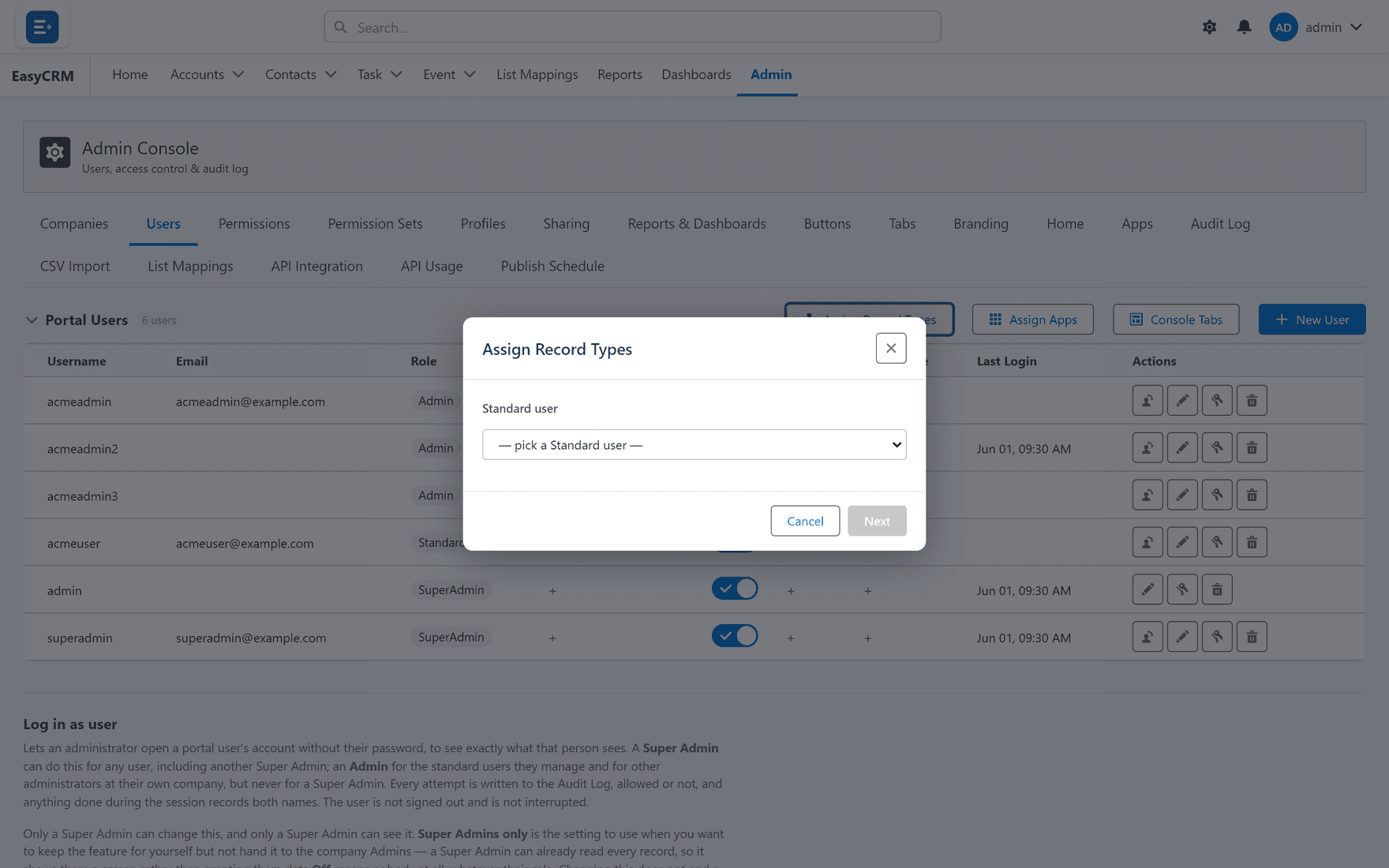
Every person who can sign in is listed, with their username, email, role, whether they are active, and when they last signed in.
Adding somebody
Where: Admin → Users → + New User
-
Click Admin, then Users.
-
Click the blue + New User button on the right.
-
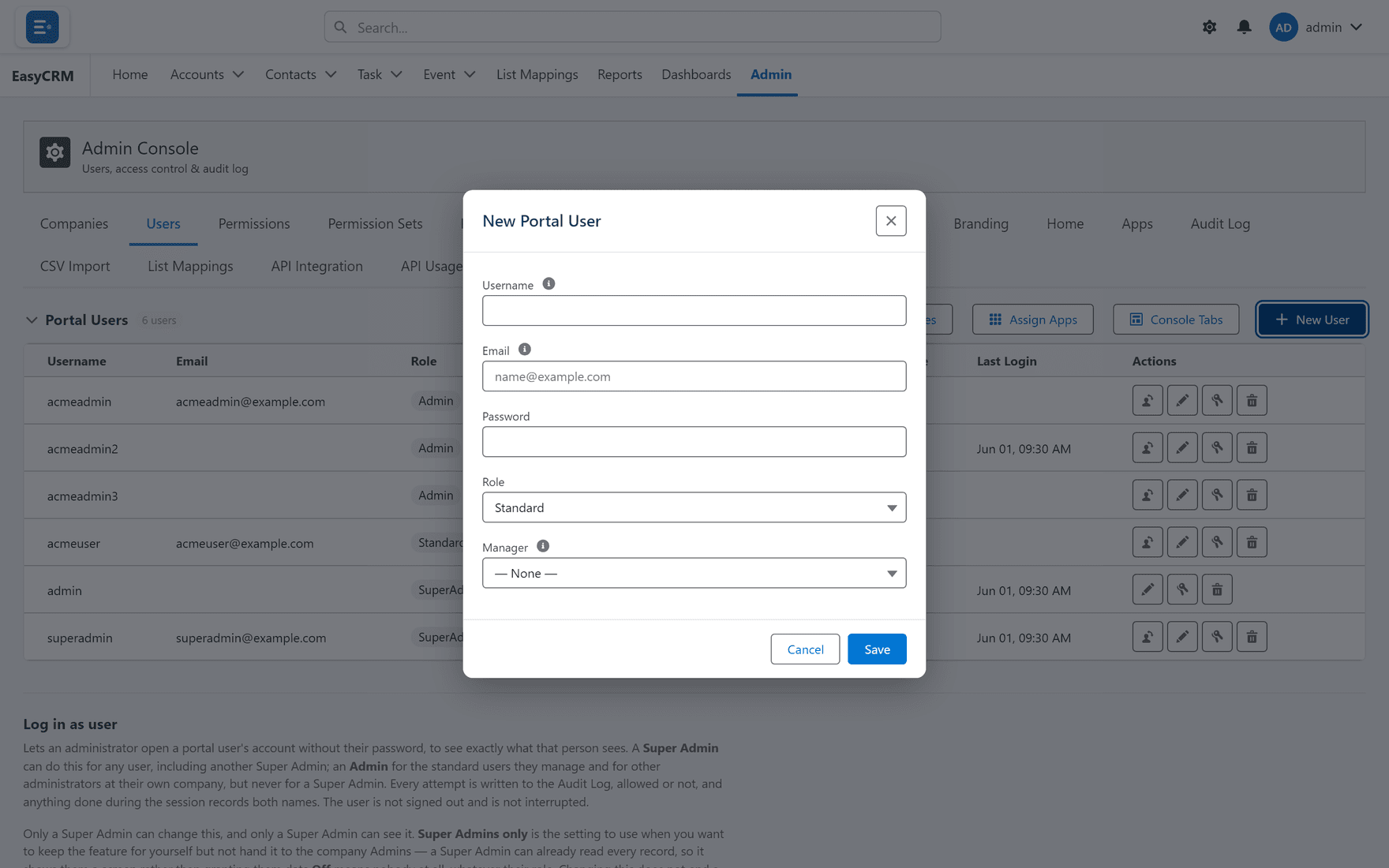
A window opens.
-
Fill in:
- Username — what they type to sign in. It must be unique.
- Email — where their password is sent. It must be real.
- Role — see the table below.
- Company — which company they belong to. Always set this.
-
Click Save.
They are emailed a password automatically.
Which role to choose
| Role | Can do |
|---|---|
| Standard | See and work on their own records. Most people. |
| Admin | The above, plus manage people at their own company. |
| Super Admin | Everything, for every company. Keep this to a few people. |
Always set a company
Somebody with no company is not treated as a match for any company rule. They may end up seeing nothing, or being invisible to their own Admin. It is the single most common setup mistake.
When somebody leaves
Do not delete them. Switch them off instead.
- Find them in the list.
- Click the Active switch so it turns grey.
They can no longer sign in. Their records, and the history of what they did, stay exactly as they are. Deleting would break both.
Resetting a password
- Find the person in the list.
- Click the key symbol in the Actions column.
- Click Save.
A new password is emailed to them. You never see it, and neither does anybody else.
Seeing the portal as somebody else
Useful when a colleague reports a problem you cannot reproduce.
- Find the person in the list.
- Click the person symbol in the Actions column.
You now see the portal exactly as they see it. A banner shows whose account you are in.
What you should know:
- Every attempt is written to the Audit Log, allowed or refused.
- Anything you do while in there records both names.
- The person is not signed out and does not notice.
Who may do it: a Super Admin for anyone. An Admin for the Standard users they manage and for other Admins at their own company — never for a Super Admin.
This is switched off until a Super Admin turns it on.
The three buttons above the table
These set things for the whole company, not one person.
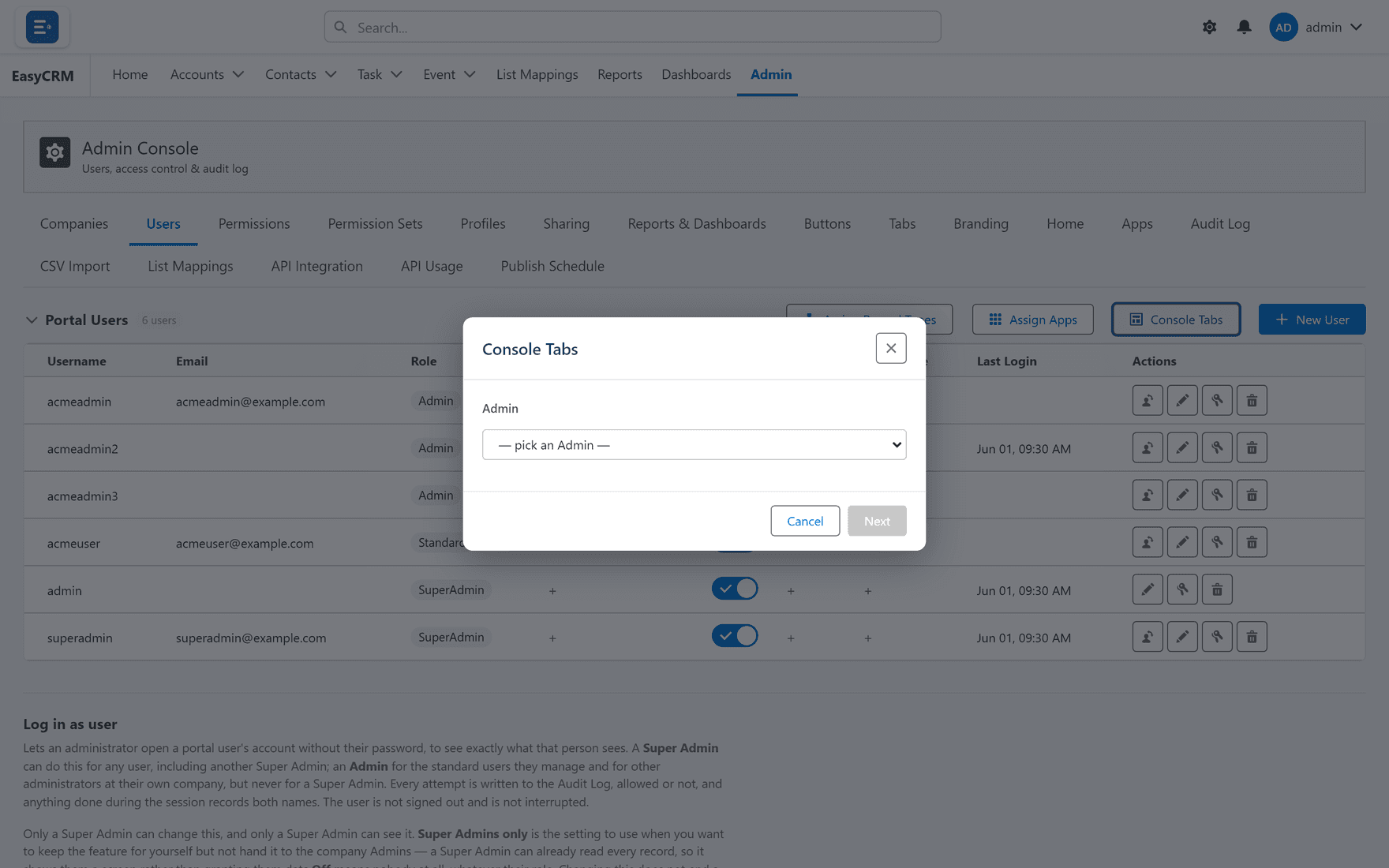
| Button | What it controls |
|---|---|
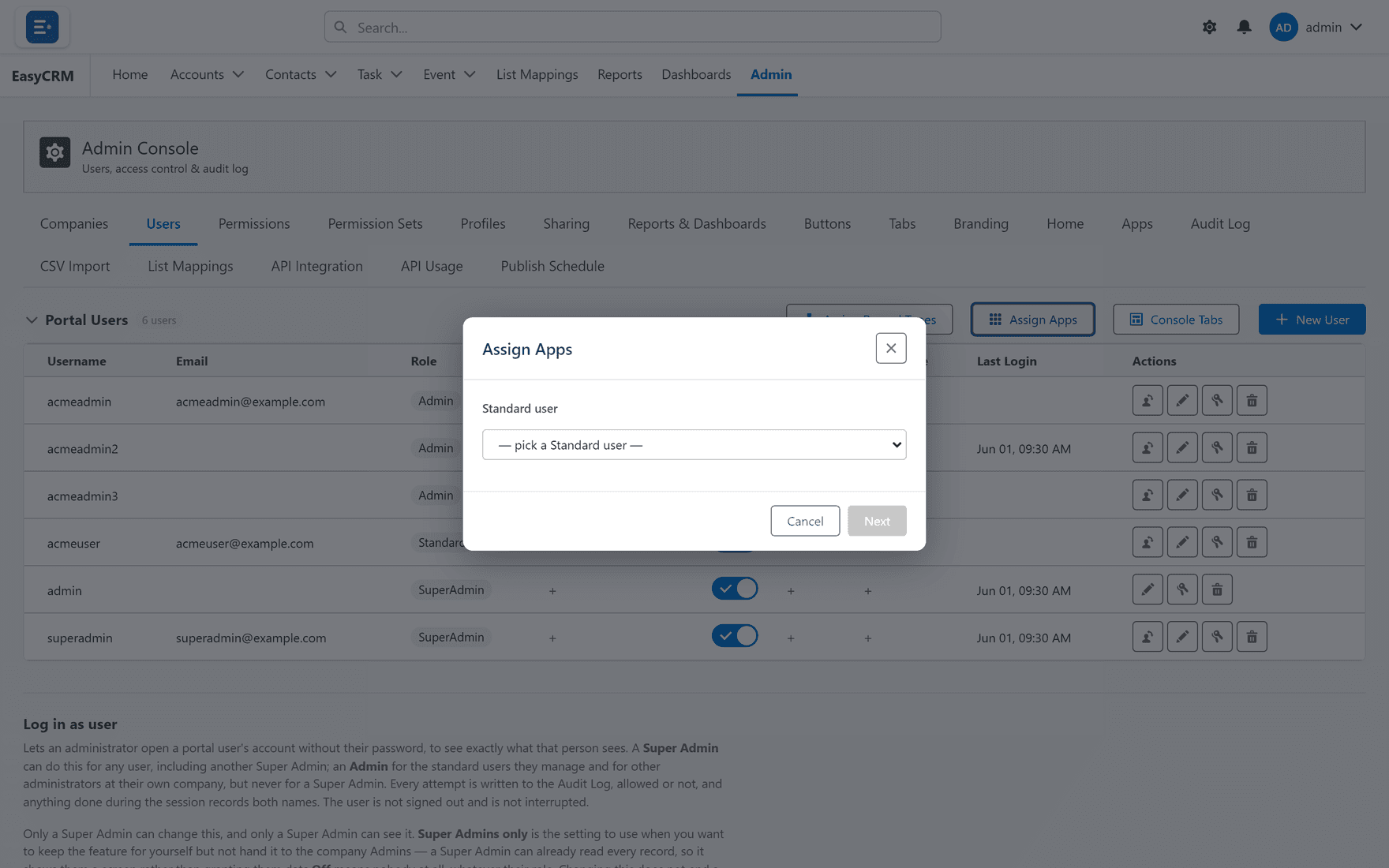
| Assign Apps | Which apps the company's people can switch between. |
| Assign Record Types | Which kinds of record they may create. |
| Console Tabs | Which Admin Console tabs their Admins can see. |
Assign Apps decides what appears in the app launcher.
Assign Record Types decides what the New button offers.
Leaving a list blank usually means "all of them", not "none".