Sharing rules
What it is. A standing rule that opens access up beyond the default.
What it does. It says "records like this should also be visible to these people", and keeps applying — to new records as well as the ones that exist today.
Why it helps. It is how you keep a Private default while still letting a team see each other's work. You set the rule once instead of sharing records one at a time.
Opening it
Where: Admin → Sharing → Sharing Rules
- Click Admin in the top menu.
- Click Sharing, then Sharing Rules.
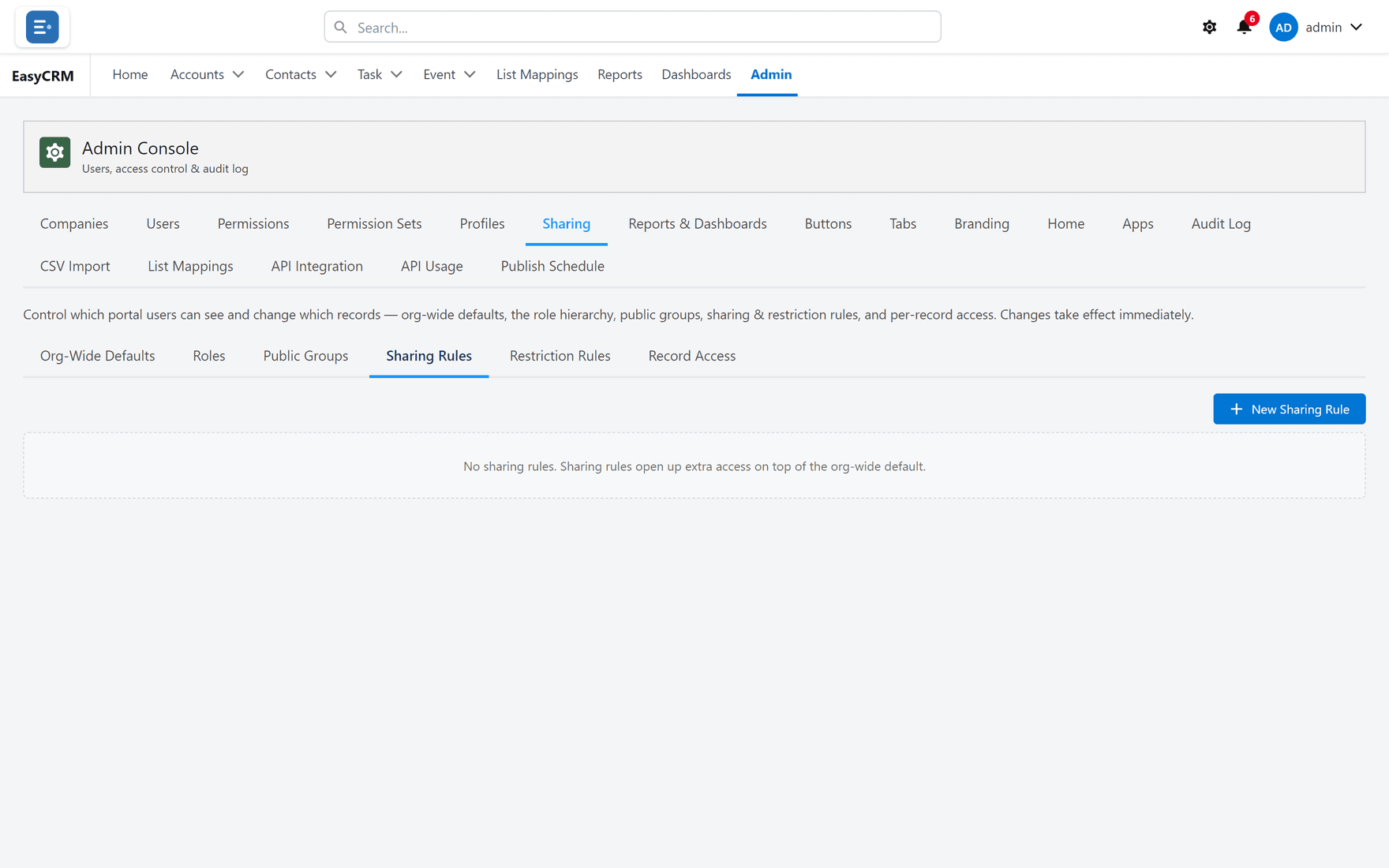
Creating one
- Click New.
- Choose the Object — the kind of record the rule covers.
- Choose which records it applies to:
- Owned by — records belonging to certain people, a role or a group.
- Matching criteria — records where a field has a particular value, such as Region equals North.
- Choose who to Share With: a public group, a role, or a company.
- Choose the Access: Read or Read/Write.
- Click Save.
The rule applies straight away, to existing records as well as future ones.
Owned by, or matching criteria?
| Use | When |
|---|---|
| Owned by | The team is the thing. "Everything the support team owns." |
| Matching criteria | The record is the thing. "Every account in the North region." |
Criteria rules keep working when people change jobs, because they follow the data rather than the person.
A rule can only ever add
A sharing rule never takes access away. If somebody can already see a record, no rule here will hide it.
To restrict, use a restriction rule — the only thing in the portal that narrows access.
Turning one off
Set it to Inactive rather than deleting it.
The rule is kept but stops applying. That is far safer while you work out whether it was the cause of something, and you can switch it back on in one click.
Checking a rule did what you meant
Open Record Access, find a record the rule should cover, and look at the Reason column. A rule that is working shows up there by name.