Restriction rules
What it is. A rule that narrows what somebody can see, rather than widening it.
What it does. Of the records a person could otherwise see, it keeps only those matching your criteria.
Why it matters. This is the only thing in the portal that takes access away. Everything else — defaults, sharing rules, groups, hierarchy — only ever adds.
Opening it
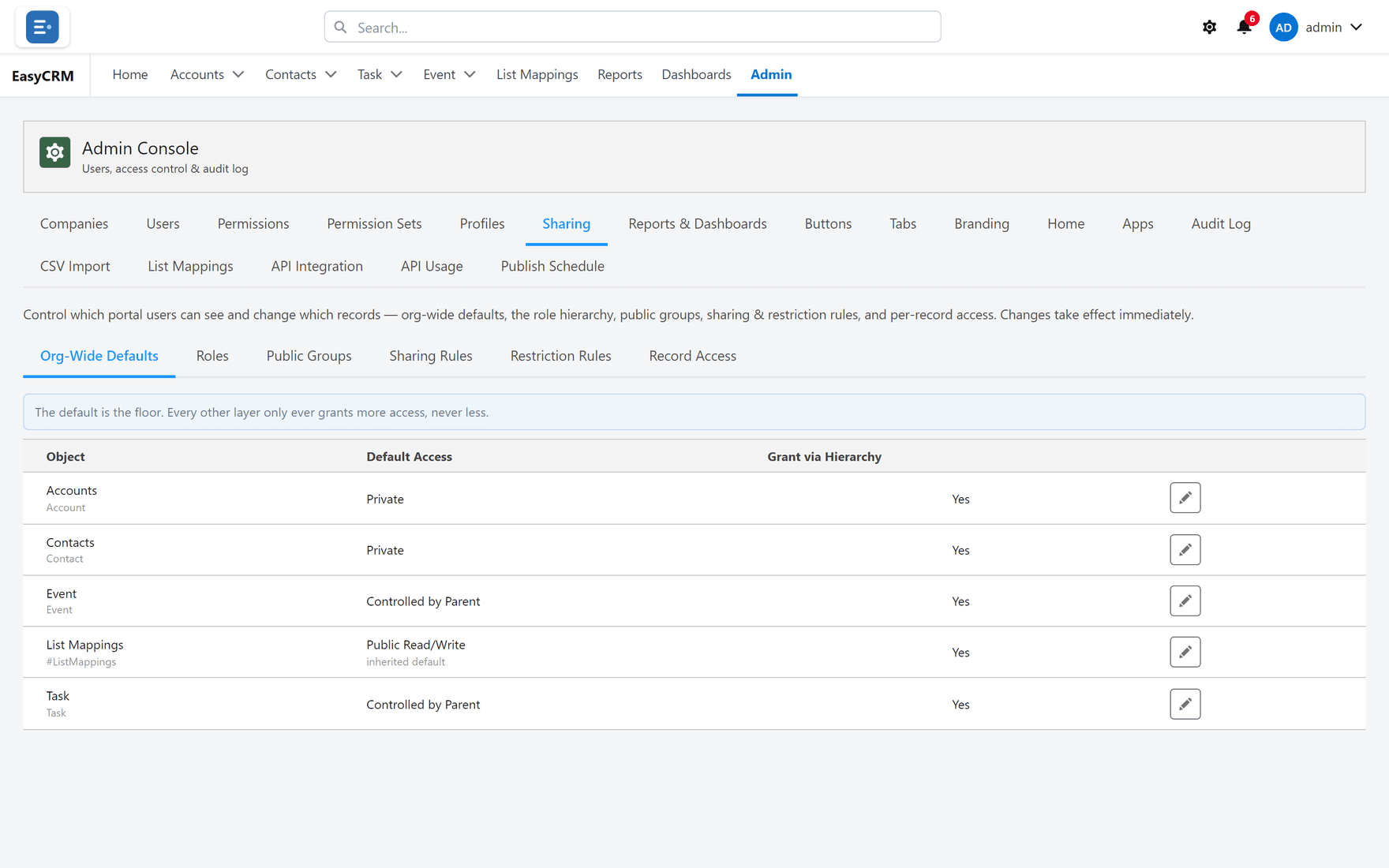
Where: Admin → Sharing → Restriction Rules
- Click Admin in the top menu.
- Click Sharing, then Restriction Rules.
Creating one
- Click New.
- Choose the Object — the kind of record.
- Choose who it Applies To — a person, a role, or a group.
- Set what records must match for them to keep seeing them.
- Click Save.
From then on, those people see only records that match.
Use it carefully
A restriction rule can make records vanish for somebody who could see them a minute ago, and from their side it looks exactly like data loss.
Three habits worth keeping:
- Test with one person first, not a whole role.
- Tell people before you turn it on.
- Check with Record Access afterwards, on a record you expect them to keep and one you expect them to lose.
When it is the right tool
When somebody needs broad permission for most of their job but must not see one slice of the data — a contractor who works on one company's records only, for example.
If you find yourself reaching for a restriction rule often, the default is probably too open. Tightening the floor is usually cleaner than cutting people back one rule at a time.
Turning one off
Set it to Inactive. Access returns immediately to whatever the other rules allow.