Public groups
What it is. A named list of people.
What it does. Nothing on its own. You use it in sharing rules, so a rule can point at one group instead of listing individuals.
Why it helps. When somebody joins the team you add them to one group, rather than editing every rule that should apply to them.
Opening it
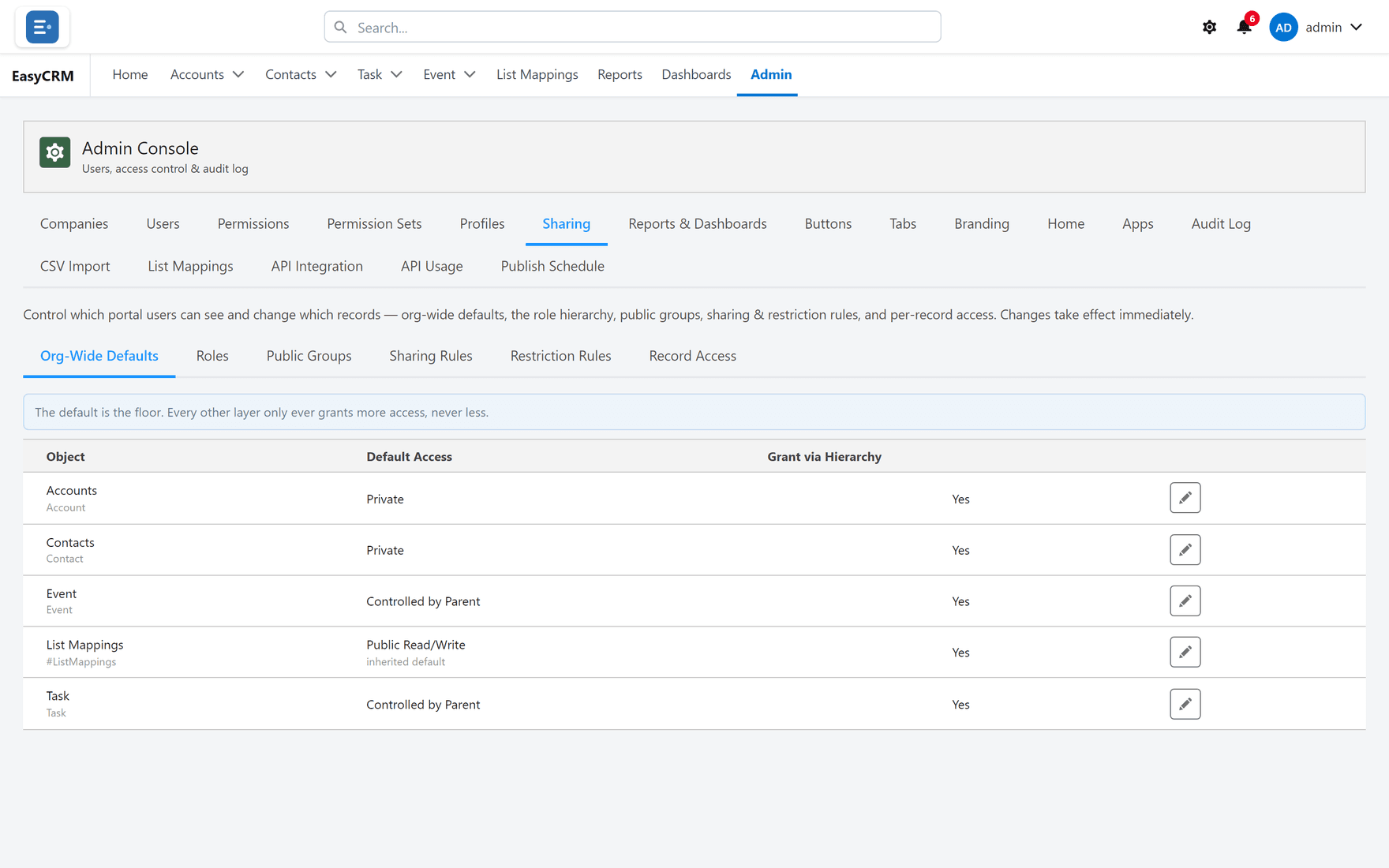
Where: Admin → Sharing → Public Groups
- Click Admin in the top menu.
- Click Sharing, then Public Groups.
Creating one
- Click New.
- Name it after the people in it, such as "Support Team".
- Add members.
- Click Save.
What can go in a group
| Member | Effect |
|---|---|
| A person | Just them. |
| A role | Everybody in that role. |
| Another group | Everybody in that group, including its own nested members. |
A group inside a group brings all of its members with it, so you can build "Everybody in Sales" out of smaller groups without listing anybody twice.
Naming them
Name a group for who is in it, not what it is currently used for.
"Support Team" still makes sense in a year. "Can See Invoices" stops making sense the moment you use the same group for something else — and somebody will.
Using one
Open Sharing Rules, create a rule, and choose the group under Share With.
Changing membership
Add or remove people at any time. Every rule using the group follows immediately — that is the whole point of groups.