Page layouts
What it is. The editor that decides what a record page looks like for everybody.
What it does. You choose which fields appear, in what order, grouped into sections, and which related lists show underneath.
Why it helps. Most records have far more fields than anybody needs. A layout shows the ten that matter and hides the rest, so the page is readable.
In this section
| Page | Covers |
|---|---|
| Choosing fields | Which fields appear, and in what order |
| Sections | Grouping fields under headings |
| Related lists | The tables at the bottom of a record |
| The new-record window | What the New form asks for |
Opening the editor
It is not in the Admin Console. You reach it from a record.
Where: Accounts → any record's name → Edit Page Layout
- Click Accounts (or whichever tab) in the top menu.
- Click any record's name to open it. It does not matter which — the layout applies to all of them.
- Click the small button at the far right of the record's button row, next to Change Owner. Its tooltip reads Edit Page Layout.
- The editor opens.
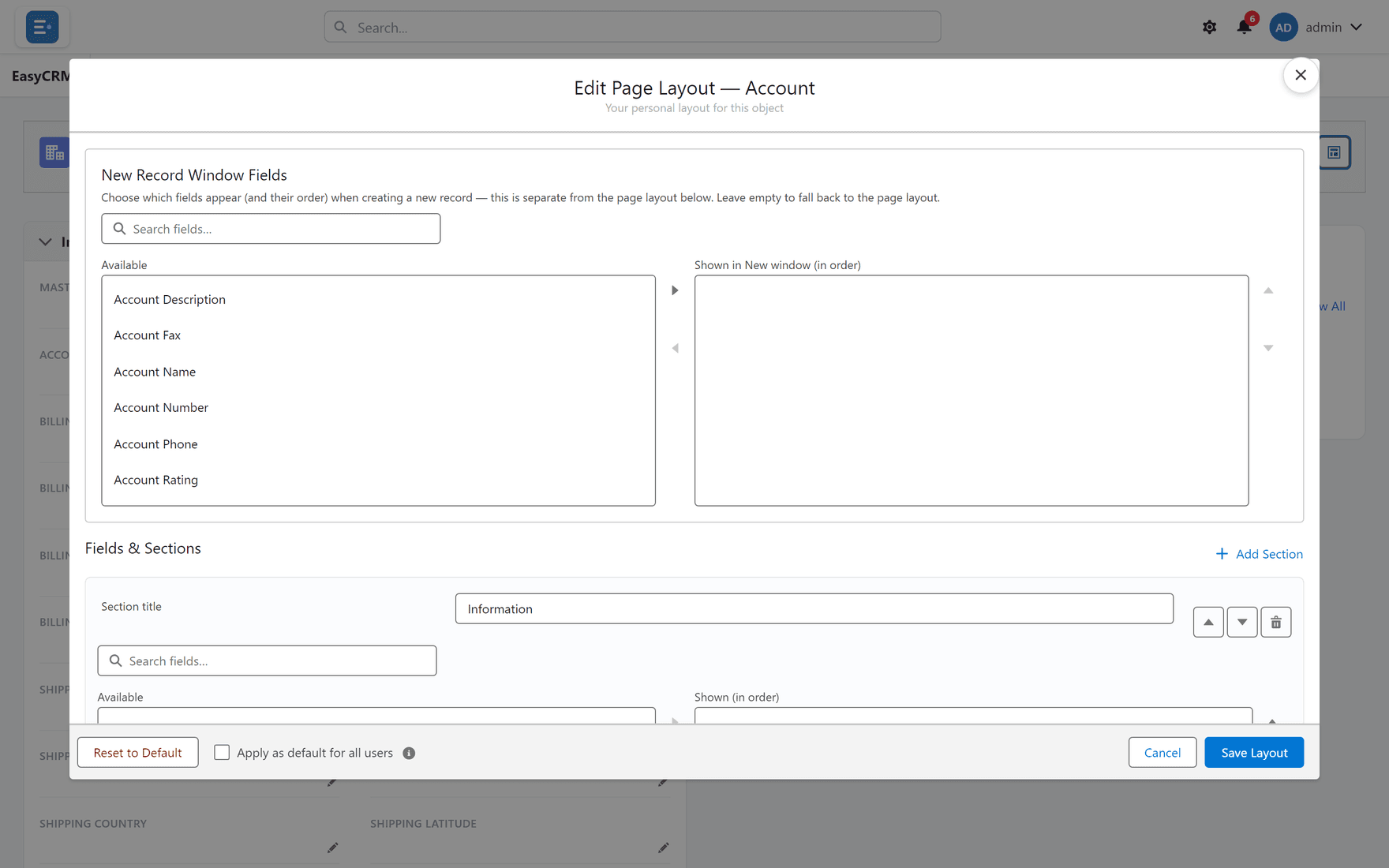
What you change here applies to everybody who sees that kind of record, not just you.
Choosing which fields appear
The editor shows two lists side by side.
- Available on the left — fields not currently on the page.
- Shown (in order) on the right — the fields on the page, top to bottom.
- To add a field: click it on the left, then click Move selection to Shown (in order).
- To remove one: click it on the right, then click Move selection to Available.
- To reorder: click a field on the right, then Move selection up or Move selection down.
Removing a field from a layout never deletes data. The value stays on the record; it is just not displayed.
Finding a field quickly
There can be hundreds of fields.
- Click the Search fields… box above the list.
- Type part of the field name.
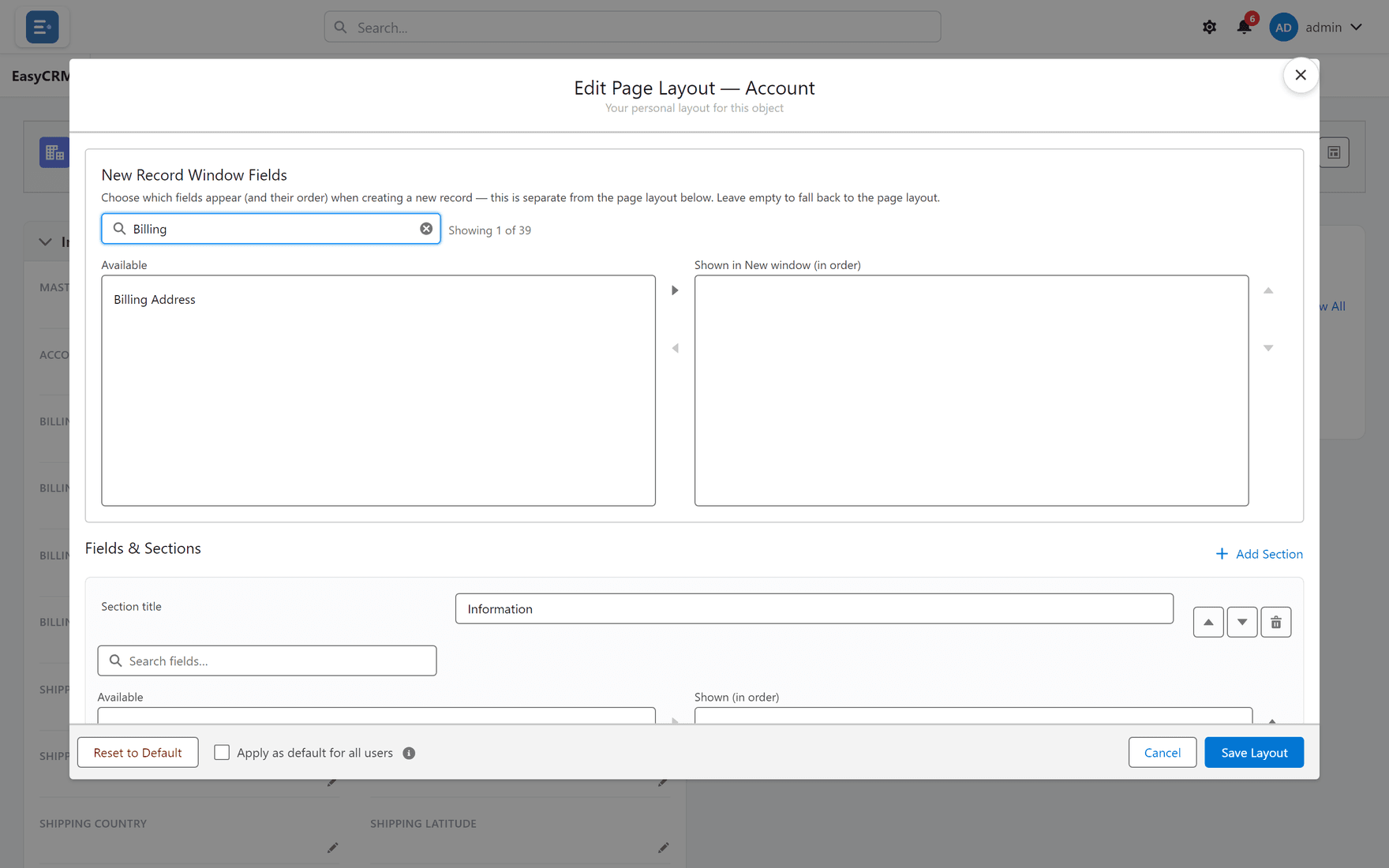
The list narrows as you type. Fields you have already chosen stay on the right — searching can never lose your work.
Sections
A section is a heading with fields grouped under it, such as "Billing" or "System Information".
Where: the layout editor → Add Section
-
Click Add Section.
-
Type a name for it.
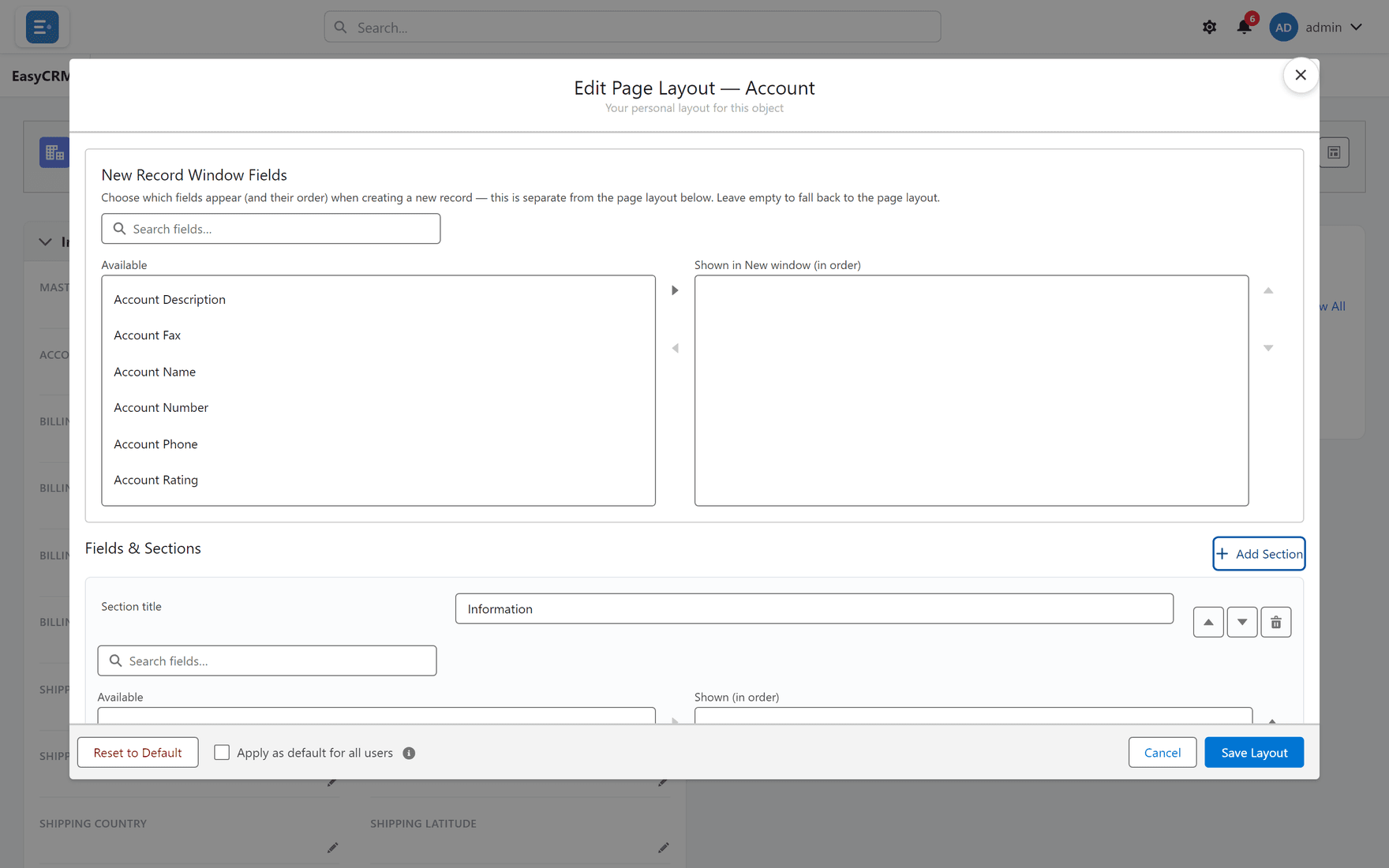
-
Move fields into it.
Use Move section up and Move section down to reorder sections, and Remove section to delete one. Removing a section does not delete its fields or any data.
Related lists
These are the tables at the bottom of a record — the contacts at this account, for example.
Where: the layout editor → Related Lists → Add related list…
- Scroll to the Related Lists part of the editor.
- Click the Add related list… box.
- Choose which records it should show.
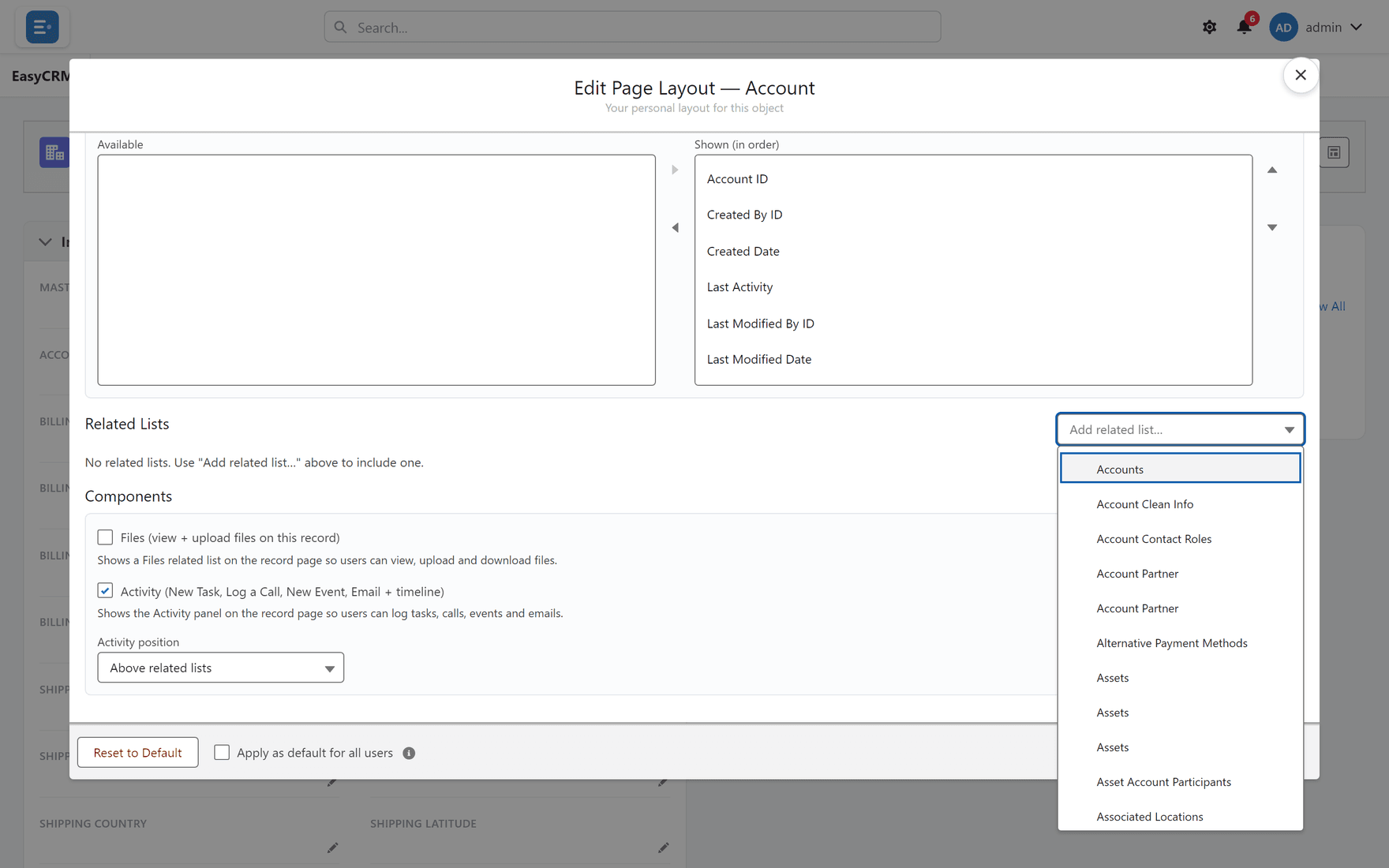
Above related lists controls where the activity panel sits relative to them.
The New Record window
The record page and the New window can show different fields.
Set the New window separately, under New Record Window Fields. Keep it short — usually just what is required — so creating a record is quick.
Saving, and starting again
| Button | What it does |
|---|---|
| Save Layout | Keeps your changes, for everybody. |
| Cancel | Leaves without changing anything. |
| Reset to Default | Puts the layout back to how it started. |
Reset to Default loses your field arrangement but touches no record data.