Reports and Dashboards
What it is. Who can see which reports and dashboards.
What it does. You share a report, a dashboard or a whole folder with a company, or with chosen people inside it.
Why it helps. One company's reports stay out of another's sight, and you set it once rather than report by report.
Opening it
Where: Admin → Reports & Dashboards
- Click Admin in the top menu.
- Click Reports & Dashboards in the row of tabs.
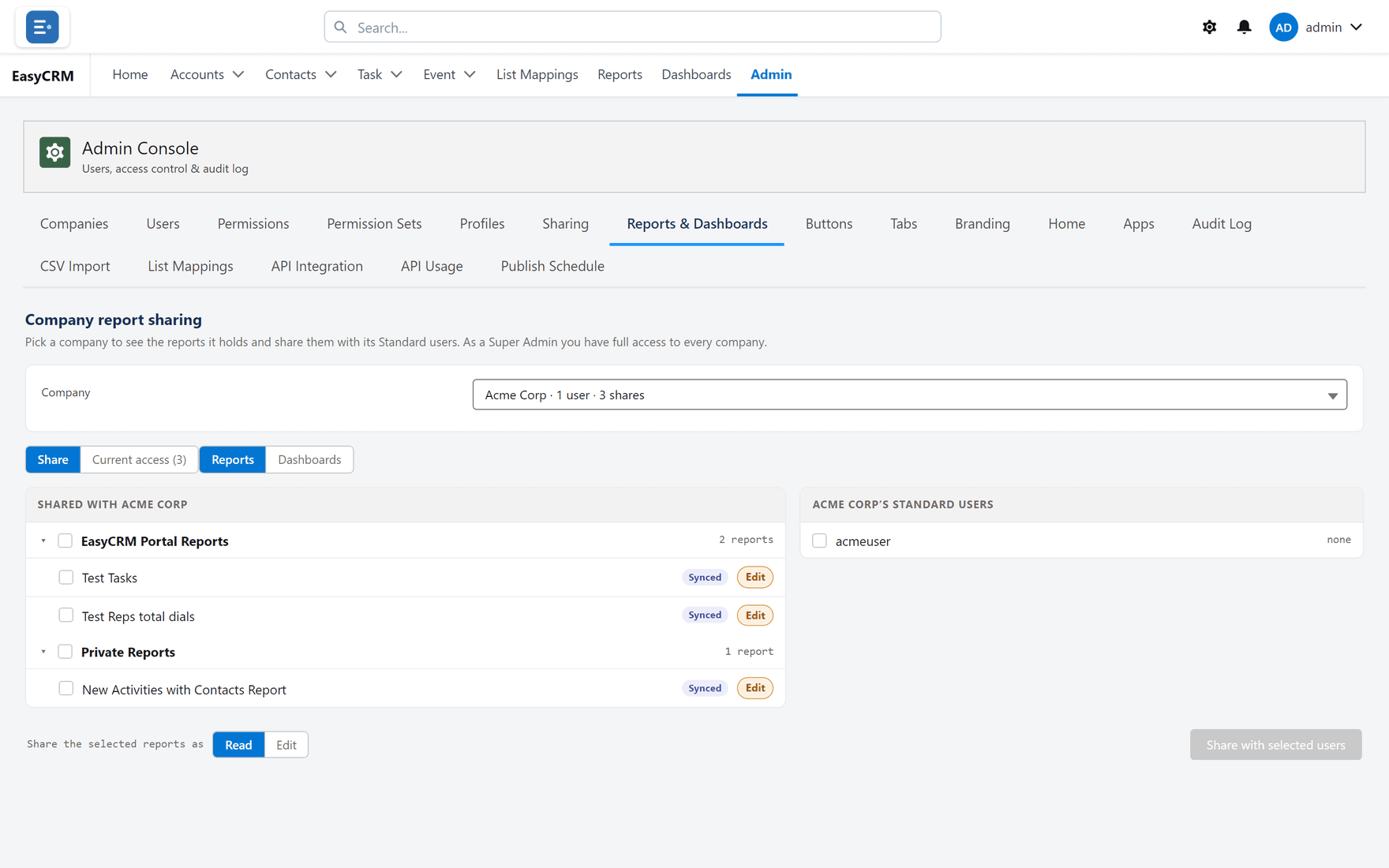
Sharing something
Where: Admin → Reports & Dashboards → Share
- Find the report, dashboard or folder in the list.
- Click Share.
- Choose the company.
- Choose the access:
| Access | Lets them |
|---|---|
| Read | Open it and run it. |
| Edit | Open it and change it. |
- Click Save.
Give Read unless somebody has asked to change the report. Edit means they can change it for everybody it is shared with.
Sharing with particular people
Sometimes a whole company is too broad.
- Click Share on the item.
- Choose the people instead of the company.
- Click Share with selected users.
Seeing who has access now
Each item shows Current access with a count. Click it to see exactly which companies and people, and what level each has.
Taking access away
- Open Current access for the item.
- Remove the company or person.
They lose it immediately. Anything they built on top of it stays theirs.
Folders versus single reports
Sharing a folder shares everything in it, including anything added later. Sharing a single report shares only that one.
Use folders for a set that belongs together — it is less work and less likely to be forgotten when somebody adds the next report.