Publish Schedule
What it is. Copying portal reports into Salesforce automatically, on a timetable.
What it does. It re-creates a portal report as a Salesforce report, and keeps it updated.
Why it helps. People who work in Salesforce see the same numbers as people in the portal, without anybody rebuilding the report twice or exporting it by hand.
Opening it
Where: Admin → Publish Schedule
- Click Admin in the top menu.
- Click Publish Schedule in the row of tabs.
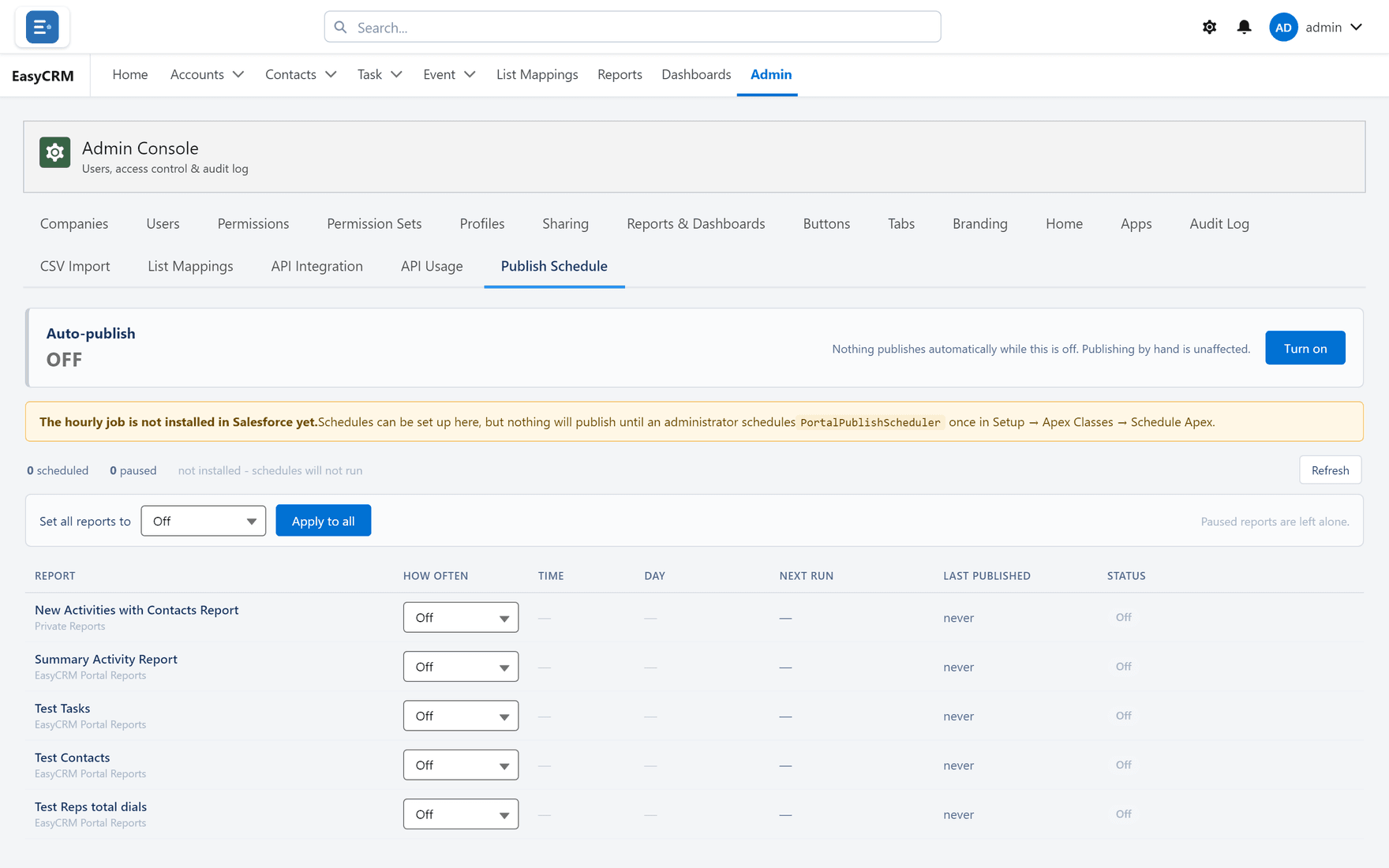
It starts switched off
Automatic publishing is off until somebody turns it on. That is deliberate: it writes into Salesforce on a timer, and that should be a decision rather than a default.
- Click Turn on at the top.
- Set the schedule for each report.
Scheduling a report
- Find the report in the list.
- Choose how often it should publish.
- Click Save.
Apply to all sets the same frequency for every report at once, which is quicker when you want them all on the same rhythm.
Choosing a frequency
Match it to how fast the data changes and who is waiting for it.
| Frequency | Suits |
|---|---|
| Hourly | Numbers people watch during the day. |
| Daily | Most reports. |
| Weekly | Summaries nobody reads more often than that. |
More often is not better. Each publish does real work, and a report nobody looks at before Monday does not need rebuilding every hour.
Checking it worked
Click Refresh. Each report shows when it last published and whether it succeeded.
If a report is deleted
Its schedule pauses. It does not quietly create a new report in Salesforce to replace the one somebody deleted.
That is on purpose: deleting a report is usually deliberate, and silently re-creating it would undo the decision. Set up a new schedule if you want it back.
Turning it off again
Click Off at the top. Schedules are kept but stop running, so you can turn it back on without setting everything up again.