Companies
What it is. The companies whose people use the portal.
What it does. A company groups users together, and most access rules work company by company.
Why it matters. An Admin manages only their own company's people, and report folders are shared per company. Somebody with no company matches no company rule.
Opening it
Where: Admin → Companies
- Click Admin in the top menu.
- Click Companies in the row of tabs.
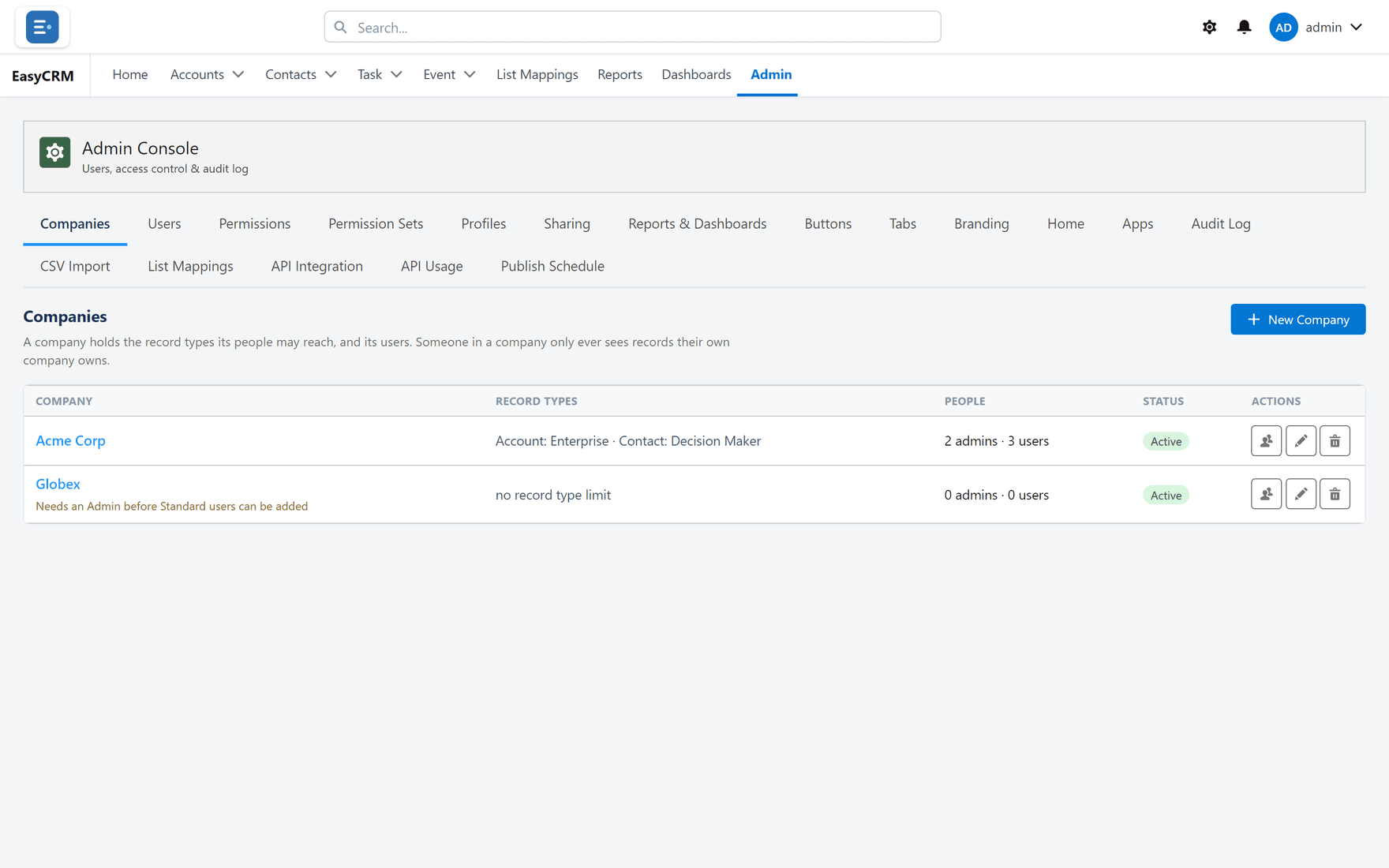
Each company is listed with how many people belong to it.
Adding a company
Where: Admin → Companies → New Company
-
Click Admin, then Companies.
-
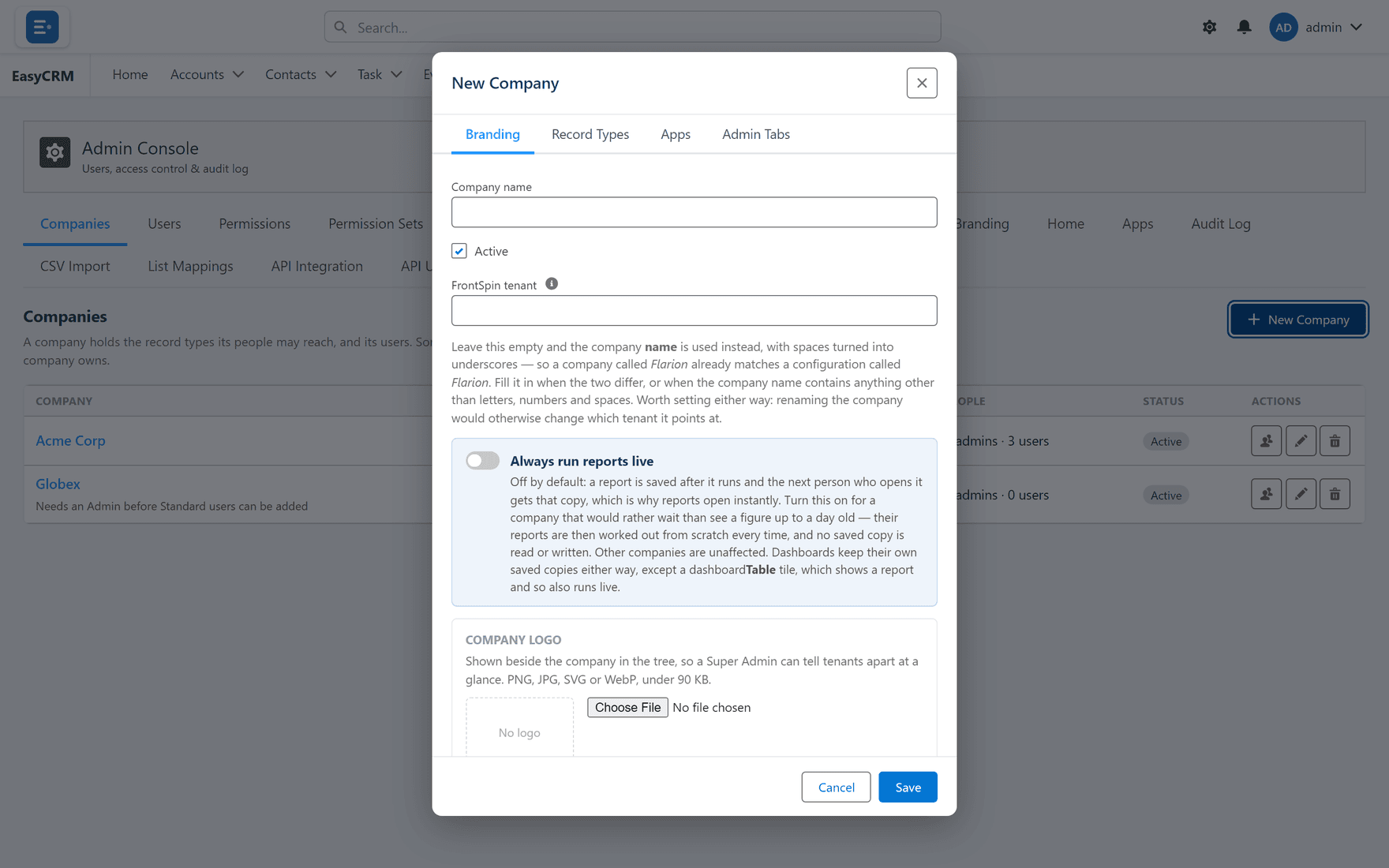
Click New Company.
-
Type the company's name.
-
Click Save.
Create the company before you add its people, so you can set their company as you create them.
Seeing who belongs to a company
- Find the company in the list.
- Click People beside it.
You see everybody at that company, and can jump to any of them in Users.
Renaming or removing one
- Edit changes the name.
- Delete removes the company.
Do not delete a company that still has people. Their company becomes blank, and a blank company matches no rule — which usually means they stop seeing records, or their Admin stops being able to manage them. Move the people first.
Why every user needs a company
It is the most common setup mistake, and it shows up in confusing ways:
- An Admin cannot see or manage somebody.
- Somebody cannot see a report folder shared with their company.
- An app assigned to a company does not appear for them.
All three are the same cause: a blank company field. Set it when you create the user.