Tabs
What it is. Which tabs appear across the top of the portal, and in what order.
What it does. You move objects between "available" and "shown", and arrange the shown ones.
What it is not. Hiding a tab hides the way in, not the data. Somebody can still reach those records through search or a report. Use Permissions and Sharing to control access.
Opening it
Where: Admin → Tabs
- Click Admin in the top menu.
- Click Tabs in the row of tabs.
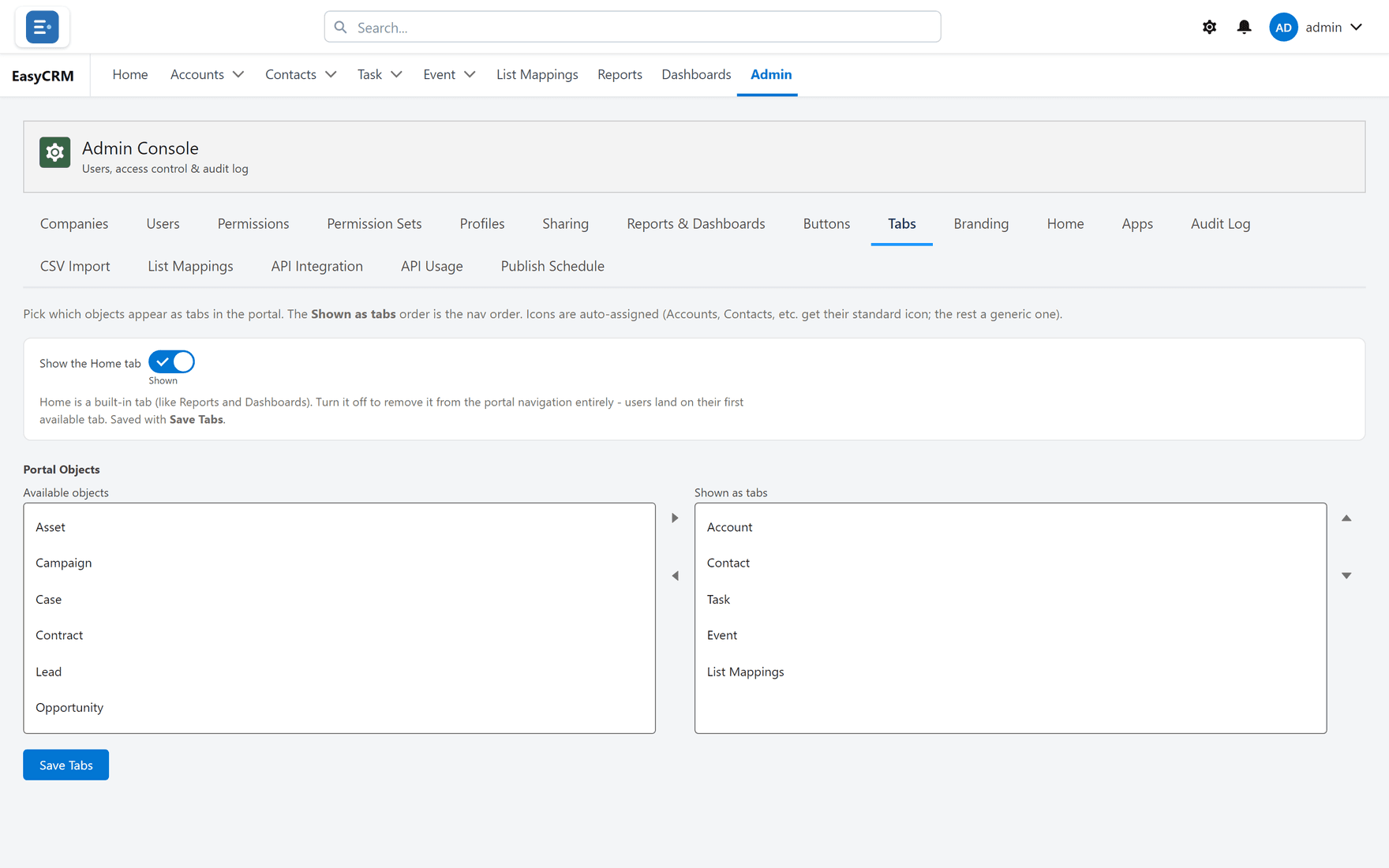
You see two lists side by side:
- Available objects on the left — things not currently shown as tabs.
- Shown as tabs on the right — the tabs people see, top to bottom matching left to right across the screen.
Adding a tab
- Click an object in the Available objects list on the left.
- Click Move selection to Shown as tabs.
- Click Save Tabs.
Removing a tab
- Click the tab in the Shown as tabs list on the right.
- Click Move selection to Available objects.
- Click Save Tabs.
Nothing is deleted. The records are still there, and anybody with permission can still reach them by searching.
Changing the order
- Click a tab in the Shown as tabs list.
- Click Move selection up or Move selection down.
- Repeat until the order is right.
- Click Save Tabs.
The order here is the order across the top of the screen, left to right. Put the ones people use every day first.
Nothing takes effect until you save
Click Save Tabs. People see the change the next time they load a page.
Tabs and apps
If you use apps, each app has its own set of tabs. This screen sets the overall list; the app decides which of them that app shows.