The sign-in page
What it is. An editor for the page people see before they sign in.
What it does. You build the page out of blocks — headings, text, images, logos, links — and arrange them across the two halves of the screen.
Why it helps. The sign-in page is the first thing anybody sees, and the only page people who are not signed in ever see. This lets you make it look like your company without anybody writing code.
Opening the designer
Where: Admin → Branding → Login Design
- Click Admin in the top menu.
- Click Branding in the row of tabs.
- Click Login Design.
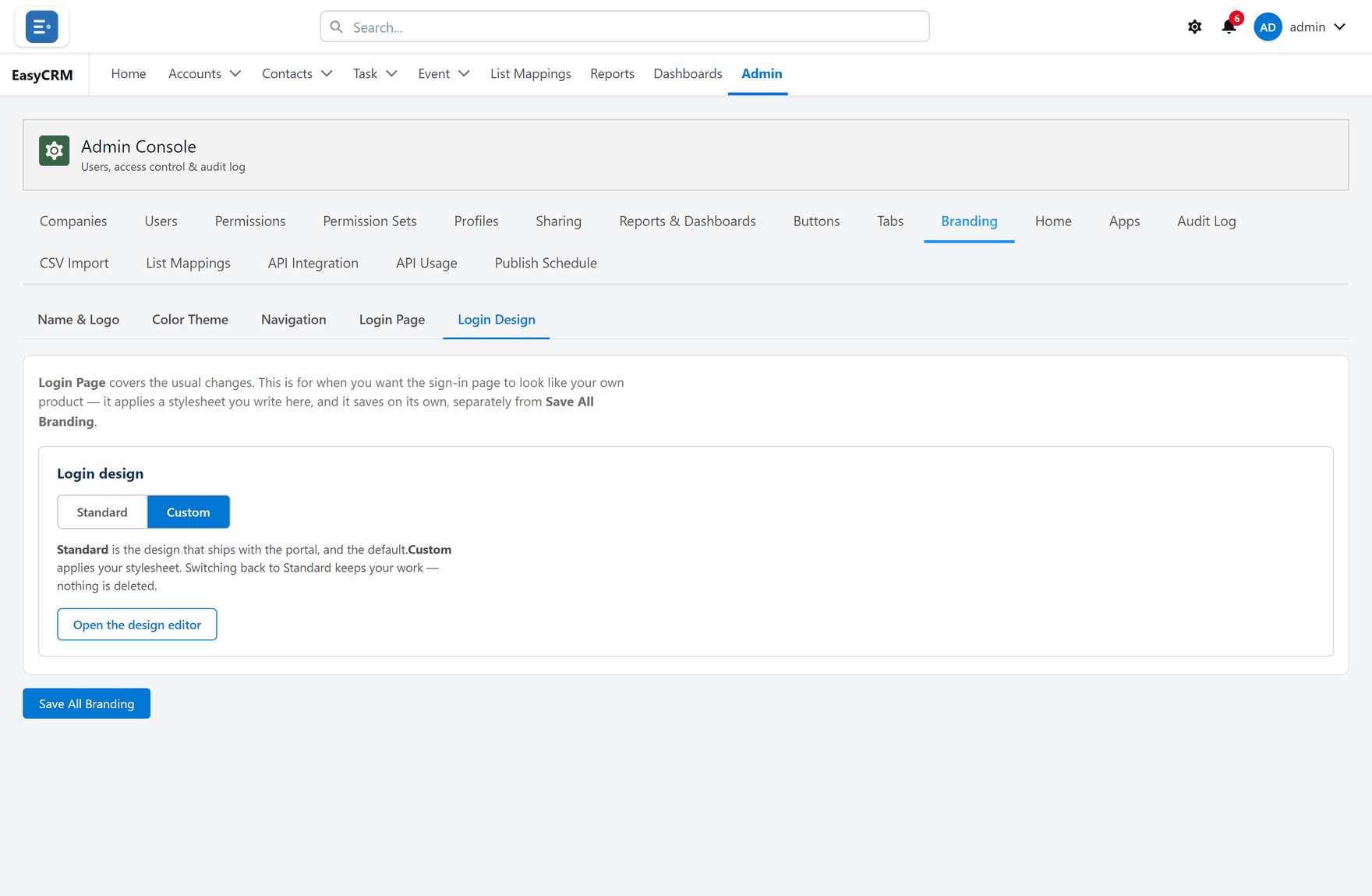
For simple changes — heading, tagline, bullet points, footer — use Login Page instead, which is the panel above it. See Branding.
Draft, preview, publish
Nothing you do takes effect for anybody until you publish. There are three states, and keeping them straight is the whole point.
| Action | What happens |
|---|---|
| Save draft | Kept for you. Nobody else sees it. |
| Live preview | Shows the result as you work. |
| Publish | Everybody sees it from now on. |
Work in a draft, check the preview on both desktop and phone, then publish.
Restore puts back an earlier version. Use it the moment a published change turns out to be wrong — it is faster than undoing by hand.
Building with blocks
Click anything in the preview to edit it. Each block has its own settings: alignment, width, height, tone, and whether it is clickable.
| Block | What it is for |
|---|---|
| Heading | The big line. |
| Text | A sentence or two. |
| Eyebrow | A small label above a heading, with an optional dot. |
| Logo | Your uploaded logo, or an image you add. |
| Link | A clickable line, such as your website. |
| Separator | A dividing line. |
| Spacer | Breathing room between blocks. |
Blocks sit in regions: the brand panel on the left, and above or below the sign-in form on the right.
Desktop and phone
Switch between Desktop and Phone in the preview.
A layout that looks balanced on a wide screen can be cramped on a phone, and plenty of people sign in on one. Check both before publishing.
Standard or custom
| Mode | What people get |
|---|---|
| Standard | The built-in design with your name, logo and colours. |
| Custom | The blocks you have built. |
Switching to Standard does not delete your custom design. You can switch back and it is still there.
If you want help with the design
The editor can produce a prompt to paste into an AI tool, and accept the answer back as a design. Copy AI prompt, paste the reply into Paste AI answer, and check the preview before publishing.
Treat whatever comes back as a draft, not a finished page.
The sign-in boxes cannot be moved
The username box, the password box and the Log In button are fixed. Nothing you add here can move them, hide them, or imitate them.
That is deliberate. It means no design change — by anybody, deliberate or not — can turn the sign-in page into something that collects passwords and sends them elsewhere.