Buttons
What it is. Your own buttons, added to record pages.
What it does. A button can open another system, with the record already loaded.
Why it helps. If your team opens the same other system for every customer, this removes the copying and pasting.
Opening it
Where: Admin → Buttons
- Click Admin in the top menu.
- Click Buttons in the row of tabs.
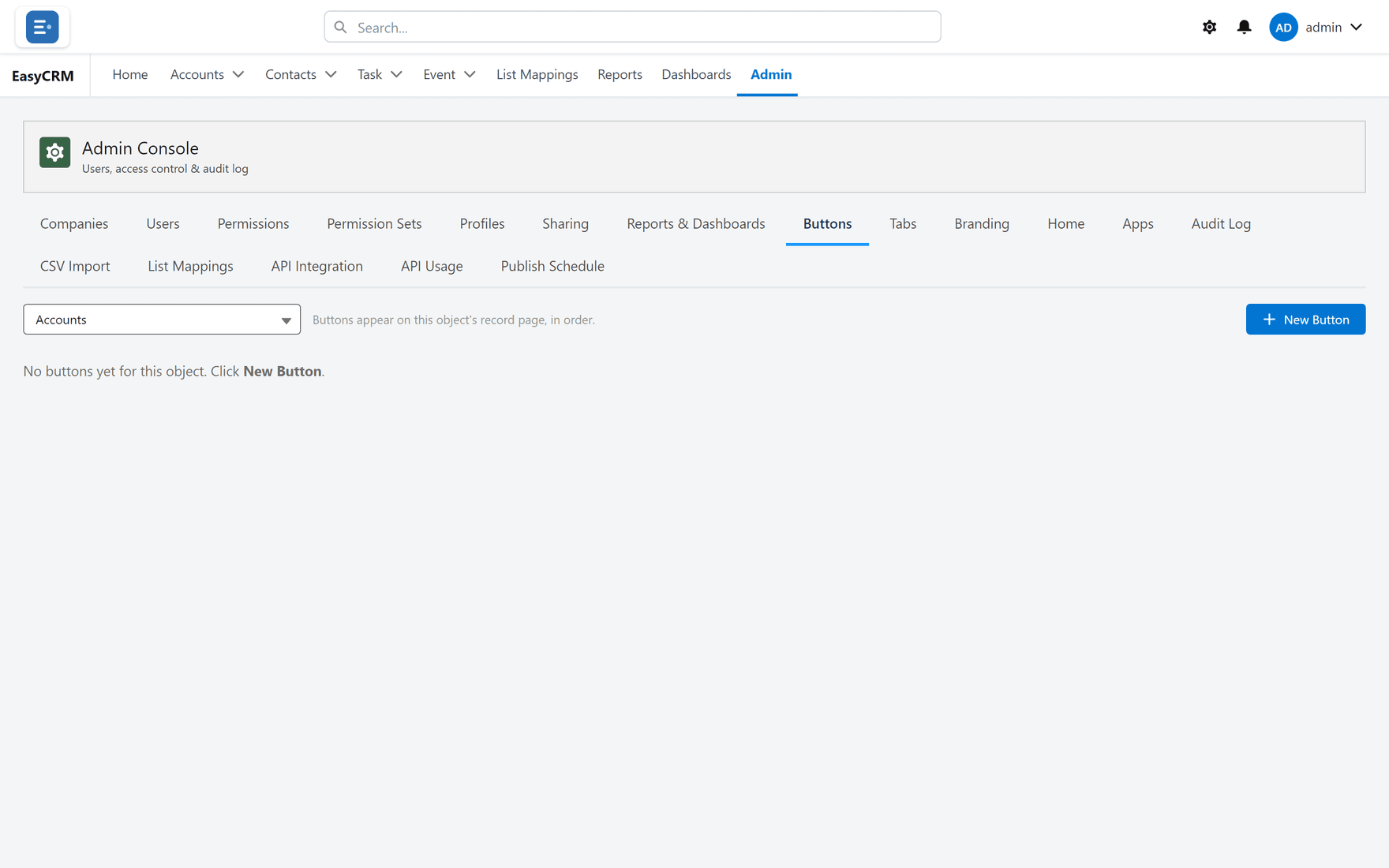
Adding one
Where: Admin → Buttons → New Button
- Click Admin, then Buttons.
- Click New Button.
- Fill in:
- Label — what it says on the button. Keep it short; it sits in a row with others.
- Object — which kind of record it appears on.
- What it does — usually a web address to open.
- Click Save.
The button appears on that kind of record for everybody who can see it.
Putting the record's details into a link
A button is most useful when it carries something from the record — the account's name, say, or its id — into the other system. The editor shows which values you can insert.
Checking it works
- Open any record of that kind.
- Find your button in the row at the top right.
- Click it.
If nothing happens, the address is wrong. Edit the button and try again.
Removing one
Find it in the list and delete it. Nothing on any record changes — the button simply stops appearing.