Branding
What it is. The portal's name, logo, colours and sign-in page.
What it does. It makes the portal look like your company instead of a product nobody has heard of.
Why it helps. People trust something that looks like it belongs to their own company, especially on the sign-in page, which is the first thing they ever see.
Opening it
Where: Admin → Branding
- Click Admin in the top menu.
- Click Branding in the row of tabs.
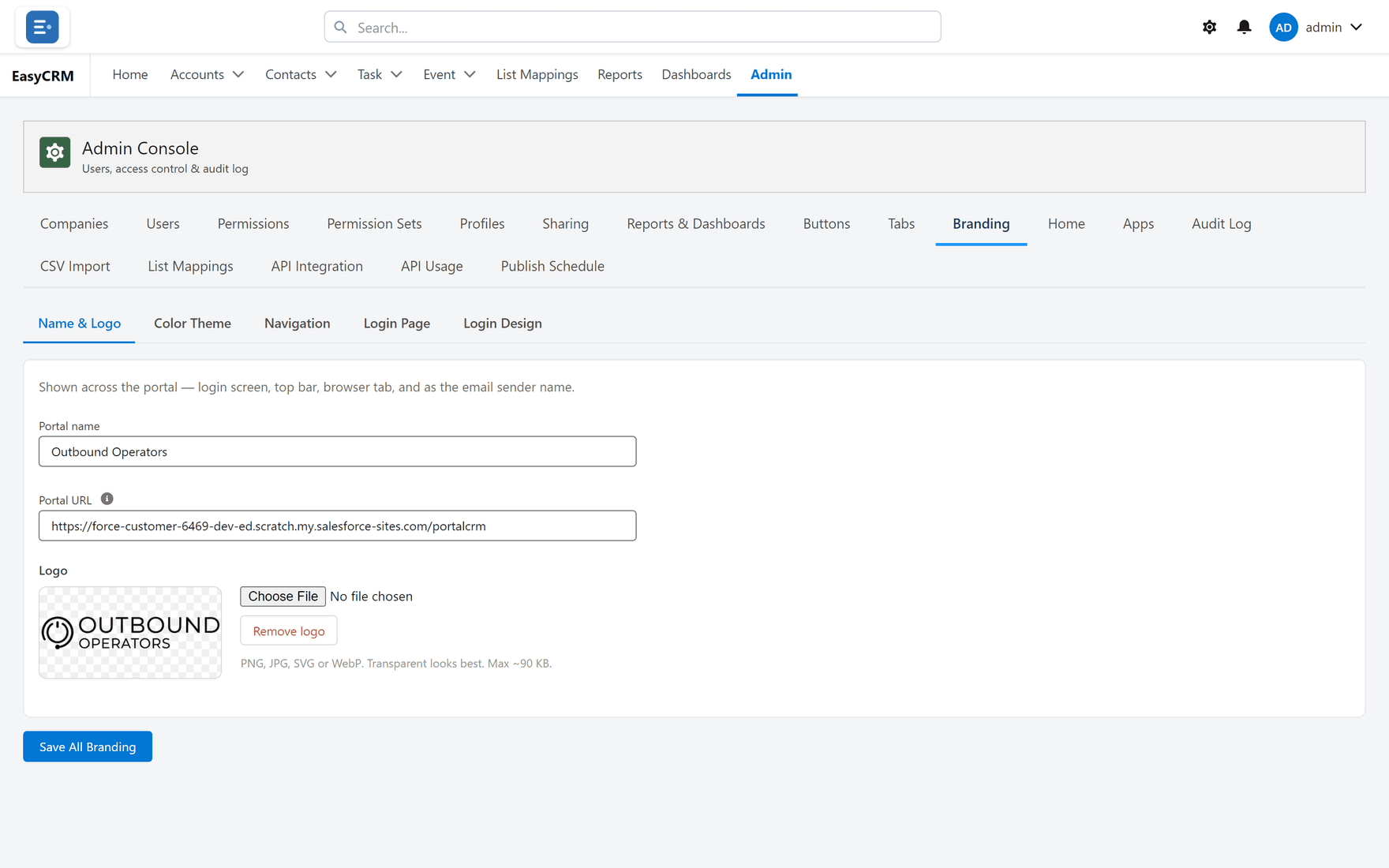
The screen is in five panels. Everything is saved together with Save All Branding at the bottom.
Name and logo
Where: Admin → Branding → Name & Logo
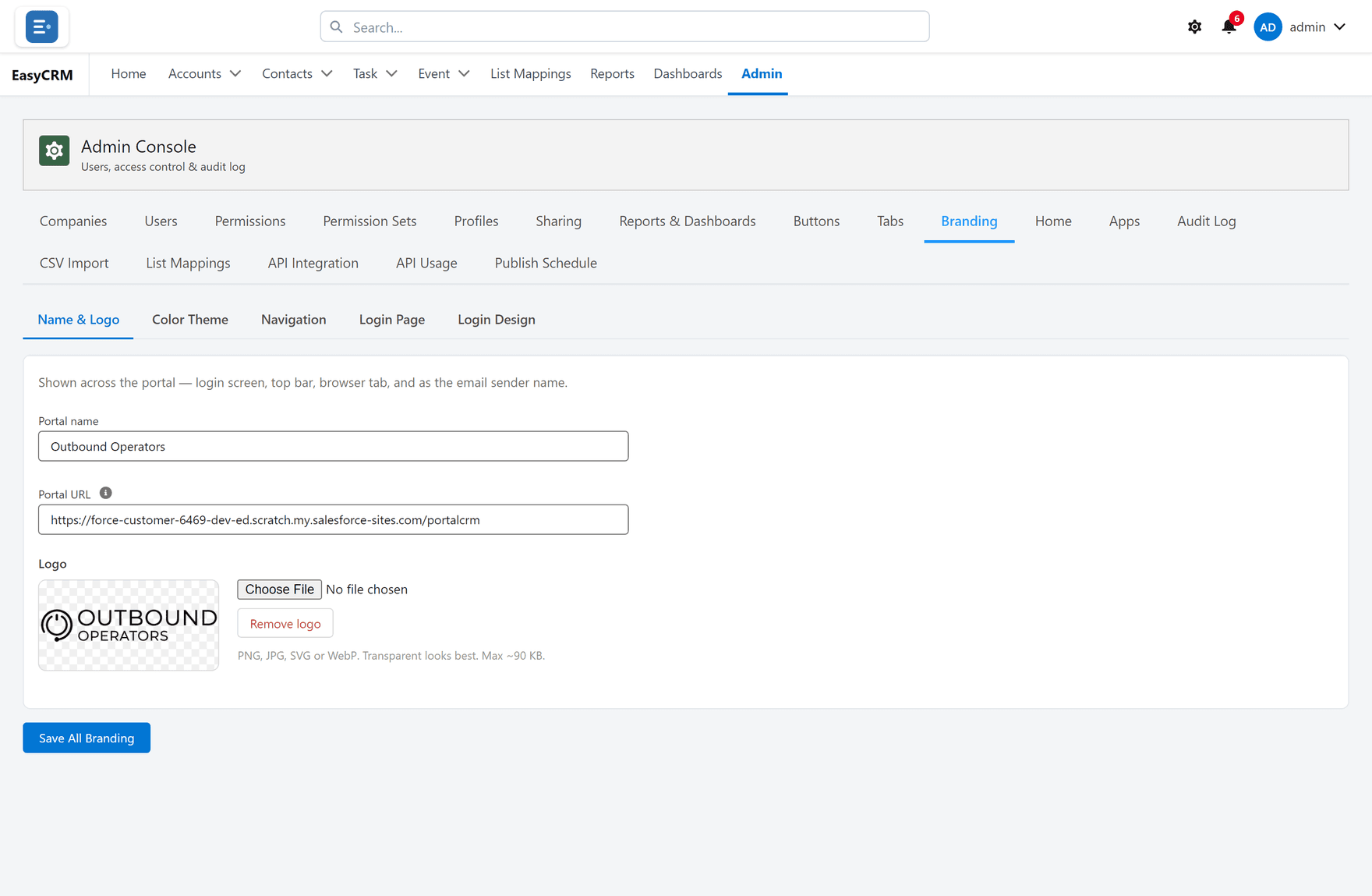
- Type your company's name in the name box. This appears beside the logo and on the browser tab.
- Upload a logo. A wide image with a transparent background works best, because it sits on a coloured bar.
- Remove logo takes it away again and falls back to the name on its own.
- Set the Portal URL if the box is empty — it is the address people use.
Colours
Where: Admin → Branding → Color Theme
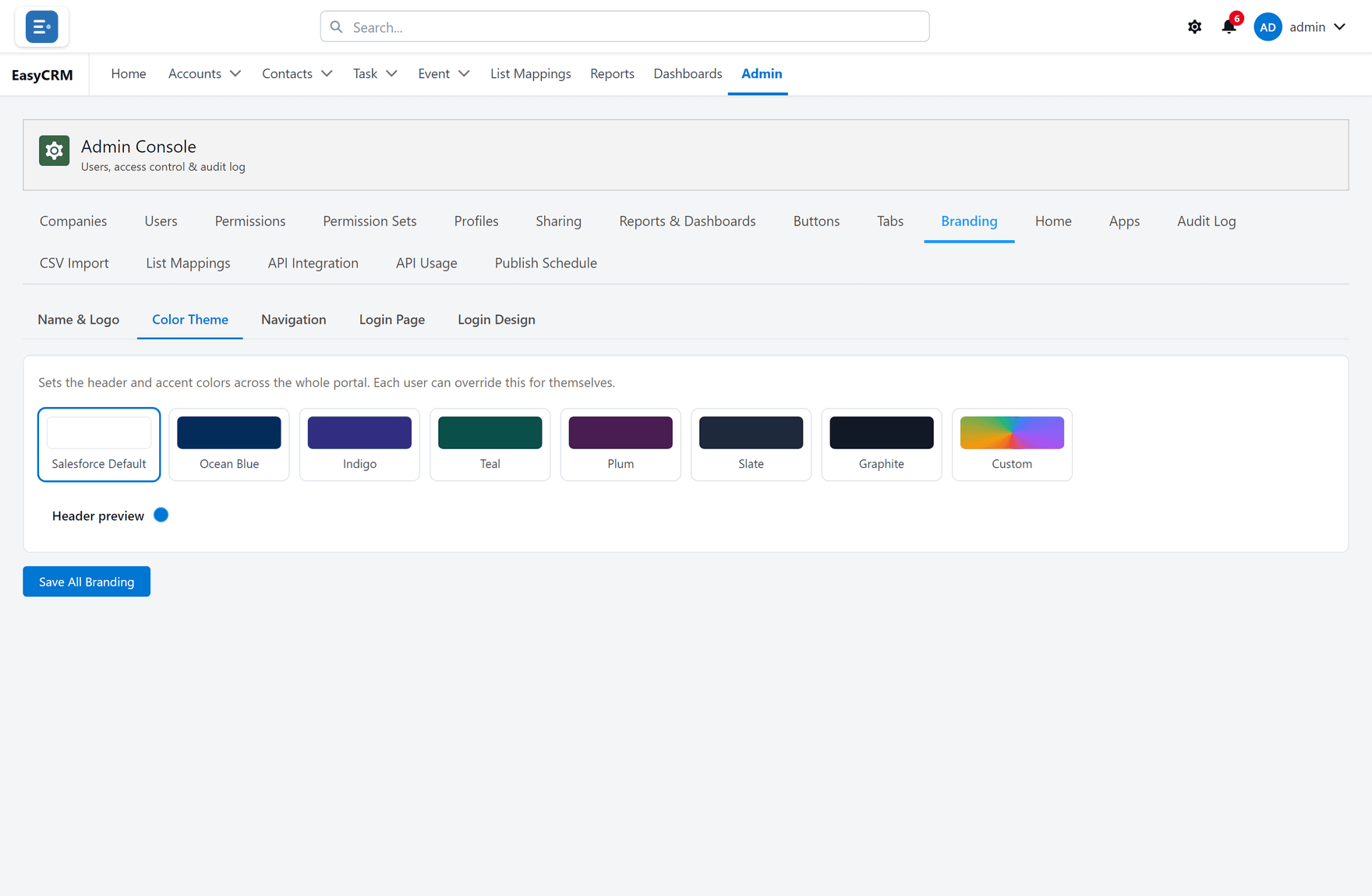
Pick a preset, or set your own colours. The preview updates as you choose.
Check the result with real text in front of you: a dark bar with dark text is unreadable, and the preview is where to notice that.
Navigation
Where: Admin → Branding → Navigation
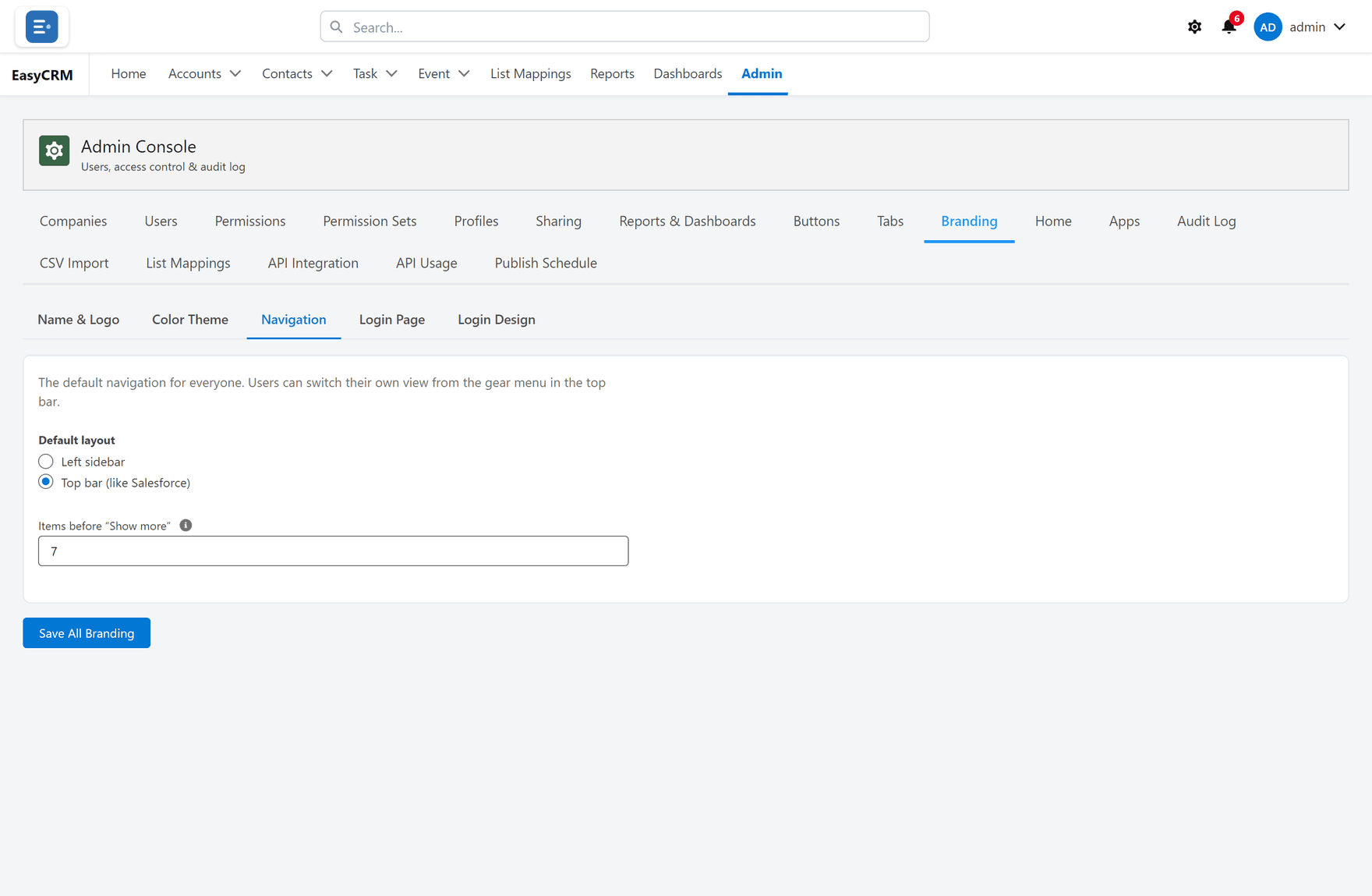
Sets whether people get the menu across the top or down the left by default.
It is only a default. Anybody can change it for themselves with the gear in the top bar.
The sign-in page
Where: Admin → Branding → Login Page
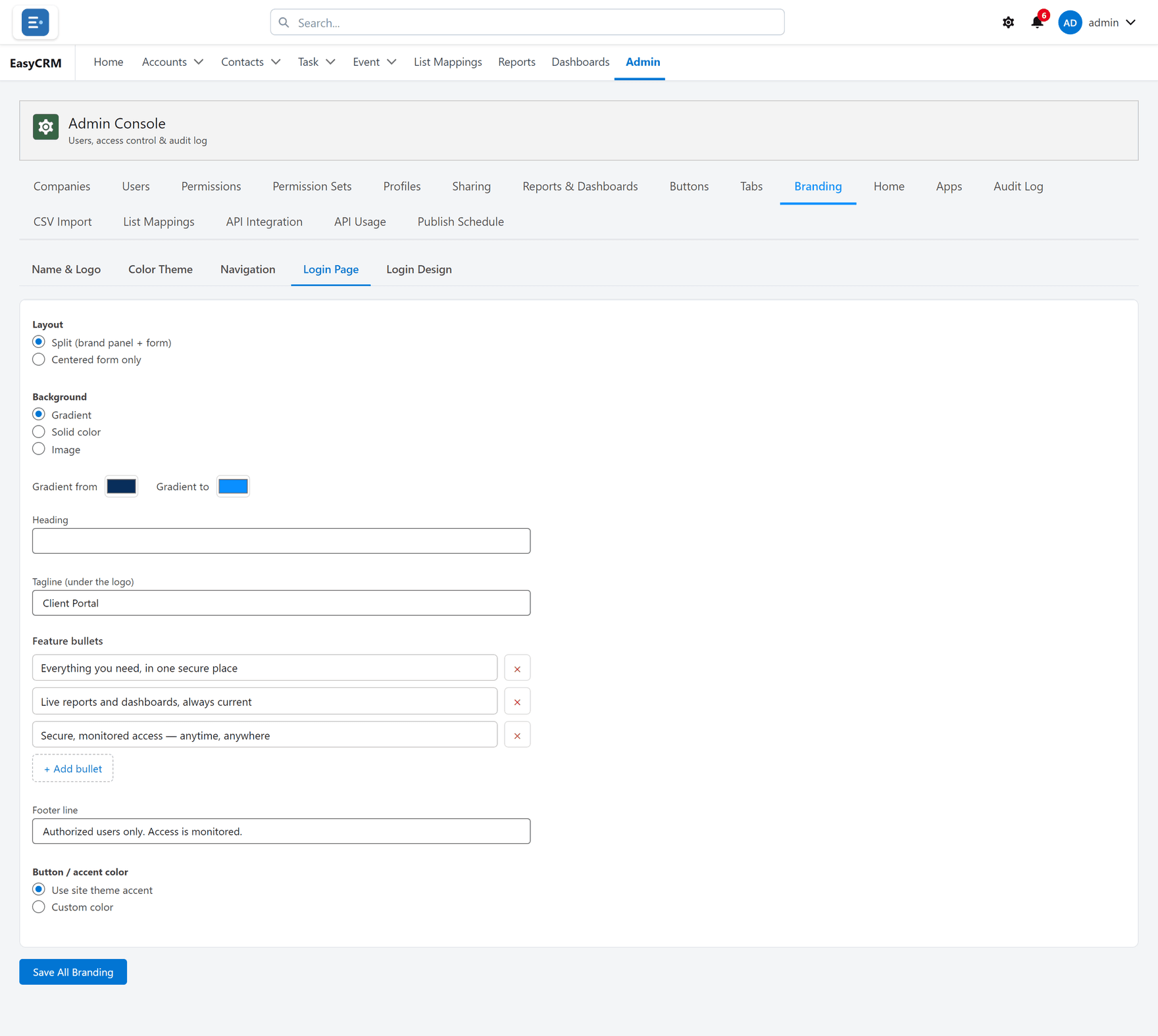
The simple settings: heading, tagline, the bullet points, and the footer line.
The sign-in designer
Where: Admin → Branding → Login Design
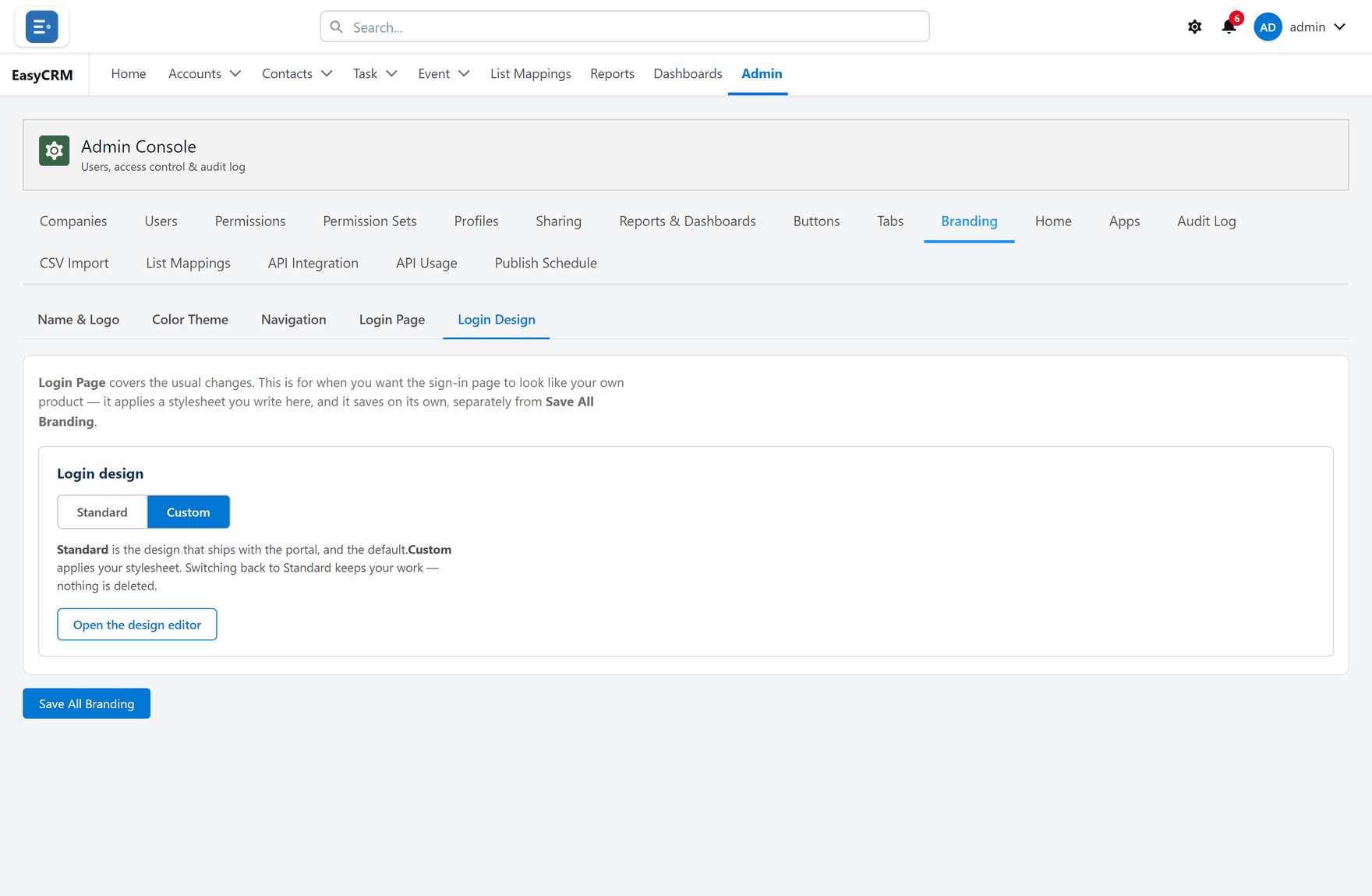
For full control over the sign-in page, including building it out of blocks. See The sign-in page.
Saving
Click Save All Branding at the bottom. One button saves every panel.
People see the change the next time they load a page. They do not need to sign out.