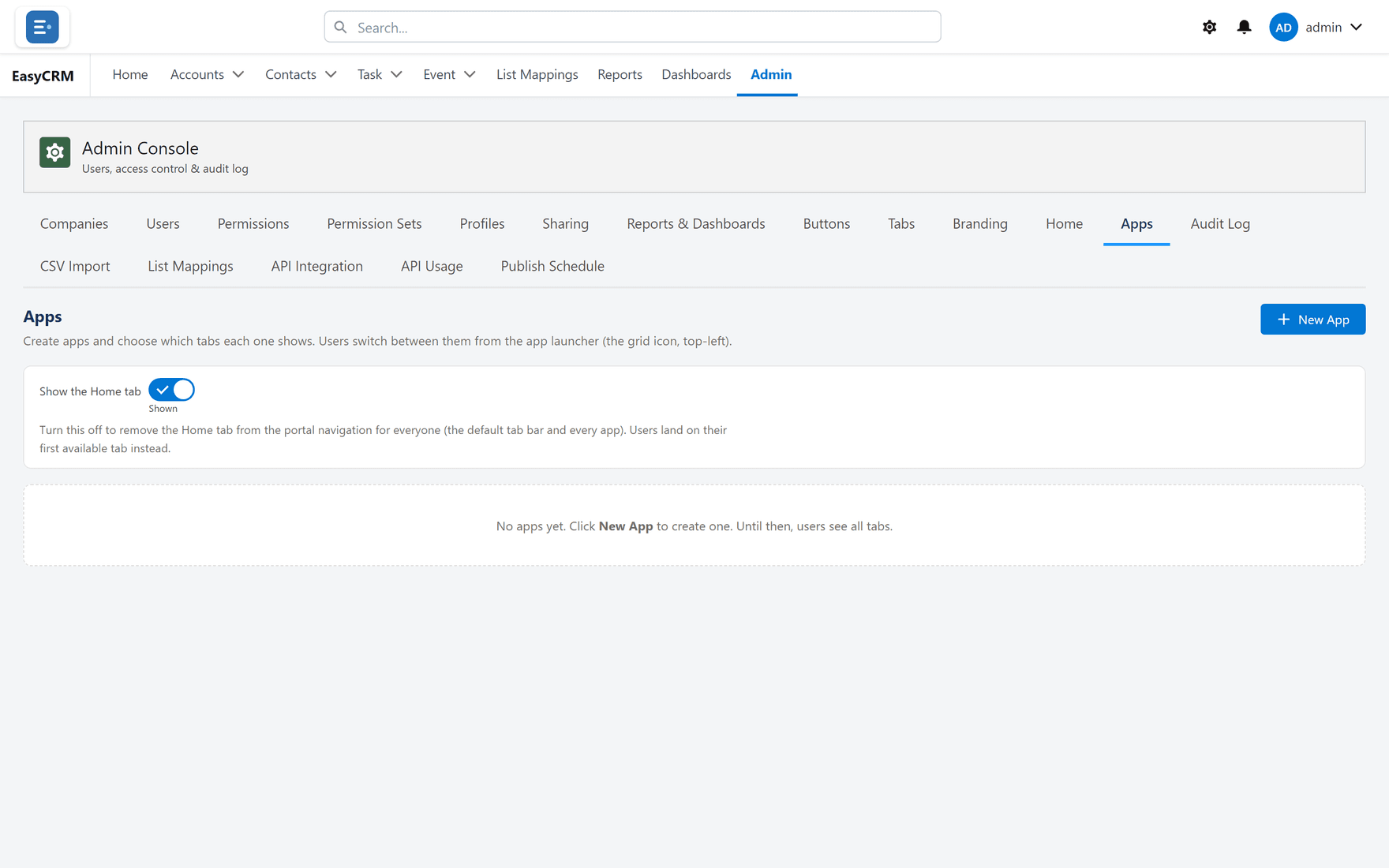
Apps
What it is. A named group of tabs.
What it does. People switch between apps, and each app shows its own set of tabs.
Why it helps. Sales and support see different tabs without either having to ignore the other's.
Opening it
Where: Admin → Apps
- Click Admin in the top menu.
- Click Apps in the row of tabs.
Creating one
Where: Admin → Apps → New App
- Click Admin, then Apps.
- Click New App.
- Give it a name people will recognise, such as "Sales".
- Choose which tabs it shows.
- Click Save.
The tabs available here are the ones turned on under Tabs. Turn a tab on there first if it is missing.
Deciding who gets which app
Where: Admin → Users → Assign Apps
- Click Admin, then Users.
- Click Assign Apps above the table.
- Tick the apps that company may use.
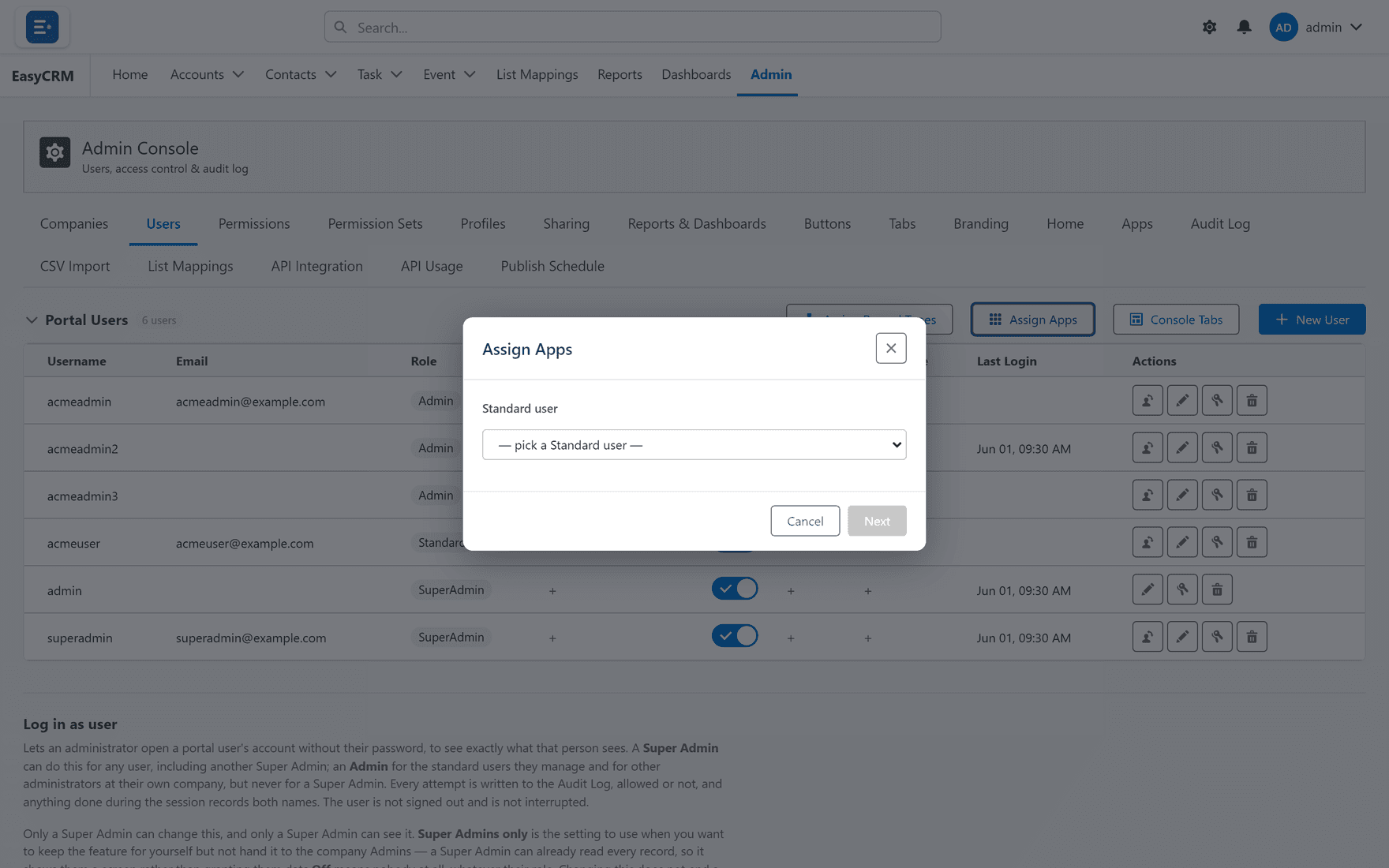
- Click Save.
Leaving the list blank means everybody sees every app, not nobody. That catches people out.
Switching app
People switch using the grid symbol beside the logo, top left. If somebody has only one app, there is nothing to switch to and the control does not appear.
Giving an app its own home page
See Home. Choose the app in the Default (all apps) box and set its cards separately.