The Admin Console
What it is. The single place everything about running the portal is managed.
Who sees it. Only Admins and Super Admins. For everybody else the Admin tab does not appear at all.
Opening it
Where: Admin in the top menu
- Click Admin in the row of tabs across the top of the screen.
- The console opens.
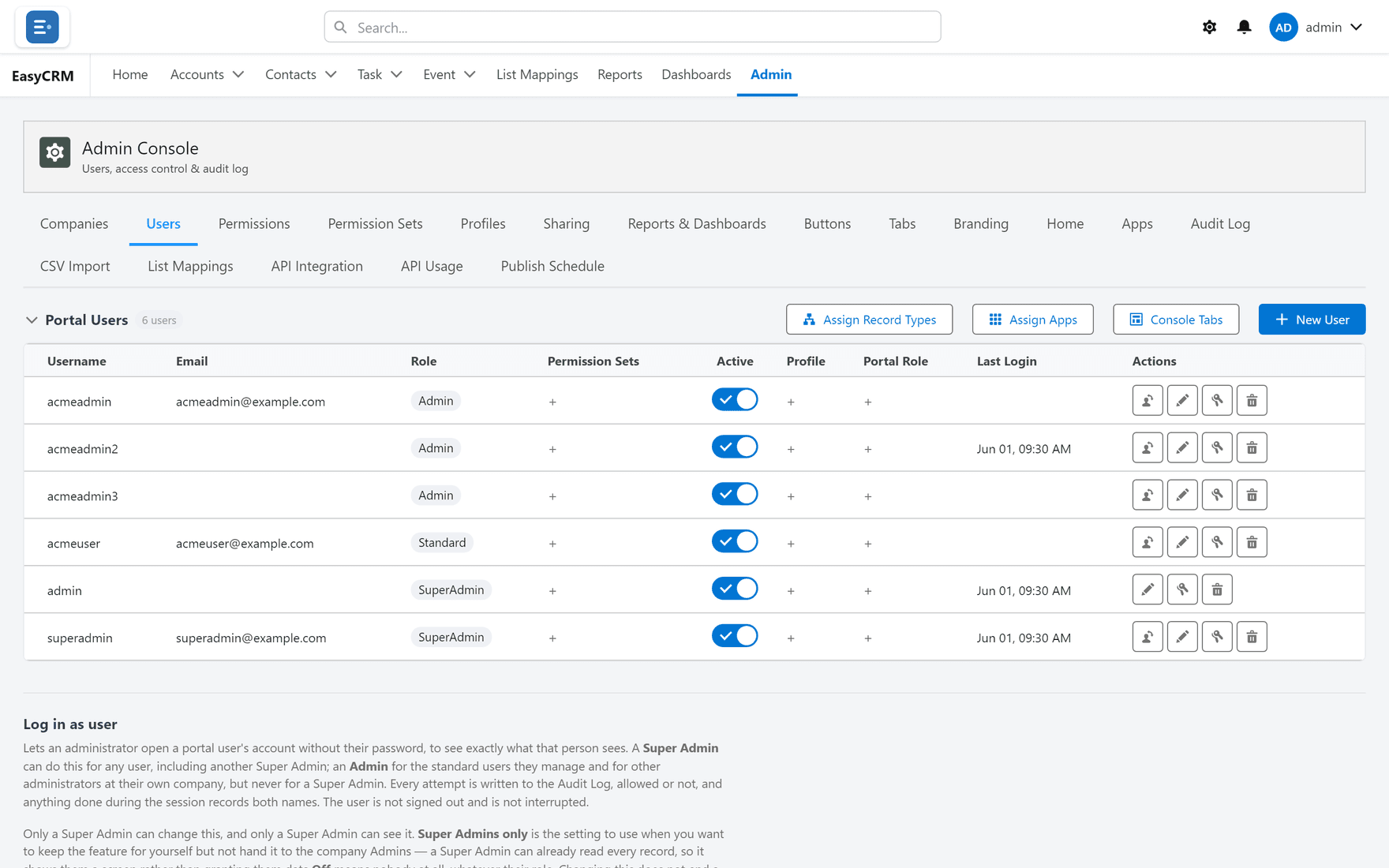
Under the heading is a row of tabs — eighteen of them, wrapping onto a second line. Each one is a separate area. Click a tab to open it.
What each tab is for
| Tab | What you do there |
|---|---|
| Companies | Set up the companies whose people use the portal. |
| Users | Add people, set their role, reset passwords. |
| Permissions | Decide what each role may do with records. |
| Permission Sets | Bundle extra access and hand it to individuals. |
| Profiles | Set the starting access for a kind of person. |
| Sharing | Decide who can see whose records. |
| Reports and Dashboards | Share report folders between companies. |
| Buttons | Add your own buttons to record pages. |
| Tabs | Choose which tabs appear, and in what order. |
| Branding | Set the portal name, logo and colours. |
| Home | Choose what everybody sees on the home page. |
| Apps | Group tabs into apps. |
| Audit Log | See who did what. |
| CSV Import | Load records from a spreadsheet. |
| List Mappings | Line up incoming columns with your fields. |
| API Integration | Let another system read your data. |
| API Usage | See how much the API is being used. |
| Publish Schedule | Send reports to Salesforce on a timetable. |
Two more areas that are not tabs here
- Page layouts — reached from a record, not from this console.
- The sign-in page — reached from Branding.
Who sees which tabs
A Super Admin sees all eighteen.
An Admin sees only the ones a Super Admin has allowed for their company. That is set under Users, with the Console Tabs button.
Where to start on a new portal
- Companies — create the company first; users belong to one.
- Users — add people.
- Permissions — decide what each role may do.
- Sharing — decide which records they may do it to.
- Tabs and Branding — make it look right.
Steps 3 and 4 are the pair people most often get half-right. Both are needed.